
Gehaltsanpassungen
Gehaltsanpassungen sind Teile des Verdienstes, die direkt von einer Gehaltsabrechnung für einen bestimmten Zweck abgezogen werden, unabhängig davon, ob freiwillig oder verpflichtend.
Wenn der Abzug freiwillig ist, werden sie in der Regel als Abzüge betrachtet. Wenn der Abzug gerichtlich angeordnet oder unfreiwillig ist, wird er manchmal als Lohnpfändung bezeichnet. In Odoo werden diese alle einheitlich als Gehaltsanpassungen bezeichnet.
Beachten Sie, dass Gehaltsanpassungen auch verwendet werden können, um Mitarbeitern wiederkehrende Geldbeträge zu geben, wie z. B. einen Bonus, der in mehrere Zahlungen aufgeteilt ist.
Gehaltsanpassungstypen
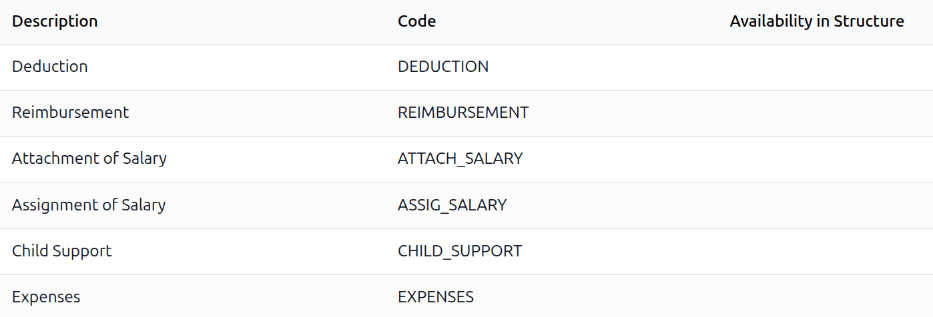
To view the currently configured salary adjustment types, navigate to , and the Salary Input Types dashboard loads. This displays all other salary inputs, not only the various salary adjustments.
The three default salary adjustment types and uses that appear in this list are:
Attachment of Salary: Used primarily for voluntary regular payments from the employee’s wages, such as paying into a savings program, charity contributions, union dues, etc.
Assignment of Salary: Used primarily for legally enforceable orders requiring part of an employee’s wages to be paid to another party. This is typically used when repaying debts, court-ordered judgments, etc.
Child Support: Used for any child support payments.
Each salary adjustment type displays the Description of the adjustment type and the Code used when calculating payslips. If it is restricted to a specific salary structure, it is listed in the Availability in Structure column.
Neue Gehaltsanpassungstypen erstellen
Gefahr
Bei der Installation der Anwendung Personalabrechnung sind die vorkonfigurierten Standard-Gehaltsanpassungstypen mit einer Vielzahl von Regeln verknüpft, die mit verschiedenen Gehaltsstrukturen sowie dem installierten Lokalisierungspaket verbunden sind.
It is not recommended to alter or modify any of the preconfigured salary adjustment types, especially if they have been previously used on payslips in the database. Doing so may affect various salary rules and can prevent the creation of payslips.
Ein neuer Gehaltsanpassungstyp kann erstellt werden, dies sollte jedoch nur erfolgen, wenn es absolut notwendig ist. Ein Gehaltsanpassungstyp muss mit einer Gehaltsregel verknüpft sein, um in der Gehaltsberechnung berücksichtigt zu werden.
To make a new type of salary adjustment, navigate to . Click the New button on the Salary Input Types dashboard, and a blank Salary Input Types form loads. Configure the following fields on the form:
Description: Enter a description for the new salary adjustment type.
Available in adjustments: This option must be enabled to indicate the input type is available to use as a salary adjustment. When enabled, additional fields appear on the form.
Is quantity?: Leave this option unchecked, as it removes the ability to enter a set monetary amount.
No end date by default: Enable this option if the adjustment is indefinite, such as an attachment to pay regular fees such as dues or licenses. Do not select this if the adjustment is based on a total amount that must be reached, such as a court settlement repayment.
Code: Enter a code to be used in the salary rules to compute payslips.
Availability in Structure: If the salary adjustment type should only be used in a specific payroll structure, use the drop-down menu to select the structure.
Salary adjustment dashboard
To view the currently configured salary adjustments, navigate to , and the Salary Adjustment dashboard loads.
All salary adjustments appear in a list view. Each salary adjustment displays the name of the Employees, the Start Date, a descriptive Note, the salary adjustment Type, and the Amount. An Until column appears as well, which details when the salary adjustment ends, either a monetary amount to be reached, or Indefinite if the adjustment has no end.
At the end of each line is a status tag, with a green Running tag for active adjustments, or a gray Closed tag for adjustments that have ended.

Create salary adjustments
To create a new salary adjustment, click the New button on the Salary Adjustment dashboard, and a blank Salary Adjustment form loads. Enter the following information on the form:
Employees: Select the desired employees using the drop-down menu. Multiple employees can be listed in this field only if all the other field values are identical.
Type: Select the specific salary adjustment type using the drop-down menu.
Payslip Amount: Geben Sie den Betrag ein, der von jedem Gehaltsscheck abgezogen wird.
Negative Value: Enable this checkbox if the salary adjustment is taken into account as a negative value.
Dauer: Wählen Sie die Zeitdauer für die Gehaltsanpassung aus. Die Optionen sind:
Einmalig: Es wird nur eine Zahlung vom Gehaltsscheck des Mitarbeiters abgezogen.
Limited: The employee is paying a specific monetary amount in total, divided up among multiple paychecks. The salary adjustment automatically ends once the specified total is paid.
Unbegrenzt: Der Mitarbeiter leistet wiederkehrende Zahlungen für etwas ohne Endpunkt, wie z. B. Beiträge zu einem Rentenfonds oder eine Spende an eine Wohltätigkeitsorganisation.
ab: Wählen Sie über die Kalenderauswahl das Datum aus, an dem die Gehaltsanpassung in Kraft tritt.
Bemerkung
If the Duration field is set to Limited, an until (amount) paid field appears. Enter the monetary amount that must be reached to end the salary adjustment.
Notiz: Geben Sie eine kurze Beschreibung der Gehaltsanpassung ein.

Wenn Gehaltsanpassungen für mehrere Mitarbeiter in einem einzigen Gehaltsanpassungsformular erstellt werden, klicken Sie nach dem Ausfüllen des Formulars auf die Schaltfläche Individuelle Anhänge erstellen. Dies erstellt separate Gehaltsanpassungen für jeden der im Feld Mitarbeiter aufgeführten Mitarbeiter.
After the individual salary adjustments have been created for multiple employees, the screen loads a list view of the newly created individual salary adjustments. All the salary adjustments have a status of Running, since they are currently active.
Gehaltsanpassungen verwalten
Salary adjustments that have a set amount due in total are automatically closed once the Until amount entered on the salary adjustment form has been paid in full. For all other salary adjustments, it is necessary to manually close the adjustment to stop taking money out of future paychecks.
If a salary adjustment has been fulfilled or the employee no longer wishes to contribute voluntary funds, the record must be manually updated. To change the status, open the Salary Adjustment dashboard by opening the Salary Adjustment dashboard.
Click on the record to update, and the detailed Salary Adjustment form loads. On the individual record, click the Mark as Completed button in the corner, and the status changes to Closed.
Example
Das Folgende ist ein Beispiel dafür, wann ein Gehaltsabrechnungsmanager eine Gehaltsanpassung manuell von Laufend auf Abgeschlossen ändern muss.
Rose Smith has a salary adjustment for a lawsuit settlement, where she is required to pay $3,000.00. A salary adjustment is created that takes $250.00 a month out of Rose’s paycheck to go towards this settlement payment.
After six months, Rose has paid $1,500.00 from her salary. She receives a tax refund and uses the money to pay off the remainder of the lawsuit settlement. After sending the relevant documentation to the payroll manager, showing the settlement has been paid in full, the payroll manager manually changes the status of her salary adjustment to Closed.