AI-agents
An AI agent is a smart virtual assistant in Odoo that can understand natural language, perform tasks, and assist users by interacting with Odoo tools. Agents are a core component of the AI structure in Odoo. Each agent has a defined purpose, prompt, and a set of skills and tools that guide its behavior.
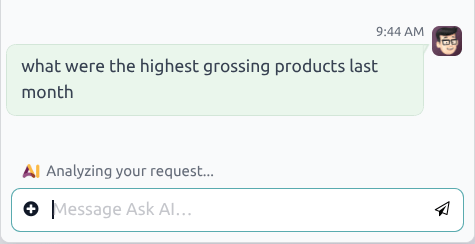
When interacting with an AI agent, the conversation interface may display intermediate status messages while a request is being processed.
These messages reflect the current step of the interaction, such as analyzing the request, consulting sources, or preparing an action, before the final response is generated.
Agents are formed of two main components, Skills and Sources.
Skills are the instructions and roles that inform the agent of what tasks they need to complete. Tools are assigned to skills, and are the actual functions the agent can utilize to perform tasks.
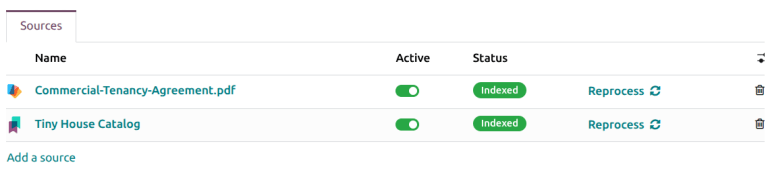
Bronnen voorzien de agent van de informatie die ze nodig hebben om hun taken te voltooien.
Belangrijk
While many AI features can be used in Odoo without the AI application, creating and customizing agents requires that the AI application is installed.
AI-prompts in Odoo
Before working with AI agents, it is important to understand some basic concepts regarding AI prompts.
An AI prompt is a set of written instructions or context given to an AI model that tells it how to respond to a request, or what role to take. Prompts can define:
the tone, style, and persona of the AI model
de reikwijdte van wat het model kan doen
het type output dat van het verzoek wordt verwacht
In Odoo, each AI agent is assigned a System Prompt, which defines the agent’s overall role, purpose, and behavior. It acts as the core mission statement of the agent, and drives all interactions. During a conversation, the system prompts and skill instructions are continuously applied. They influence how the agent interprets messages, selects tools, uses sources, and determines whether additional actions are required before responding.
Each Skill also includes its own prompt-like component, called Instructions. Instructions are skill-specific guidelines that refine how the agent behaves within a certain context or workflow, and how it interacts within the Odoo framework.
Instructies bevatten vaak:
A purpose, or what the skill covers.
Rules or constraints for the agent to follow when assigned this skill.
Step-by-step workflows for how to complete a specific action.
Technical details needed to complete any actions.
Agentstructuur
Skills
Skills are a collection of instructions and tools that define how an agent behaves within a specific context. Essentially, the skills define what an agent can do within the database. Skills guide conversations, telling the agent what it can do, how it can do it, and when it should do it.
Belangrijk
If an agent is not assigned any Skills, it is only able to provide information. It cannot complete tasks or make changes to the database.
Within each skill is a detailed prompt, which provides the agent with more in-depth instructions on how to perform the tasks associated with that skill, define the boundaries of its behavior, and determine how it should interpret user intent. These prompts ensure that the agent follows a consistent reasoning pattern and uses the appropriate tools to generate accurate, context-aware responses.
The following skills are preconfigured in the AI app:
View Builder: Supports the interpretation of a user query to open the appropriate Odoo view with a set of tools necessary to perform the search. Natural language queries can also include time-based grouping instructions. This allows agents to group results by time intervals such as day, month, or year when querying records.
Information retrieval: A collection of tools to retrieve information about the models.
Update Records: Tools to update records.
Create Records: Tools to create records.
Generate Images: A collection of tools to support image generation. Load this skill when the user asks to generate or enhance an image.
Web Search: Enable the Agent to explore the internet in real time.
Website Builder: Tools for editing Odoo website pages.
Create Leads: A collection of tools to support automated lead creation. This skill is only available if the CRM app is installed.
Within each skill is a set of Instructions, which act as a prompt and provide guidance for the structure of the interaction, and one or more AI Tools, which indicate the functions the agent can perform.
Tools
Tools are the functions the agent can perform in Odoo. These include actions like creating a lead or opening a view. Tools extend the purpose of the agent beyond conversations, they enable real actions. The available tools in a database vary based on the applications installed. Multiple AI Tools can be assigned to a single skill.
Bronnen
Bronnen zijn de gegevens waarnaar de agent kan verwijzen bij het genereren van antwoorden of het voltooien van taken. Bronnen worden geïndexeerd zodat de agent relevante informatie kan ophalen wanneer een gebruiker een vraag stelt.
Example
Een agent die is ontworpen om klantenservicevragen te beantwoorden, heeft Kennis-artikelen opgenomen als bronnen, waaronder veelgestelde vragen.
Bronnen kunnen in de volgende formaten zijn:
Pdf’s
Weblinks
Documenten (geüpload in de Documenten-applicatie)
Kennis-app-artikelen
Belangrijk
Als de optie Beperken tot bronnen is ingeschakeld voor een agent, kan de agent alleen informatie gebruiken uit de geüploade en actieve bronnen.
Uploaded files
During a conversation with an AI agent, additional context can be provided by uploading files. Files are temporarily treated as sources for the ongoing discussion. The agent can use their content to answer questions, summarize information, or extract relevant details.
The provided files only influence the current conversation, unless they are explicitly added as sources on the agent.
To attach a file in a conversation, click the (plus circle) icon in the message window, then click Attach Files. In the file explorer window, select one or more files to attach, then click Open.
Example
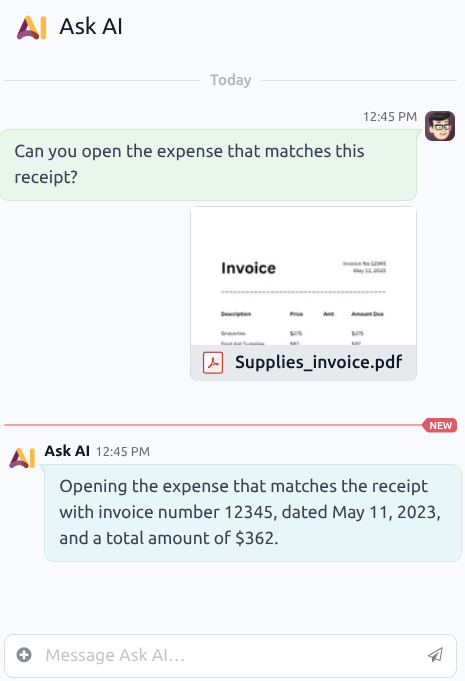
A manager finds a receipt for supplies and is unsure whether it has already been submitted to the Expenses app for reimbursement. They open a conversation with the Ask AI agent and enter the following prompt:
Can you open the expense that matches this receipt?
They attach the receipt to the message. After the agent analyzes the attachment, it opens the view to the correct expense.
Gain insights from previewed files
When a document is open in preview mode, AI agents can use the content of the previewed file as context for the conversation.
First, navigate to the app and click a document to preview it. Click the AI icon at the top of the page to open the Ask AI chat window. From here, click one of the default prompts to use them, or enter a custom one in the message window.
In this case, the agent’s responses are grounded in the file currently being previewed, in combination with any other sources assigned to the agent.
Maak een nieuwe agent aan
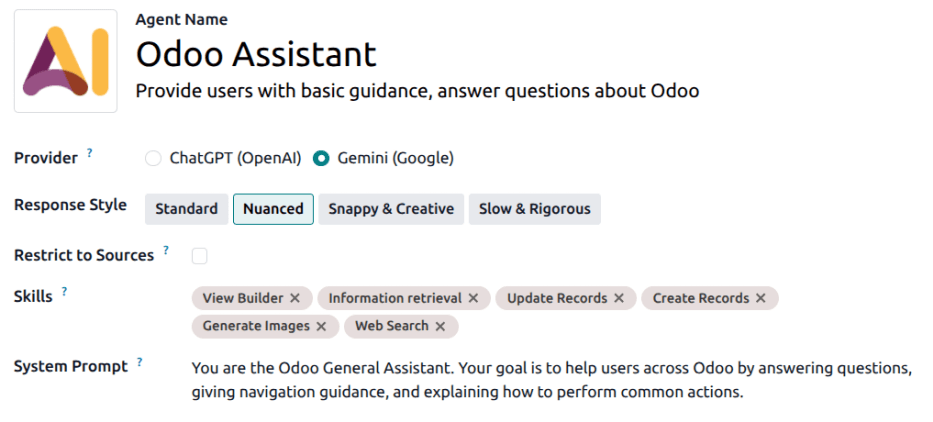
To create a new AI agent, navigate to the app and click New. Enter an Agent Name, then add a short description, if desired.
Tip
Before creating a new agent, it is recommended to have a clear use case in mind. This helps when writing out the System Prompt, and assigning the Skills and AI Tools.
Selecteer vervolgens een Antwoordstijl. Dit beheert de algemene toon die de agent gebruikt bij het reageren op een vraag. Kies uit een van de volgende opties:
Standard: Maintains a balanced, professional tone. Provides clear, direct answers with a moderate level of detail.
Nuanced: Provides sophisticated and deeply contextualized responses. Explores multiple perspectives, acknowledges subtleties, and uses precise, academic language where appropriate.
Snappy & Creative: Punchy, vibrant, and highly engaging. Prioritizes brevity and wit. Uses expressive language, metaphors, and a dynamic structure to keep the user interested.
Slow & Rigorous: Prioritizes absolute precision and logical soundness above all else. Breaks down complex steps, cites reasoning clearly, and verifies every claim. Adopts a meticulous and formal tone.
Click the Restrict to Sources checkbox to limit the agent to only respond based on the provided resources.
Next, select one or more Skills for the agent. As explained above, Skills include both instructions and tools that guide the agent in helping users complete a task.
Voer een Systeemprompt in met gedetailleerde instructies voor de agent over hun rol en verantwoordelijkheden.
Tip
De specificiteit en lengte van de Systeemprompt kunnen variëren, afhankelijk van het gebruiksgeval voor de agent. Gebruik de vooraf geconfigureerde agents als voorbeeld van de mogelijke informatie.
Als Bronnen nodig zijn voor de agent, scroll naar het tabblad Bronnen en klik op Een bron toevoegen.
Selecteer een formaat:
Upload a File: Select the appropriate file from the explorer window, and click Open.
Add a Link: Paste the URL. Multiple links can be added at once, paste one link per line. Click Save.
Add from Documents (uploaded in the Documents application): Click the checkbox next to one or more documents, then click Select.
Add from Knowledge: Click the checkbox next to one or more articles, then click Select.
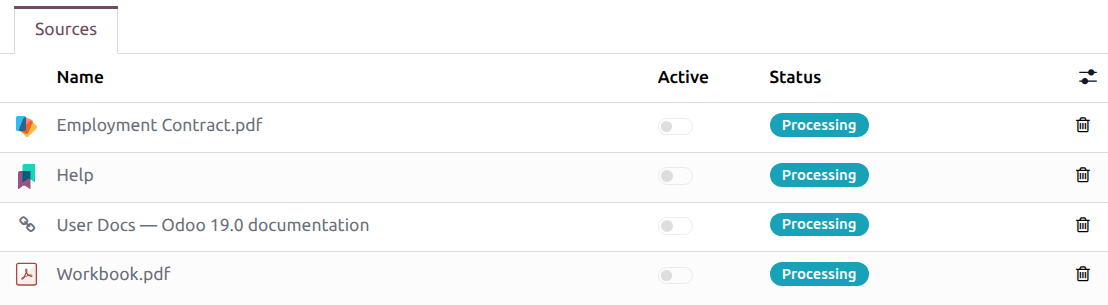
Zodra een bron is toegevoegd, werkt het veld Status bij om de huidige status weer te geven. De bron is klaar wanneer de status verandert van Verwerken naar Geïndexeerd. Schuif de Actief-schakelaar om de bron te activeren.
Belangrijk
If a source fails to upload, it could be the result of a conflict with the selected provider.
Klik op de Testen-knop om een gespreksvenster te openen en de nieuwe agent te testen.
Manually reprocessing sources
If the content of a source changes after it has been indexed, it may be necessary to reprocess the source so that agents use the most recent information. Reprocessing can be triggered manually and ensures that updated documents, links, or knowledge articles are reflected in future agent responses.
To reprocess a source, navigate to the app. Select an AI agent, and on the kanban card, click the (vertical ellipsis) icon, then click Configuration.
On the Sources tab, click Reprocess next to any source that should be updated.