
Pagina’s
Odoo allows you to create different kinds of webpages, including with the help of AI, publish them, and define their structure and visibility by configuring page properties. Pages can be duplicated, deleted, and redirected.
Page types
Static pages, such as the homepage or custom pages, contain fixed content that does not change dynamically. You can manually create these pages, define their URLs, and adapt their properties as needed.
Dynamic pages, on the other hand, display content that changes automatically based on the
data in the database and user interaction (e.g., filtering). They are generated automatically by
Odoo, for example, when installing an app or module (e.g., /shop or /blog) or publishing a
new product or blog post. Dynamic pages are managed
differently from static pages.
Pagina aanmaken
Website pages can be created from the frontend and the backend.
To create a new website page:
Either open the Website app, click New in the top-right corner, then select Page;
Of ga naar en klik op Nieuw.
In the New Page pop-up, select a template. Templates are grouped by type:
Basis: pagina voor meerdere doeleinden. Er is ook een lege pagina beschikbaar om helemaal opnieuw te beginnen.
About: Information about the brand and company.
Landing Pages: Summary of company content and information.
Galerij: showcase voor foto’s en media.
Services: Overview of the services offered by the company.
Pricing Plans: Overview of the subscriptions and prices.
Team: The people behind the company.
Custom: Custom-created templates. To add a custom template, open the page you want to save as a template and edit the page’s properties.
In the New Page pop-up:
Enter a Page Title. This title is used in the menu and the page’s URL.
Schakel Toevoegen aan menu uit als de pagina niet in het menu moet verschijnen.
Enable Generate text to use the AI tool to build the page.
Klik op Create.
If needed, customize the page’s content and appearance using the website editor or translate it, then click Save.
Publiceer de pagina.
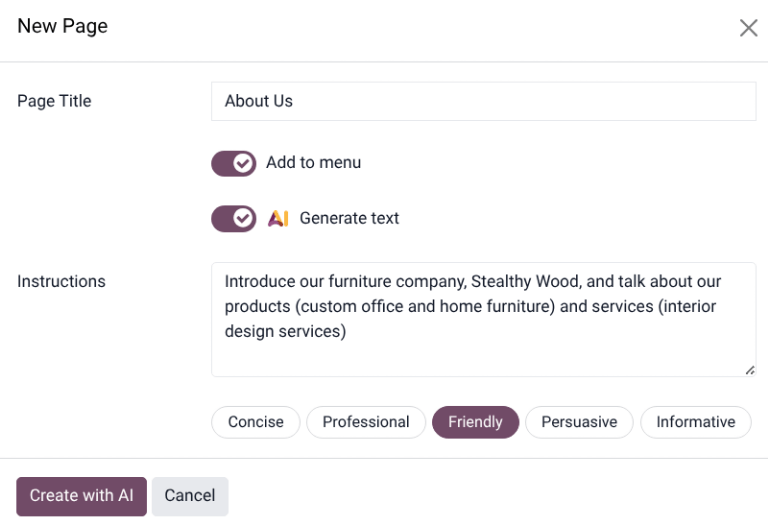
AI webpage generator
To generate content using AI when creating a new page, follow these steps:
After choosing a template, in the New Page pop-up, toggle the AI Generate Text switch.
In the Instructions field, enter a short description of the page being created. This should include a few important keywords that define the page’s focus and scope.
Select one of the tone options for the page, such as Concise, Professional, Friendly, Persuasive, or Informative.
Click Create with AI. It may take a few moments for the webpage to load.
Notitie
The AI application does not need to be installed on the database to use the webpage generator.
Content created by the AI generator can be customized using the website editor.
The AI webpage generator is not available for the Blank page type.
The webpage generator may create buttons. Before publishing the webpage, confirm that all buttons are linked to an active webpage.
Zie ook
Pagina’s publiceren/depubliceren
Pagina’s moeten gepubliceerd worden om zichtbaar te zijn voor websitebezoekers. Open de pagina en schakel de schakelaar rechtsboven van Gedepubliceerd naar Gepubliceerd of omgekeerd om een pagina te publiceren of depubliceren.

Notitie
Het is ook mogelijk om:
Publish/unpublish a page from the page properties.
Publish/unpublish several pages at once. To do so, go to , select the pages, then click Actions and select Publish or Unpublish.
Pagina-eigenschappen
To modify a static page’s properties, access the page you wish to modify, then go to , where the following properties can be adapted:
Page Title: Modify the page’s title.
Page URL: Modify the page URL in the field. In this case, you can redirect the old URL to the new one if needed. To do so, enable Redirect Old URL, then select the Type of redirection:
301 Moved permanently: om de pagina permanent door te verwijzen.
302 Moved temporarily: om de pagina tijdelijk door te verwijzen.
In Menu: Disable if the page should not appear in the menu. Click the Edit Menu link to modify the menu.
Is Homepage: Enable if the static page should serve as the homepage of the website.
Has Parent Page: Toggle the switch on to add a parent page in breadcrumbs format.
Published: Enable it to publish the page.
Publish on: To publish the page at a specific date and time, click the field, set the date and time, then press Enter or click Apply to validate the selection.
Indexed: Disable if the page should not appear in search engine results.
Zichtbaarheid: Selecteer wie toegang heeft tot de pagina:
Openbaar: Iedereen heeft toegang tot de pagina.
Ingelogd: Alleen ingelogde gebruikers hebben toegang tot de pagina.
Restricted Group: Select the user access group(s) in the Authorized Groups field.
Met wachtwoord: Typ het wachtwoord dat nodig is om toegang te krijgen tot de pagina in het veld Wachtwoord.
Is a Template: Toggle the switch to save the page as a template. It is now available in the Custom category when creating a new page.
Pagina’s dupliceren
To duplicate one or several pages, go to , select the relevant page(s), click Actions, and select Duplicate. In the Confirmation window, enter a Page Name, then click Ok. By default, the new page is not published; it is added after the originally duplicated page in the menu. Use the menu editor to remove it from the menu or change its position.
Pagina’s verwijderen
To delete delete one or several pages, proceed as follows:
Go to , and select the relevant page(s).
Click Actions, and select Delete.
The Delete Page pop-up shows all links referring to the page you want to delete, organized by category. To ensure website visitors do not land on an error page, update all links on the website that refer to the page. To do so, expand a category, then click on a link to open it in a new window. Alternatively, you can set up a redirection for the deleted page.
Once you have updated the links (or set up a redirect), tick the I am sure about this. checkbox, then click Delete.
URL doorverwijzingen
URL redirect mapping involves sending visitors and search engines to a URL other than the one they initially requested. This technique is used, for example, to prevent broken links when deleting a page, modifying its URL, or migrating the site from another platform to an Odoo domain. It can also be used to improve Zoekmachineoptimalisatie (SEO).
Notitie
Een doorverwijzingsrecord wordt automatisch toegevoegd wanneer je de URL van een pagina wijzigt en Oude URL doorverwijzen inschakelt.
Redirections can be configured for static and dynamic pages.
To access existing URL redirections and create new ones, go to , click New in the Rewrite view, then adapt the fields:
Naam: Voer een naam in om de doorverwijzing te identificeren.
Actie: Selecteer het type doorverwijzing:
404 Not found: Visitors land on a 404 error page when they try to access an unpublished or deleted page.
301 Moved permanently: for permanent redirections of unpublished or deleted static pages. The new URL is shown in search engine results, and the redirect is cached by browsers.
302 Moved temporarily: for short-term redirections, for example, if you are redesigning or updating a page. The new URL is neither cached by browsers nor shown in search engine results.
308 Redirect / Rewrite: for permanent redirections where the original URL is rewritten (typically used for dynamic pages). The URL is renamed; the new name appears in search engine results and is cached by browsers. Use this redirect type to rename a dynamic page, for example, if you wish to rename
/shopinto/market.
URL van: Voer de URL in die doorverwezen moet worden (bv.
/about-the-company) of zoek naar de gewenste dynamische pagina en selecteer deze in de lijst.URL naar: Voer voor 301-, 302- en 308-doorverwijzingen de URL in waarnaar doorverwezen moet worden. Als je wilt doorverwijzen naar een externe URL, voeg dan het protocol toe (bv.
https://).Website: Selecteer een specifieke website.
Active: Toggle the switch off to deactivate the redirection.
Tip
You can also define the order in which redirections are performed, e.g., in the case of redirect chains (i.e., a series of redirects where one URL is redirected to another one, which is itself further redirected to another URL). To do so, activate the developer mode, access the Rewrite form, and define a Sequence.
Belangrijk
301 and 302 redirects are commonly used to redirect traffic from unpublished or deleted static pages to new pages. The 308 redirect is typically used for permanent URL rewrites, especially for dynamic pages. A 404 status is used when a page no longer exists, and no redirection is configured.