
Mode hors ligne
Important
Odoo’s offline mode provides a solution for short-term interruptions; it is not intended to offer full or long-term offline capabilities.
To ensure business continuity when connectivity is unreliable or unavailable, such as while commuting or when working in locations with poor or no coverage, Odoo makes certain functionality available offline for logged-in users.
As soon as the internet connection is no longer active, a Working offline button appears in the database header. Views or records that were previously opened while online can be reopened, regardless of whether they were active in the browser at the moment connectivity was lost. Records can be edited, deleted, archived, unarchived, or created, provided certain conditions are met. Previously performed search queries can be run again.
Items that are not available offline are grayed out.
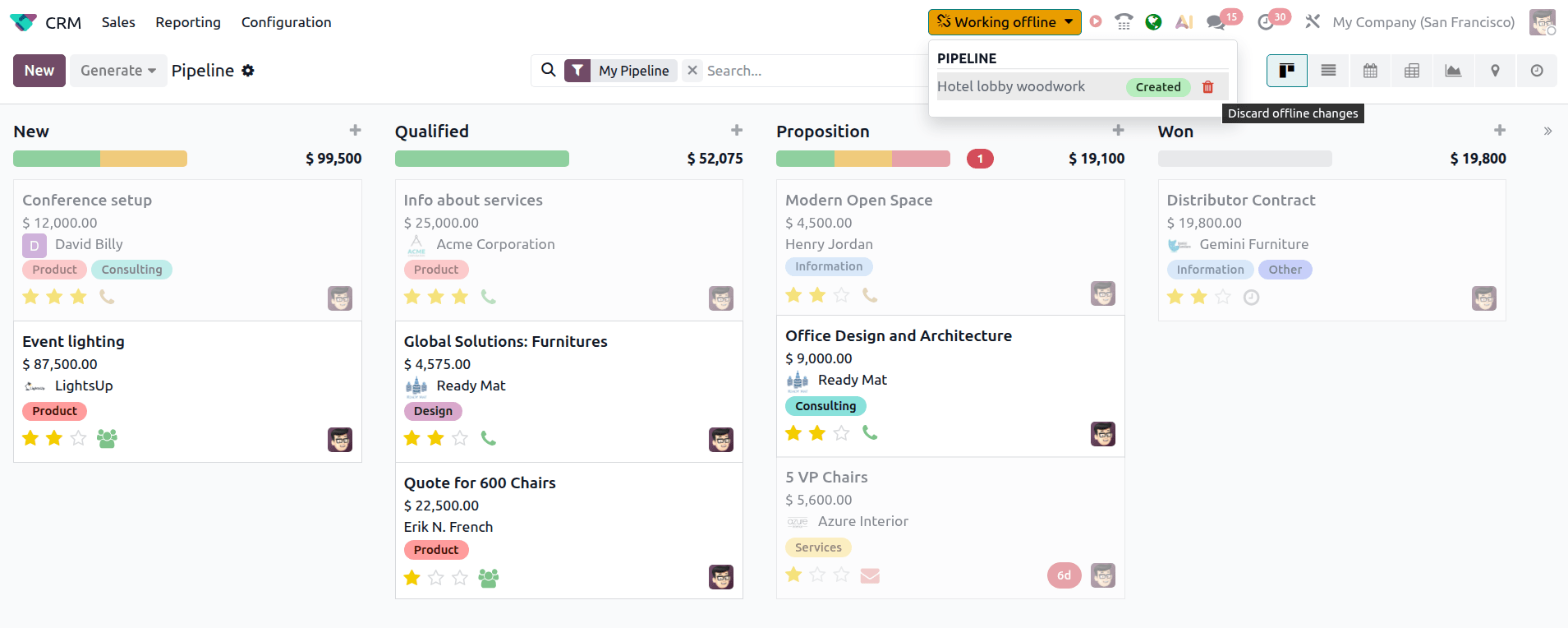
Any changes made offline are queued locally; when connectivity is restored, changes are synced automatically and reflected in your database.
Astuce
If you foresee connectivity issues, briefly open any views or records you expect to need, and perform any searches so they can still be accessed if/when connectivity is lost.
Note
Odoo prend en charge l’accès hors ligne pour les applications et modules construits à l’aide des composants standard du framework Odoo.
Pour des raisons de performance, Odoo alloue un maximum de 2 Go pour les données hors ligne. Lorsque cette limite est atteinte, les données les plus anciennes sont supprimées pour faire place à l’activité la plus récente.
Effectuer un rafraîchissement complet avec
Ctrl + F5ouCmd + Shift + R, par exemple pour des raisons de dépannage, supprime toutes les données stockées localement. Cela impacte la disponibilité des vues et enregistrements en mode hors ligne.
Create and update records
When offline, records can be:
created, provided a record of the same type was previously created while you were online
edited, deleted, archived, or unarchived, provided they were previously opened while you were online
Note
Attachments and images can be opened while offline, but cannot be uploaded or deleted.
Perform searches
Search queries that were previously performed while online can be repeated offline. To repeat a previously performed search, click in the search bar, then choose from the available searches.

Manage offline changes
When you create or update a record offline, the changes are stored locally in a temporary queue until the internet connection is restored.
To view pending changes while still offline, click the Working offline button; modified records are listed, with a tag showing whether the record was Created, Edited, Archived, or Unarchived.
Hovering over an Edited tag reveals the changes made.
Example
In the example, the Office Design and Architecture opportunity was edited to change
the Salesperson (technical field name user_id) from Mitchell
Admin to Marc Demo and the Expected Revenue from 9000 to 15000.
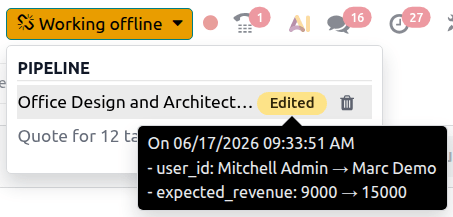
To make further changes to an edited record while still offline, click the record to open it locally. To discard pending changes while still offline, for example, if changes were made in error or in the wrong order, click the (Discard offline changes) icon.
Disable offline mode for specific views
In some cases, for example, for reporting views, displaying outdated or cached information may not be appropriate. To disable data caching for a specific view and, as a result, make the view unavailable offline, follow these steps:
Open the view in question.
Activate developer mode.
Click the (bug) icon in the database header, then select Action.
Disable Data caching.