
휴가 신청
직원이 휴가를 요청하려면 먼저 휴가 애플리케이션을 통해 휴가 요청을 제출합니다.
If the Time Type does not require any approvals, the time off request is automatically approved. If approval is needed, the request is reviewed by either the employee’s manager or their time off officer, depending on who the employee’s time off approver is.
휴가 신청서 제출
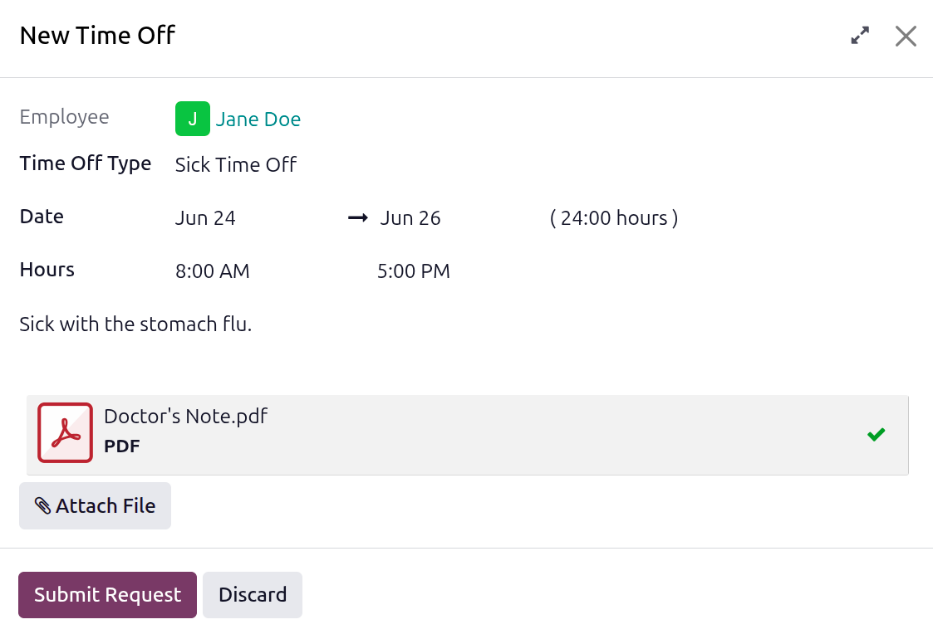
To request time off, navigate to and the My Time Off dashboard loads. Click the button, then New Time Off, and a blank New Time Off pop-up window loads.
Fill out the various fields on the form. Once completed, click the Submit Request button, and the request is sent to the corresponding manager and time off officer, and appears in their All Time Off dashboard.
휴가 요청 필드
Enter the following information on the New Time Off pop-up request form:
(Time Off Type): Select the type of time off being requested.
(Dates): Click into the first date field and using the calendar selector, select the start date for the time off request. Set the second field to the end date for the request. When requesting time off for a single day, set both fields to the same date. If applicable, set the start and end times for the request. Depending on how the selected Time Off Type is configured, additional fields may appear. Specify when the time off is being requested for a Full Day, the Morning, or the Afternoon. These options appear as either buttons or a drop-down selection.
(Description): Enter a description for the time off request. This should include any details that managers and approvers may need to approve the request, such as
Sick with the fluorFamily wedding.Attach File: This field only appears if the Time Off Type selected is configured to require documentation. Click the Attach File button, and a file explorer window appears. Navigate to the desired file, select it, then click the Open button. The file is listed on the New Time Off pop-up window. Only one file can be attached.
참고
If the Time Off Type requires documentation, such as a doctor’s note, Required appears in red text next to the Attach File button.
Expanded time off request fields
On the New Time Off pop-up request form, click the (Expand) icon in the corner to view the request in a full-page view.
In the full-page view, additional fields may appear. If the employee has any approved time off for the current year, it appears in a gray Summary (year) box. The summary box lists all time off types, and the total amount of time scheduled.
If the time off request overlaps with another employee in the same department, a blue (Department) Overlaps summary appears. This box shows how many other employees have time off scheduled for the same time period. Click View Overlaps to load a calendar view, displaying the overlaps.

팁
A Calendar smart button appears at the top of this view. Click this button to view the employee’s time off in a calendar view.
중요
If an employee requests more time than they currently have available, a warning appears on the time off request form, stating Only (#.#) day(s) available in red text. This aids employees if they are unaware of their time off balances, and attempt to request more time than they have, and can adjust the request before submitting it.
