
メキシコ
モジュール
メキシコのローカライゼーションでは、以下のモジュールが自動的にインストールされます:
名称 |
技術名 |
説明 |
|---|---|---|
メキシコ - 会計 |
|
デフォルトの:doc:`会計ローカライゼーションパッケージ <../fiscal_localizations>`は、メキシコのローカライゼーション用の会計特性を追加します。例えば、最も一般的な税金と勘定科目表(<https://www.gob.mx/cms/uploads/attachment/file/151586/codigo_agrupador.pdf>に基づく)などです。 |
メキシコ用EDI |
|
Includes all the technical and functional requirements to generate and validate electronic documents — based on the technical documentation published by the SAT. This allows invoices to be sent (with or without addendums) and payment complements to the government. |
Odooメキシコローカライゼーションレポート |
|
Adapts reports for Mexico's electronic accounting: chart of accounts, trial balance, and DIOT, audit reports, etc. |
以下のモジュールはオプションです。ビジネスの特定の要件を満たす場合にのみインストールすることをお勧めします。
名称 |
技術名 |
説明 |
|---|---|---|
メキシコ用EDI (高度な機能) |
|
外国への製品販売に対する法的要件である外国貿易補完を請求書に追加します。 |
メキシコ - 電子納品伝票 |
|
Enables creating a Carta Porte: A bill of lading that proves to the government that goods are sent between A & B with a signed electronic document. It also installs the Fleet app. |
在庫/陸揚用Odooメキシコローカライゼーション |
|
電子ドキュメントで陸揚費に関連する通関番号を管理できます。 |
販売オーダーのCFDI 4.0フィールド |
|
メキシコ電子請求に準拠するために販売モジュールに追加フィールドを追加します |
POSのためのメキシコローカライゼーション |
|
メキシコ電子請求に準拠するためにPOSモジュールに追加フィールドを追加します |
eコマースのためのメキシコローカライゼーション |
|
メキシコ電子請求要件に準拠するためにeコマースモジュールに追加フィールドを追加します |
動画チュートリアル
メキシコローカライゼーションに関する動画も利用できます。基本的なワークフローとこのページで扱われるほとんどのトピックは動画形式でも提供されています。以下をご確認ください:
ローカライゼーション概要
Odooメキシコローカライゼーションモジュールは、2022年1月1日からの法的要件であるSATの`CFDIバージョン4.0 <http://omawww.sat.gob.mx/ tramitesyservicios/Paginas/documentos/Anexo_20_Guia_de_llenado_CFDI.pdf>`_の仕様に従って電子請求書への署名を可能にします。これらのモジュールは、DIOTを含む関連する会計レポートを追加し、外国貿易を有効にし、配送伝票の作成を可能にします。
注釈
Odooで文書に電子署名するには、署名アプリケーションをインストールする必要があります。
必要事項
Odooでメキシコローカライズモジュールを設定する前に、以下の要件を満たす必要があります:
SATに有効なRFCで登録されている必要があります。
Have a Certificado de Sello Digital / Digital Seal Certificate (CSD).
PACを選択してください。現在、Odooは以下のPACに対応しています:Solucion Factible、Quadrum、SW Sapien - Smarter Web。
会社
正しいモジュールをインストールした後、次のステップは会社が正しいデータで設定されているかを確認することです。そのためには、に移動し、設定する会社を選択してください。
表示されるフォームに、郵便番号、都道府県・州、国、|RFC|(税ID番号)を含む完全な住所を入力してください。
CFDI 4.0の要件に従い、メイン会社の連絡先名は法人形態の略称を除いて、SATに登録されている商号と一致する必要があります。これは郵便番号についても同様です。
重要
法的観点から、メキシコの企業は現地通貨(MXN)を使用する必要があります。別の通貨を使用するには、MXNをデフォルト通貨にして、代わりに価格表を使用してください。
次に、に移動し、MX 電子請求セクションまでスクロールします。税務局(SAT)で、ドロップダウンリストから会社に適用される課税制度を選択し、保存をクリックしてください。
ちなみに
To test the Mexican localization, make sure the following fields are filled in:
Company form:
Company Name: enter
INNOVACION VALOR Y DESARROLLO SA SAAddress: fill in all fields with a real address in Mexico, and
58000as ZipRFC: enter
IVD920810GU2
Go to and scroll down to the MX Electronic invoicing section. In the Fiscal Regime field, select General de Ley Personas Morales.
支店
When using branches, invoicing information is taken from the main company except for the zip code. Unless the RFC is set on the branch, then Odoo uses the branch information instead.
Branches enable users to establish multiple brands within the same parent company. Additionally, when different fiscal regimes are required for invoicing purposes, it is necessary to create a branch for each regime. By default, the regime is inherited from the parent company. However, if the regime is explicitly set on the branch, Odoo adopts the regime applicable to that branch.
連絡先
注釈
連絡先レコードにアクセスするには、連絡先アプリケーションをインストールしてください。
請求可能な連絡先を作成するには、アプリに移動し、新規をクリックします。次に、連絡先名、郵便番号、都道府県・州、国、|RFC|(税ID)を含む完全な住所を入力してください。
重要
会社自体と同様に、すべての連絡先はSATに登録されている正しい商号を持つ必要があります。販売 & 購買タブで課税制度も追加する必要があります。
警告
|RFC|(税ID)が設定されているが国が設定されていない場合、請求書が正しく作成されない可能性があります。
税金
請求書に適切に署名するには、販売税の係数タイプと税対象フィールドを設定してください。
ちなみに
RESICO ISR源泉徴収と一部のIEPS税は自動的に作成されますが、デフォルトでは有効になっていません。有効にするには、に移動してください。
ファクタータイプ
係数タイプとSAT税タイプの両方のフィールドは、デフォルトの税に事前読み込みされています。
新しい税の場合は、でこれらのフィールドを設定し、新規をクリックします。税タイプを販売に設定します。詳細オプションタブで、SAT税タイプと係数タイプフィールドを入力してください。
Odooは4つのグループのSAT税タイプをサポートしています:IVA、ISR、IEPS、地方税。
要素タイプがQuotaの場合、標準的な計算方法は使用できません。代わりに、税計算をカスタム式に設定してください。
Example
quantity = 取引における件数
6.455 = クォータ値(単位あたりの固定付与数)
単位あたりのクォータのみがサポートされており、他の要素に基づくクォータはサポートされていません
ちなみに
メキシコは2つのシナリオに対応するため、2種類の0%VATを管理しています:
For 0% VAT, set the Factor Type to Tasa.
For VAT Exempt, set the Factor Type to Exento.
注釈
地方税はXMLファイル内の別のノードで生成され、PACによる検証は行われません。
警告
クォータとカスタム数式にはDefine Taxes as Python Codeモジュールが必要です。税金を参照してください。
税オブジェクト
CFDI 4.0の要件の1つは、生成されるXMLファイルが規制に従って操作の税金の内訳を処理することです。XMLファイルに追加される8つの異なる可能な値があります:
01: 非課税対象: 請求書行に税金が含まれていない場合、この値が自動的に追加されます。02: 課税対象: これは税金を含む請求書行のデフォルト設定です。03: 課税対象、内訳不要: これは手動でのみ追加できます。04: 課税対象、税金なし: これは手動でのみ追加できます。05: 課税対象、PODEBI用VAT: これは手動でのみ追加できます。06: VAT Object, No VAT forwarded: This object is selected when there is an ISR withholding and no VAT tax.07: No VAT forwarded, IEPS breakdown: This object is selected when there is an ISR withholding, IEPS tax and no VAT tax.08: VAT転嫁なし、IEPS内訳: このオブジェクトは手動でのみ追加できます。
警告
Using either 01, 03, 04, or 05 removes the tax node from the XML file.
重要
IEPS breakdownステータスは、内訳が発生しない場合のIEPSの未設定により、税オブジェクトの動作に影響します。
地方税
地方税(例:ISH、Cedullar)は、別個のXMLノードを必要とし、標準の税ロジックに従わない場合があります。
地方税を設定すると、その名前が地方税補足に表示されます。税率が負の場合は源泉徴収として扱われ、正の場合は繰り越されます。
IEPSの内訳
デフォルトでは、Odooは請求書でIEPSを非表示にしているため、VATが計算される小計にはIEPSの金額が含まれます。これは、それを必要としない税制が受け取らないようにするためです。
各連絡先の販売 & 購買タブ内でIEPSの内訳チェックボックスを選択することで、XMLでIEPSを表示することができます。
重要
When using either eCommerce invoicing or the Self invoicing portal, the customer has the option to decide whether or not to have the IEPS breakdown.
その他税設定
メキシコのローカライゼーションは現金主義税を使用します。支払いを登録すると、Odooは現金主義移行アカウントから、請求書または仕入先請求書行に設定された税レコードの定義タブで設定されたアカウントへ税の移動を実行します。このような移動には、税ベースアカウント(899.01.99 Base Imponible de Impuestos en Base a Flujo de Efectivo)が税の再分類時の仕訳で使用されます。このアカウントは削除しないでください。
源泉徴収
デフォルトでは、OdooにはVATを配分するための特別な配分を持つ源泉徴収が含まれています。
請求書を登録する際には、源泉徴収とそれに対応するVATを追加します。正しい会計を確保するために、両方を仕入先請求書に含める必要があります。現金主義仕訳が配分を適切に分割するために、会計ポジションの使用が推奨されます。
Example
10000 MXNのリース仕入先請求書の場合、10.67%のリース源泉徴収は16% VAT 2/3 Hに相当します。正しい会計を反映するために、両方の税を一緒に適用する必要があります。

注釈
Withholdings CFDI is not currently supported. Consult with an accountant about the proper distribution.
プロダクト
To configure products, go to . Open an existing product or click New. In the Accounting tab, set the UNSPSC Product Category. Products and categories can be set manually, or through a bulk import.
注釈
検証エラーを防ぐために、すべてのプロダクトにはSATコードを関連付ける必要があります。
電子請求
PAC認証情報
After processing the Private Key (CSD) with the SAT, register directly with a PAC before creating any invoices in Odoo.
Once an account has been created with any of these providers, go to and navigate to the MX Electronic invoicing section. Under the Authorized Certification Provider (PAC) section, enter the name of your PAC with the corresponding credentials (PAC username and PAC password).

ちなみに
資格情報なしで電子請求をテストするには、MX PACテスト環境チェックボックスを有効にし、PACとしてSolucion Factibleを選択します。テスト環境では、ユーザー名やパスワードを追加する必要はありません。
.cer および .key 証明書
会社のデジタル証明書は、証明書セクション内にアップロードする必要があります。そのためには、に移動します。
証明書を管理の下で、鍵リンクをクリックして鍵のリストビューにアクセスします。作成をクリックし、デジタル鍵ファイル(.keyファイル)をアップロードし、鍵に名前を追加し、秘密鍵パスワードを入力します。
を選択して証明書リストビューにアクセスします。作成をクリックし、デジタル証明書`(:file:.cer`ファイル)をアップロードし、証明書に名前を追加し、ドロップダウンメニューから前のステップで作成した秘密鍵を選択します。
注釈
証明書パスワードおよび公開鍵フィールドは、証明書レコードではオプションです。
会計
電子請求
Odooの顧客請求書発行プロセスは、 |SAT|の電子請求の付属書20 <http://omawww.sat.gob.mx/tramitesyservicios/Paginas/anexo_20.htm>`_ バージョン4.0に基づいています。
顧客請求書
Odooから請求書を発行するには、:doc:`標準請求書発行フロー<../accounting/customer_invoices>`を使用して顧客請求書を作成する必要があります。
ドキュメントがドラフトモードの間は、変更を加えることができます。一部のフィールドは、販売オーダまたは連絡先に以前に設定された値を取ります。
確認が必要なフィールドは次のとおりです:
CFDI to public
Usage
Payment Policy
Payment Method, if Payment Policy is not set as PPD
ちなみに
使用量、支払ポリシー、支払方法は、販売オーダで事前に設定でき、および/または毎回のインボイスについて連絡先に設定できます。
支払ポリシーはインボイスで選択可能なフィールドであり、必要なポリシーに手動で設定できますが、ポリシーが選択されていない場合、Odooは以下の一般的なルールに基づいて自動ポリシーを計算します:
支払が予定される期日が当月内にある場合、値はPUEに設定されます。日付が当月外の場合、ポリシーは代わりにPPDに設定されます。
警告
支払ポリシーが選択されておらずPPDポリシーが期待される場合は、現在の月とは異なる月のインボイス期日を選択するか、期日の月を変更することを意味する支払条件を選択してください(例: 30日または15日。翌月に該当する限り)。
顧客請求書で確定をクリックした後、送信ボタンをクリックして、政府に請求書を処理します。CFDIチェックボックスがマークされていることを確認してください。

政府から署名済みドキュメントを受け取った後、ドキュメントに会計Folioフィールドが表示され、XMLファイルがCFDIタブとチャッターの添付ファイルの両方に表示されます。
顧客連絡先レコードにメールアドレスが設定されている場合、メールでおよびCFDIチェックボックスにチェックを入れると、XMLファイルとPDFファイルの両方が一緒に送信されます。
PDFファイルをローカルにダウンロードするには、印刷ボタンをクリックします。
ちなみに
When clicking Update SAT, the SAT status field on the invoice confirms if the XML file is Validated in the SAT.
On a testing environment, the message Not Found commonly appears.
警告
Invoices with a Country different from Mexico or missing the Zip field in the customer form are classified as CFDI to public and addressed to a generic customer. The CFDI to public checkbox stays active on the invoice form until valid partner information is provided. Once the contact information for a national customer is complete, the checkbox is automatically deactivated.
現金丸め
In the Mexican localization, cash rounding is supported using the Add a rounding line method. This adds a rounding line that changes the paid amount, but does not change the amount in the CFDI.
クレジットノート
顧客請求書はドキュメントタイプ "I" (Ingreso)ですが、クレジットノートはドキュメントタイプ"E" (Egreso)です。
クレジットノートの標準フローに加えて、SATの要件として、クレジットノートと請求書の間には会計フォリオを通じた関連付けが必要です。
この要件により、CFDI Originフィールドは、元のUUIDの会計フォリオに続く`01|`でこの関連付けを追加します。
When creating credit notes, make sure the line description clearly indicates its purpose and specifies which entry applies to a bonus, discount, or refund.
ちなみに
CFDI Origin フィールドを自動的に追加するには、手動で作成する代わりに クレジットノートを追加 ボタンを顧客請求書から追加して下さい。
一般的に、クレジットノートは仕訳帳で定義された主要な販売アカウントを反転しますが、すべてのクレジットノートにアカウントをグローバルに割り当てることも可能です。そのためには、に移動し、Default AccountsセクションでCredit notesアカウントを設定します。
注釈
デフォルト設定では、クレジットノートアカウントは402.01.01 Returns, discounts or bonuses over sales and/or services at the general rateとして設定されています。
ちなみに
The Payment Policy can be manually forced before stamping.
仕入先請求書
Vendor bills must have a fiscal folio for reports and payments to work correctly. If the vendor bill was created by the Purchase app or added manually, add the XML file of the invoice to the chatter as a log note. This updates the fiscal folio accordingly. The bill must be in draft state for the update to happen.
ちなみに
Update SATをクリックすると、請求書のSAT statusフィールドで、XMLファイルがSATによって**検証済み**であることが確認されます。これは仕入先請求書にも当てはまります。
参照
仕訳帳
The module EDI for Mexico (Advanced Features) (l10n_mx_edi_extended) must be installed
on the database to complete the Address Issued field on the sales journal. This ensures
that all invoices from that sales journal, as well as global invoices, use the correct ZIP code when generating the CFDI.
To invoice within a company under different time zones with the same user, create a system parameter to ensure the correct time zone is applied when invoicing, as the user's time zone is used by default.
これを行うには、開発者モードを有効にし、に移動します。新規をクリックして、キー`l10n_mx_edi_tz_XX`(`XX`は仕訳帳のID)で新しいパラメータを作成し、値として希望するタイムゾーン(例:「America/Tijuana」)を設定します。
支払
支払ポリシー
メキシコローカライゼーションの追加機能の1つは支払ポリシーフィールドです。`SATドキュメント<https://www.sat.gob.mx/consultas/92764/comprobante-de-recepcion-de-pagos>によると`_、2種類の支払があります:
:guilabel:`PUE`(Pago en una Sola Exhibición/一括支払い)
PPD (Pago en Parcialidades o Diferido/Payment in Installments or Deferred)
警告
Payment complements are only generated if the policy of the invoice is set to PPD.

請求書の支払期日が当月外の場合、デフォルトでPPDに設定されます。
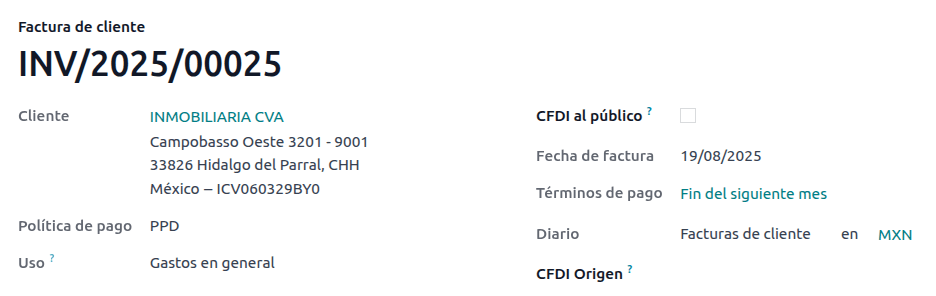
支払フロー
どちらの場合も、Odooでの支払処理は同じです。主な違いは、PPD請求書に関連する支払いは、法律により文書タイプ「P」(Pago)として政府に送信する必要がある点です。
支払いがPUE請求書に関連する場合は、支払ポップアップから登録し、対応する請求書に関連付けることができます。これを行うには、に移動して請求書を選択します。次に、Payボタンをクリックして支払ポップアップを開き、Payment Wayおよびその他のフィールドを設定して、Create Paymentをクリックします。
このプロセスはPPD請求書でも同じですが、電子ドキュメントの作成が追加されるため、SATにドキュメントを正しく送信するにはいくつかの追加要件が必要になります。
法的観点から、PPD請求書には支払いを受け取った具体的なPayment Wayを含める必要があります。このため、Payment WayフィールドをTo Defineに設定することはできません。したがって、このフィールドを選択すると非表示になります。
注釈
銀行口座番号が必要な場合は、顧客の連絡先レコードのAccountingタブに追加してください。
正確な設定は`SATの付属書20 <http://omawww.sat.gob.mx/tramitesyservicios/Paginas/anexo_20.htm>`_にあります。通常、 Bank Account は転送の場合は10桁か18桁、クレジットカードやデビットカードの場合は16桁にする必要があります。
完全に消し込まれた支払いがFiscal Folioを持つ請求書に関連している場合、Update Paymentsが表示されます。Update Paymentsボタンをクリックすると、**支払補足書**XMLファイルが政府に自動的に送信され、請求書と支払いの両方のCFDIタブに表示されます。
請求書やクレジットノートと同様に、PDFとXMLは最終顧客に送信できます。これを行うには、支払ビューから(歯車)アイコンをクリックしてアクションドロップダウンメニューを開き、Send receipt by emailを選択します。
To download the payment PDF from the CFDI tab on the invoice, regardless of whether the payment was created with or without reconciliation, click Print.

支払取消
支払補足をキャンセルするには、関連する請求書のCFDIタブに移動し、支払補足の行でキャンセルをクリックします。
Like with invoices, go to the payment and click Update SAT to change the SAT Status and Status to Cancelled.
注釈
When substituting a payment complement, unreconcile the current payment. Then, to link the new
payment to the original document, add 04| followed by the fiscal folio in the CFDI
Origin field. If the new payment is signed after the substituted document is linked, the older
payment is cancelled.
ファクタリング
Factoring is a financial transaction in which a business sells its accounts receivable (outstanding invoices) to a specialized financial institution, known as a factor, to gain immediate liquidity.
To record a payment for financial factoring, follow these steps:
Go to , scroll down to the Default Accounts section and ensure a Factoring account is selected in the Factoring account field.
From the Accounting Dashboard, click Bank on its corresponding Kanban card to manually add a transaction line and record the factoring payment. Complete the following fields:
Label: Enter a brief description of the transaction.
Partner: Select the financial institution (factor) that will purchase the debt.
Amount: Enter the actual amount to be received by the factor.
重要
The currency of the factoring payment must match the bank journal's currency.
In the newly created transaction line, click the (vertical ellipsis) icon and select Reconcile.
In the Search: Journal Items to Match window, remove the Partner filter, select the related invoices to be paid by the factor, and click Select.
注釈
Do not select the tax lines related to the invoices.
In the Distribute Payment window, fill in the following fields to distribute the payment on the selected invoices:
Amount: Enter the amount that will actually be received from the factor.
Compensation: Enter the compensation that was paid to the factor.
ちなみに
The Amount and Compensation amounts are provided by the factor and are stated on the factoring receipt.
Make sure the Amount and Compensation amounts equal the Due amount. If it exceeds the Due amount, the line is highlighted in red.
The To distribute field should balance the Amount to the transaction amount entered, ensuring it equals zero.
保存 をクリックします。
In the Bank Matching view, the factoring payment is then reconciled with the relevant invoices, and the factoring commission is allocated to the Factoring account set up.
To generate the XML file, go to , access one of the paid invoices, and click Update Payments.
注釈
The factoring company can retain a portion of the invoice amount, referred to as aforo, until the end customer completes payment. The retained balance is then released to the vendor.
For multi-currency factoring, use the (adjust settings) button in the Distribute Payment window and add the Due (Company) column to display the due amount in the company's currency.
顧客請求書取消
|SAT|に送信されたEDIドキュメントの取消は可能です。 Reforma Fiscal 2022 によると、2022年1月1日以降、これには2つの要件があります:
すべてのキャンセルリクエストにはキャンセル理由が必要です。
請求書作成から24時間後、クライアントにキャンセルの承認を求める必要があります。72時間以内に応答がない場合、キャンセルは自動的に処理されます。
Invoice cancellations are updated automatically in Odoo, but the update can take some time. To check the cancellation status, click Update SAT.
請求書のキャンセルは、次のいずれかの理由で行うことができます:
01 - エラーのある請求書を発行(関連ドキュメントあり)
02 - エラーのある請求書の発行(置換なし)
03 - 操作が実行されませんでした
04 - グローバル請求書に関連する記名操作
キャンセルを開始するには、:menuselection:`会計 --> 顧客 --> 請求書`に移動し、キャンセルする転記済み請求書を選択して、:guilabel:`キャンセルを申請`をクリックします。次に、キャンセルの理由に応じて、:ref:`l10n/mx/01-invoice-cancellation`または:ref:`l10n/mx/02-03-04-invoice-cancellation`のセクションを参照してください。
注釈
ロックされた期間にキャンセルが申請された場合、CFDIはキャンセルされますが、会計エントリはキャンセルされません。
クライアントがキャンセルを拒否した場合、請求書キャンセルの明細行は:guilabel:`CFDI`タブから削除されます。
キャンセル理由01
:guilabel:`CFDIキャンセル申請`ポップアップウィンドウで、:guilabel:`理由`フィールドから:guilabel:`01 - エラーのある請求書の発行(関連ドキュメント付き)`を選択し、:guilabel:`置換請求書を作成`をクリックして新しい請求書(下書き)を作成します。この新しい請求書(下書き)は、関連する|CFDI|とともに、以前の請求書を置き換えます。
ドラフトを確定し、請求書を送信します。
The substituted invoice automatically cancels the original invoice once the new one is signed.
次に、:guilabel:`CFDI`タブに理由明細行を含む請求書キャンセルが生成されます。

キャンセル理由02、03、04
:guilabel:`CFDIキャンセル申請`ポップアップウィンドウで、希望するキャンセル:guilabel:`理由`を選択し、キャンセルを:guilabel:`確定`します。
そうすると、:guilabel:`CFDI`タブに理由明細行を含む請求書キャンセルが生成されます。
注釈
:guilabel:`SATステータス`が**検証済み**に戻った場合、次の3つの理由のいずれかが原因である可能性があります:
The invoice is labeled as No Cancelable in the SAT Website. due to the fact that it has a valid related document: Either another invoice linked with the CFDI Origin field or a Payment Complement. If so, cancel any other related document first.
キャンセル申請がまだ|SAT|によって処理されています。その場合は、数分待ってから再試行してください。
The final customer needs to reject or accept the cancellation request in their Buzón Tributario. This can take up to 72 hours. If the cancellation request is rejected, repeat the process.
キャンセル理由02、03、04の場合、代替請求書を作成ボタンは、即座にキャンセルを申請する確定ボタンに置き換えられます。
現在の都道府県・州とキャンセル理由の両方は、CFDIタブで確認できます。

Cancellation acknowledgement
To print a cancellation PAC response after cancelling a CFDI, click Print on the corresponding cancellation line in the CFDI tab of the invoice form.
To include the current SAT status in the PDF, click Update SAT in the invoice form. Note that when a payment is reviewed, the invoice status is updated accordingly.

重要
A cancellation acknowledgement confirms that the cancellation was requested successfully, but it is not definitive proof that the CFDI has been fully cancelled.
請求特別な使用ケース
CFDI関連
To relate the current document to previously signed CFDIs, fill in the CFDI Origin field on the invoice and specify the relation using one of the seven available values:
01: Nota de crédito
02: Nota de débito de los documentos relacionados
03: Devolución de mercancía sobre facturas o traslados previos
04: Sustitución de los CFDI previos
05: Traslados de mercancias facturados previamente
06: Factura generada por los traslados previos
07: CFDI por aplicación de anticipo
ちなみに
形式は: 元のタイプ|UUID1, UUID2, ...., UUIDn で、複数の元のタイプを追加できます。
Example
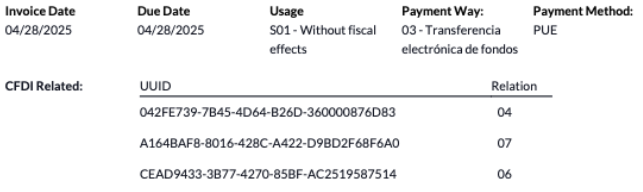
2つの関連を含む例を次に示します:
04|042FE739-7B45-4D64-B26D-360000876D83,
07|A164BAF8-8016-428C-A422-D9BD2F68F6A0,CEAD9433-3B77-4270-85BF-AC2519587514
最初のセクションは1 UUIDを持つ関係タイプ04です
2番目のセクションは2 UUIDを持つ関係タイプ07です
さらに、すべての組み合わせが署名済みPDFにも表示されます。
複数通貨
The main Currency in Mexico is MXN. While this is mandatory for all Mexican companies, it is possible to send and receive invoices (and payments) in different currencies. To enable the use of multicurrency, navigate to the , and set [MX] Bank of Mexico as the Service in the Automatic Currency Rates section. Then, set the Interval field to the desired frequency to update the exchange rates.
こうすることで、ドキュメントのXMLファイルには、正しい為替レートと、外国通貨とMXNの両方での合計金額が記載されます。
各通貨に別々の銀行口座を使用することを強くお勧めします。
注釈
毎日自動的に為替レートが更新される通貨は、USD、EUR、GBP、JPY、CNYのみです。
割引
法律により、政府に送信される電子ドキュメントには負の行を含めることができません。これはエラーを引き起こす可能性があるためです。したがって、ギフトカードまたはロイヤリティプログラムを使用する場合、その後の負の行は、通常の割引であるかのようにXMLで変換されます。
これを設定するには、に移動し、「Discounts」というプロダクトを作成し、有効な税(通常は16%のIVA)を設定します。
この後、CFDIを介して請求書を作成して署名し、一番下に`Discounts`プロダクトを追加します。XMLでは、Odooは割引を行間に均等に配分し、数学的な差異は丸めプロダクトに追加されます。
ちなみに
ギフトカードまたはロイヤリティプログラムに関連する各プロダクトバリアントの「Discount」と「UNSPSC Product Category」を作成する必要があります。
前受金
A common practice in Mexico is the usage of down payments. They are primarily used when a payment is received for a good or service whose product, price, or both have not been fully determined.
SATは、このプロセスを処理するための2つの異なる方法を許可しています:どちらもCFDI Originフィールドですべての請求書を相互にリンクすることを含みます。
注釈
このプロセスには、販売アプリをインストールする必要があります。
設定
まず、に移動して「Anticipo」というプロダクトを作成し、設定します。プロダクトタイプはサービスである必要があり、UNSPSCカテゴリは84111506 Servicios de facturaciónを使用します。
それから :menuselection:`販売 --> 管理設定 --> 請求 -->前受金`に行き、Anticipo プロダクトをデフォルトとして追加します。
方法A
This method consists of creating a down payment invoice, creating an invoice for the total amount, and finally, creating a credit note for the total of the down payment.
まず、総額で販売オーダを作成し、そこから前払金を作成します(パーセンテージまたは固定金額を使用)。次に、CFDI経由でドキュメントに署名し、支払いを登録します。
顧客が最終請求書を受け取る時が来たら、同じ販売オーダから再度作成します。請求書を作成ポップアップで、通常の請求書を選択します。Anticipoというプロダクトを含む行を必ず削除してください。
ちなみに
メキシコのローカライゼーションで前払金を使用する場合は、プロダクトの請求ポリシーが注文数量であることを確認してください。そうしないと、顧客クレジットノートが作成されます。
Then, copy the Fiscal Folio from the down payment invoice, and paste it into the
CFDI Origin field of the final invoice. Add the prefix 07| before the value and sign
the document via CFDI.
最後に、最初の請求書のクレジットノートを作成します。最終請求書からFiscal Folioをコピーし、クレジットノートのCFDI Originに貼り付けます。プレフィックス07|を追加します。次に、CFDI経由でドキュメントに署名します。
With this, all electronic documents are linked to each other. The final step is to fully pay the new invoice. At the bottom of the new invoice, the credit note appears in the Outstanding credits; add it as payment. Finally, register the remaining amount with the Pay popup.
販売オーダでは、3つのドキュメントすべてが「In Payment」として表示されるはずです。
方法B
別のより簡単な方法でSAT要件を満たすには、頭金請求書のみを作成し、残額用の2番目の請求書を作成します。この方法は、マイナスの行が割引として扱われるという事実を含みます。
For this, follow the same process as Method A, up until the
creation of the final invoice. Do not delete the line that contains the Anticipo and instead
rename the other products Description to include the text CFDI por remanente de un
anticipo. Add the Fiscal Folio of the down payment invoice in the
CFDI Origin field of the final invoice, adding the prefix 07|.
最後に、CFDI経由で最終請求書に署名します。
Addendasおよび補完
An addenda is a code addition to an invoice XML file that provides extra information beyond legal requirements. It is added after the invoice has been signed. A complement is a fiscal addition that reports specific fiscal operations and is added before the invoice is signed. Only a limited number of complements are available, and some are already included in Odoo. See the SAT complement documentation for more information.
Addendas and complements can be included in the XML. To add one, go to and click New to enter the code to be injected. Additional fields beyond standard Odoo may be required.
警告
このセクションには技術的な知識が必要で、技術的負債を追加するリスクがあります。最良の技術的アドバイスについては、アカウントマネジャーに相談することをお勧めします。
希望するノードが作成されたら、各コンタクトで選択して、そのコンタクト宛てのすべての請求書に表示されるようにすることができます。デフォルトでは、選択されたすべてのノードがすべての請求書に自動的に追加されます。
また、すべての請求書で必要に応じてノードを選択することも可能です。Other infoタブを選択し、Addendas & Complementosから目的のノードを選択します。
ちなみに
連絡先ごと、または請求書ごとに複数を追加することが可能です。
XMLリーダー
On certain occasions, such as when creating invoices in another software or in the SAT directly, it is possible to upload invoices to Odoo. The XML Reader can retrieve the data from an XML file. To do this, navigate to and, in the list view, click Upload to select any number of XML files. Draft invoices are automatically created. This can also work by dragging files from a local storage and dropping them in the view.
請求書(下書き)は、Customer information(存在しない場合は新規作成されます)、プロダクト行(同じ名前のプロダクトが既に存在する場合のみ)を取得し、すべての税金とメキシコローカライゼーション専用の追加フィールドを計算します。インポート情報はチャッターに表示されます。
警告
請求書が作成された場所によっては、XMLファイルにOdooで計算された合計とは異なる値が含まれている可能性があります。この方法でアップロードされたドキュメントは**必ず**再確認してください。
Customer Invoices created this way can create payment complements and can be canceled at any time. If the Print option is used, the PDF document includes all the corresponding information.
これは仕入先請求書でも実行できます。
ちなみに
Fiscal Folioを取得するには、以前に作成された請求書(下書き)のチャッターにログメモとしてXMLファイルをドラッグ&ドロップします。
一般向けCFDI
メキシコ政府は、販売されるすべての商品またはサービスは請求書で裏付けられなければならないことを要求しています。顧客が請求書を必要としない場合、またはRFCを持っていない場合は、「nominative」請求書としても知られる*CFDI to Public*を作成する必要があります。
連絡先を作成する必要があり、特定の名前を持つ必要があります。
If the CFDI to Public checkbox in either a sales order or an invoice is checked, the final XML will override the data in the invoice contact and will add the following characteristics:
RFC:国内顧客の場合はXAXX010101000、海外顧客の場合はXEXX010101000
:guilabel:`郵便`番号:会社と同じコード
使用量:S01 - 税務上の影響なし

最終顧客が詳細情報を提供しない場合は、一般的な顧客を作成します。名前を PUBLICO EN GENERAL にすることはできません(エラーが発生します)。例えば CLIENTE FINAL とすることができます。
警告
By default, sending the invoice is not allowed if the partner does not have either the Country or ZIP code set. However, this is not required if the CFDI to public checkbox is active.
グローバル請求書
If by the end of a certain period of time (that can vary from daily to bimonthly, depending on the company's legal needs and preferences) and the customer still has sales that weren't marked as regular invoices or individual CFDI to Public invoices, the SAT allows for the creation of a single invoice that can contain all operations, known as a global invoice.
注釈
このプロセスには、販売アプリがインストールされている必要があります。
セットアップ
グローバル請求書シリーズは各支店または会社に固有であり、グローバル請求書のシーケンスを定義するために使用されます。設定するには、に移動し、MX電子請求書発行セクションに移動します。グローバル請求書シリーズフィールドは、税務管理局(SAT)セクション内にあります。

ちなみに
すべての会社/支店のデフォルトシーケンスは GINV/ です
販売フロー
まず、で専用の仕訳帳を作成し、グローバル請求書用の個別シーケンスを管理します。グローバル請求書は作成時にオーダとして機能します。
次に、署名が必要なすべての販売オーダが次の設定になっていることを確認します:
一般公衆向けCFDIチェックボックスが有効
請求ステータスが請求対象にマークされている
その後、に移動し、すべての該当する販売オーダを選択して請求書を作成を押します。まとめ請求チェックボックスを無効にして、請求書(下書き)を作成をクリックします。
In the list of draft invoices displayed, select all, click Actions, and select Confirm entries. Then, select all posted invoices again and return to the Actions drop-down menu to select Create Global Invoice.
In the Create Global Invoice window, select the Periodicity recommended by an accountant and use the Date field to specify the period to be invoiced. Then, click Create. Verify all invoices are signed under the same XML file and share the same Fiscal Folio.
注釈
The selected Date is used only to extract the month and year for the XML. For bimonthly periodicity, the month determines the period declared as follows:
Months 1-12: Standard month number (January = 1, February = 2, etc.)
January - February -> 13
March - April -> 14
May - June -> 15
July - August -> 16
September - October -> 17
November - December -> 18
Global invoices created this way won't include a PDF attachment, as their information is already in Odoo and isn't meant to be seen by customers.
Example
Selecting the date 01/12/2026 with monthly periodicity declares month 12 and year 2026.
Selecting the date 01/12/2026 with bimonthly periodicity declares month 18 and year 2026.
Selecting the date 01/12/2026 with daily periodicity declares month 12 and year 2026.
ちなみに
CFDIタブの表示をクリックして、すべての関連請求書のリストを表示します。
CFDIタブのキャンセルをクリックして、SATとOdooの両方でグローバル請求書をキャンセルします。
Electronic accounting reports
メキシコでは、 電子会計処理 は会計記録を|SAT|のウェブサイトを通じて、電子的な方法で会計記録と入力を行い、毎月会計情報を入力する義務を指します。
それは3つのXMLファイルからなります:
現在使用されている勘定科目表の更新されたリスト
月次試算表と締め仕訳レポート(*13ヶ月試算表*とも呼ばれます)
総勘定元帳の仕訳帳エントリのエクスポート(義務的な監査の場合を除き任意)
The resulting XMLファイルの結果は `Anexo Técnico de Contabilidad Electrónica 1.3 <https://www.gob.mx/cms/uploads/attachment/file/151135/Anexo24_05012015.pdf>`_の要件に従います。
これに加えて、`DIOT <https://www.sat.gob.mx/declaracion/74295/presenta-tu-declaracion-informativa-de-operaciones-con- terceros-(diot)->`_を生成することが可能です:IVA税を含む仕入先の仕訳帳エントリのレポートで、TXTファイルでエクスポートできます。
注釈
To use these reports, the following modules must be installed:
Odoo Mexican Localization Reports (
l10n_mx_reports)Mexico - Month 13 Trial Balance (
l10n_mx_reports_closing)Odoo Mexican XML Polizas Export (
l10n_mx_xml_polizas)
勘定科目表*と*13ヶ月試算表レポートは、にあります。DIOTレポートは、にあります。
重要
The specific characteristics and obligations of the reports required to be sent might change depending on the fiscal regime. Always contact an accountant before sending any documents to the government.
勘定科目表
The chart of accounts in Mexico follows a specific pattern based on the SAT documentation Código agrupador de cuentas.
It is possible to create any account, as long as it respects SAT's encoding group: the pattern is
NNN.XX.YY, NNN.XX.YYY or NNN.XX.YYY.ZZ.
Example
Some examples are 102.01.99, 401.01.001 or 401.01.001.16.
When a new account is created in , the structure is validated.
すべての勘定が作成されたら、正しいタグが追加されていることを確認してください。これらは勘定の性質を示すものです。
Due to the account hierarchy on parent accounts, set the appropriate Parent Account on each account to create a hierarchy for reports. Accounts without a parent are level 1 accounts; accounts below them are level 2, and so on.
注釈
Active accounts must be longer than five digits, or they trigger errors in the report. By default, Odoo marks accounts in yellow if the numbering could cause issues later on.
If an account is shorter than five characters, mark it as inactive so validations do not apply to it.
Accounts shorter than three characters are not reported in XML reports. This is useful to classify accounts.
As a good practice, only keep last-level accounts active and keep all parent accounts inactive. This prevents accounting errors, while parent accounts still appear in reports.
すべての設定が完了したら、に移動し、COA SAT (XML)ボタンをクリックして、すべての勘定を含むXMLファイルを生成します。このXMLファイルは、SATウェブサイトにアップロードする準備ができています。
試算表
The trial balance reports the initial balance, credits, and total balances of the accounts, provided that their numbering is correct.
To generate an XML file of the trial balance, go to and select the date. Click the (gear) icon and select SAT (XML). Then, select the appropriate Submit Type from the Export SAT window, depending on whether the trial balance is Normal or Supplementary.

13ヶ月目
追加のレポートは13ヶ月目です:年度を締めるために会計で行われた調整や移動を示す締め貸借対照表です。
このXMLドキュメントを生成するには、に移動し、新しいドキュメントを作成します。ここで、修正するすべての金額を追加し、それぞれのデビットおよび/またはクレジットの残高を調整します。
After this is done, go to the Other Info tab and check the Month 13 Closing field. If needed, go to and select the date Month 13, where it is possible to see the total amount of the year, plus all the additions of the journal entry. To generate the XML file, click the (action menu), then select SAT (XML).
総勘定元帳
法律により、メキシコのすべての打刻データはデジタルで記録する必要があります。Odooはすべての請求書と支払いの基礎となる仕訳帳エントリを自動的に作成するため、総勘定元帳をエクスポートするだけでSATの監査や税金の返却に対応できます。
ちなみに
レポートは、必要に応じて期間または仕訳帳でフィルタリングできます。
XMLを作成するには、に移動し、(アクションメニュー)をクリックしてから、XML (Polizas)をクリックします。次に、4つのエクスポートタイプから選択してください:
税務調査
調査認証
返品
報酬
税務監査または監査認証の場合は、SATによって入力された注文番号を追加してください。商品の返却または補償の場合は、同じくSATによって入力されたプロセス番号を追加してください。
注釈
このレポートを送信せずに確認するには、注文番号に`ABC6987654/99`を、プロセス番号に`AB123451234512`を使用してください。
DIOTレポート
The DIOT (Declaración Informativa de Operaciones con Terceros / Informative Declaration of Operations with Third Parties) is an additional obligation with the SAT, where the current status of creditable and non-creditable payments, withholdings, import taxes, and refunds of VAT from the vendor bills are provided to the SAT.
Unlike other reports, the DIOT is uploaded to a website provided by the SAT that contains the A-29 form. In Odoo, it is possible to download the records of all transactions as a TXT file with 54 columns. This file can be uploaded to the form, reducing the data that is manually added.
打刻データファイルには、仕入先請求書に記録された支払いの合計付与数が、対応するIVAのタイプに分類されて含まれています。すべての仕入先について、VAT(付加価値税)、国、取引のタイプの各フィールドは必須です。
DIOTレポートをTXTファイルとしてダウンロードするには、に移動します。目的の月を選択し、(アクションメニュー)をクリックして、DIOT (TXT)を選択してください。
In case new taxes are created in the database, there are two types of tags. Tags containing tax must go into the tax distribution, and the ones with the base name go on the base of the tax. All lines of a VAT tax must contain at least one tax grid.

重要
検証エラーを防ぐため、各仕入先の会計タブで取引のタイプフィールドを入力する必要があります。外国の顧客については、国が設定されていることを確認してください。

87 - グローバル オペレーションを選択すると、最終的なTXTファイルで、グローバルオペレーションに含まれるすべての仕入先が、1つの汎用VAT:*XAXX010101000*の下に統合されます。
Accounting reports
Two Mexican-specific reports are the Balance Sheet and the Profit and Loss.
貸借対照表
The report is based on NIF B-6 and is divided into assets, liabilities, and equity, which reflect the current financial state of the company.
損益計算書
The report is based on NIF B-3 and is divided into income, operating expenses, comprehensive financial results (RIF), and taxes, which help identify the net profit or financial position of a company.
対外貿易
対外貿易は、通常の請求書を補完するもので、 `SAT規定 <http://omawww.sat.gob.mx/tramitesyservicios/Paginas/complemento_comercio_exterior.htm>`_に従って、外国顧客との請求書にXMLとPDFの両方で特定の値を追加し、例えば:
受信者と送信者の特定のアドレス
プロダクトの種類を識別する Tariff Fraction の追加。
正しい:doc:`../accounting/customer_invoices/incoterms`(国際商業取引条件)
さらに、*原産地証明書*や*特別測定単位*など
これにより、輸出業者と輸入業者を正しく特定することができ、さらに販売された商品の説明も拡大されます。
2018年1月1日以降、対外貿易はA1タイプの輸出業務を行う納税者にとって必須要件となっています。現在のCFDIは4.0ですが、対外貿易は現在バージョン2.0です。
注釈
この機能を使用するには、:guilabel:`メキシコ向けEDI(高度な機能)``l10n_mx_edi_extended`モジュールをインストールする必要があります。
重要
Before installing, make sure your business needs to use this feature. Consult an accountant first, if needed, before installing any modules.
外国の請求書を作成する際は、公開用CFDIチェックボックスにチェックを入れる必要があります。
設定
連絡先
外部取引用の会社連絡先を設定するには、に移動し、デフォルトの顧客請求書フィルターを削除して、自社の会社名を選択します。CFDI 4.0要件では会社連絡先レコードに有効なZIPコードの追加が必要ですが、外部取引補完では市区町村と都道府県・州も有効である必要があります。この3つのフィールドはすべて Official SAT Catalog for Carta Porte と一致する必要があり、そうでない場合はエラーが発生します。
警告
会社の*連絡先レコード*に市区町村と都道府県・州を追加してください。会社レコード自体ではありません。
連絡先レコードでは、オプションフィールドの地域とコロニーコードも入力できます。これら2つのフィールドもSATのデータと一致する必要があります。
外国の受取顧客の連絡先データを設定するには、:menuselection:`会計 --> 顧客 --> 顧客`に移動し、外国の顧客の連絡先を選択します。エラーを避けるため、連絡先には以下のフィールドが必要です:
会社全体の 住所、有効な 郵便番号 コードと外国の 国。
正しい形式の外国RFC (税識別番号) (例: コロンビア
123456789-1)販売と購買タブで、外部取引が必要ですか?チェックボックスを有効化します。
注釈
結果の XMLファイルとPDFファイルでは、VAT は自動的に海外取引の一般的な VAT: `XEXX010101000`に置き換えられます。
プロダクト
外部取引に関係するすべてのプロダクトには、4つの追加必須フィールドがあり、そのうち2つは外部取引限定です。
プロダクトの参照は、一般情報タブで設定する必要があります。
在庫タブのプロダクトの重量は
0より大きくなければなりません。The Tariff Fraction of the product must be set in the Accounting tab for external trade. Use the VUCEM tariff fraction classifier to find the correct value.
会計タブのUMT Aduanaを設定し、外部取引用の関税分類と対応させる必要があります。

ちなみに
関税率 の単位コードが
01の場合、正確な UMT Aduana は `kg`です。関税率 の単位コードが
06の場合、正しい UMT Aduana は単位です。
請求フロー
請求書を作成する前に、外部取引請求書ではプロダクト価格をUSDなどの外貨に変換する必要があることを考慮することが重要です。したがって、複数通貨を**必ず**有効にし、通貨セクションで外貨を有効化する必要があります。実行すべき正しいサービスは[MX] メキシコ銀行です。プロダクト価格を変換するには、外貨で価格表を作成してください。
次に、で正しい為替レートを設定し、請求書のその他の情報タブでインコタームズとオプションの証明書ソースフィールドを設定します。
ちなみに
必須ではありませんが、公開するCFDIも有効にすると、情報がより完全になります。
最後に、通常の請求書と同じプロセスで請求書を確認し、送信ボタンをクリックしてCFDI経由で署名します。
Invoicing services
Services and merchandise can be invoiced together on the same invoice if the service is set up correctly. To do so, follow these steps:
Go to and access the relevant service form.
In the Accounting tab, under the UNSPSC section, find the UMT Aduana field and click the (right arrow).
Verify that either the UNSPSC Category is selected to E48 service unit or the Customs code is set as
99.
Invoicing with either of these codes sets the service price to 0 for customs declarations.
POS
メキシコローカライゼーションのPOS適応により、SAT要件に準拠した請求書をPOSレジスターから直接作成でき、特別なポータルで 自己請求 を可能にするレシートチケットの作成や、グローバル請求書の作成といった追加の福利厚生があります。
POSフロー
標準的なPOSの設定に加えて、メキシコのローカライゼーションでは、各支払方法を正しい支払方法で設定し、請求ポータルでの請求書の会計処理を処理するための再請求アカウントを設定する必要があります。
ちなみに
デフォルトでは、Odooは現金、クレジットカード、デビットカード用の事前設定された支払方法を作成し、402.04.01 Re-invoicingアカウントを再請求のデフォルトとして割り当てます。
POSで販売中に、顧客ボタンをクリックして顧客を作成または選択します。ここで顧客の請求情報 (RFCや税制など) を確認したり、セッション内で直接変更したりできます。
顧客を選択した後、 請求チェックボックスにチェックを入れます。これにより、使用量を選択し、一般公開請求書かどうかを定義するメニューが開きます。確認をクリックし、支払方法を選択してから、確認をクリックしてオーダを完了します。PDFがダウンロードされ、レシートと一緒に最終顧客にメールで請求書を送信できます。
ちなみに
オーダから請求書を作成するには、オーダメニューに移動し、オーダを選択してオーダを読み込みをクリックし、 請求チェックボックスにチェックを入れます。これにより、使用量と公開するCFDIの同じメニューが開きます。

クレジットノートを自動的に署名するには、返金を処理する際に請求書チェックボックスにチェックを入れます。
注釈
返品プロダクトのクレジットノートには、関係タイプ03 - Devolución de mercancía sobre facturas o traslados previosが含まれます。
重要
メキシコのローカライゼーションでは、POSセッションで正の明細行と負の明細行を混在させることはできません。
If a SAT validation error occurs, the customer receives a Pro-Forma invoice instead.
セルフ請求ポータル
最終顧客が販売の正確な時点で請求書を生成するかどうか確信が持てない場合、QRコードまたはURLのいずれかを使用してレシートを作成するオプションを提供することができます。これを行うには、次の手順に従います:
に移動します。
POSを選択します。
請求書とレシートセクションまでスクロールします。
セルフサービス請求を有効にします。
印刷フィールドをQRコード、URL、またはQRコード + URLに設定します。
Customers who scan this QR code or follow the URL access a menu where they can add their fiscal information, including :guilabel: Usage` and Fiscal Regime.
セッションの仕訳帳エントリでは、以前に選択された**Re-invoicing account**が、請求書が要求されたときの販売エントリの取消を処理するために使用され、新しい請求書の販売アカウントとしても使用されます。
参照
グローバル請求書
通常の販売オーダと同様に、グローバル請求書もPOSレジスターから作成できます。
このためには、支払いメニューで顧客または請求書オプションを選択しないようにし、に移動します。そこで、請求対象のすべてのオーダを選択し、アクションをクリックして、グローバル請求書を作成を選択します。
販売オーダと同様に、正しい計上周期を選択し、作成を押します。
これにより、選択した各オーダにXMLファイルが添付されます。XMLファイルは、CFDIタブに移動してダウンロードできます。必要に応じて、同じタブから請求書をキャンセルすることができます。
グローバル請求書に含まれるオーダのいずれかを最終的に顧客宛てにする必要がある場合でも、POSレジスターを開き、ドロップダウンメニューをクリックし、次にオーダをクリックすることで請求書を送信できます。すべての稼働中オーダフィルターを支払済に変更し、オーダを選択して請求書ボタンをクリックします。
注釈
グローバル請求書は、通常の請求書と同様に、物理アドレスごとにのみグループ化できます。これはPOS請求仕訳帳に設定されたアドレスによって決定されるため、2つのアドレスを請求しようとすると、エラーを警告する警告が表示されます。
参照
For cash rounding, consider the configuration in the Cash rounding section.
Eコマース
The eCommerce adaptation of the Mexican Localization provides an extra step to create invoices that comply with the SAT requirements on eCommerce by retrieving the customer data after the Checkout and even allowing for the signature of automatic invoices after the payment is processed, as well as sending customers the files via email and granting them access to retrieve their PDF file from their own customer portal.
eコマースフロー
During the regular checkout process, a new Invoicing Info step appears, where it is possible to request an invoice or not. If No is selected, a CFDI to Public is created. If Yes is selected, the RFC, Fiscal Regime, and Usage are required in order to get all information in the sales order, where its status will change to To Invoice.
さらに、顧客はIEPS内訳をリクエストするかどうかを決定できます。
重要
配送プロダクトにUNSPSCコードを必ず追加してください。
で自動請求が有効になっている場合、電子ドキュメントは自動的に署名されます。
販売
販売アプリには請求を容易にするフィールドが含まれていますが、フィールド自体は販売動作を変更せず、請求書作成時に直接コピーされます。
コピーされるフィールドは次の通りです:
Payment Way
Payment Policy
CFDI to public
Usage
さらに、仮請求書モジュールをインストールすることで、顧客との検証目的で請求書のプレビューを取得することが可能です。このモジュールは、販売オーダに前述のフィールドを追加するとともに、次の項目も追加します:
Product code
Unit code
Fiscal regime
サブスクリプション
サブスクリプションを処理する際、すべての販売フィールドが定期請求書の作成に使用されます。これらは自動的に署名され、PDFとXMLが添付された状態でメールで送信されるため、追加の手動操作は必要ありません。
重要
サブスクリプションアプリで生成されるすべての請求書は、例外なく常に自動的に署名されます。
在庫管理
税関番号
*税関申告書*(Pedimento Aduanero)は、商品の輸出入を含む、税務当局(SAT)に対するすべての納税義務が支払われたことを証明する税務ドキュメントです。
CFDI 4.0の`Annex 20 <http://omawww.sat.gob.mx/tramitesyservicios/Paginas/anexo_20.htm>`_によると、請求された商品が直接輸入業務から来るドキュメントでは、Customs Numberフィールドを、操作に関与するすべてのプロダクト行に追加する必要があり、ドキュメントの日付も同様です。
注釈
これを行うには、Odoo Mexico Localization for Stock/Landingモジュール l10n_mx_edi_landing を、在庫、購買、販売アプリに加えてインストールする必要があります。
重要
Do not confuse this feature with external trade. The customs numbers are directly related to importing goods, while the external trade complement is related to exporting. Consult an accountant first if this feature is needed before doing any modifications.
設定
特定の請求書の正しい税関番号を追跡するために、Odooは仕入諸掛を使用します。に移動し、評価セクションで、仕入諸掛が有効になっていることを確認します。
ちなみに
Default Journalを追加して、必須のJournalフィールドを陸揚費用に自動的に入力することをお勧めします。ただし、Additional Costsを追加せずに関税番号のみを追加する陸揚費用は、仕訳帳エントリを作成しません。
商品タイプのプロダクトで税関番号を保持するように設定します。そのためには、プロダクトを作成し、次の3つの要件を満たします:
トラッキングはロット別または一意のシリアル番号別のいずれかに設定する必要があり、数量別には設定しないでください。
請求ポリシーは完了済数量に設定する必要があります。
ロット/シリアル番号による評価が有効になっている**必要があります**。
This makes the Customs invoicing field available on the Accounting tab. Enable the field to use customs numbers with this product.
プロダクトにプロダクトカテゴリがあり、次の設定になっていることを確認することが重要です:
原価計算法: 先入先出 または 移動平均原価
在庫評価:定期方式または永続方式
注釈
この機能は、在庫評価が定期方式(期末処理時)または永続方式(請求時)のどちらに設定されていても動作します。


購買と販売フロー
プロダクトを設定した後、標準の:doc:購買フロー <../../inventory_and_mrp/purchase>に従ってください。
から購買オーダを作成します。次に、オーダを確定して入庫スマートボタンを表示します。入庫スマートボタンをクリックし、入庫を確認します。
に移動し、新しいレコードを作成します。移動に、確定したばかりの入庫を追加し、税関番号を追加します。
ちなみに
While it is possible to add costs related to the customs number at this stage of the process, it is highly recommended to create a landed cost from a vendor bill from a customs agent. Learn more about Landed Costs here.
警告
税関番号フィールドは、設定後は編集できず、繰り返すこともできませんが、後で別の仕入諸掛を選択することで、ロットまたはシリアル番号の番号を修正することは可能です。

The customs number assigned to a specific lot or serial number can be found on its record in . The L10N Mx Edi Landed Cost field can be edited at any time to fix any mistakes that could have occurred when registering the landed cost. Editing the L10N Mx Edi Landed Cost field automatically updates the Customs number and the name of the lot or serial number.
Next, create a sales order and confirm it. Click the Delivery smart button that appears, and carefully review the assigned lots/serial numbers to make sure they are the desired values. After that, click Validate on the delivery order.
Finally, create an invoice from the sales order and confirm it. The invoice lines are created according to the distribution of the delivery order. If more than one customs number is selected, Odoo splits the invoice lines by quantity and customs number.

納品伝票
Carta Porteは船荷証券です。輸送される商品の種類、数量、目的地を記載したドキュメントです。
2024年7月17日、すべての運送事業者、仲介業者、商品所有者に対して、この|CFDI|のバージョン3.1が実装されました。Odooは、請求書や支払ではなく出荷オーダで作成される、ドキュメントタイプ「T」(Traslado)を生成できます。
Odooは地上輸送を伴う(または伴わない)XMLファイルとPDFファイルを作成し、*危険物*として扱われる材料を処理することができます。
To print the PDF, the delivery order must be signed by the government. Then, it can be printed using the Print Carta Porte button on the delivery order.
ちなみに
PDFファイルには、当局がCCPコードを検証するためのQRコードが含まれています。
To transport goods between warehouses, the logistic route must contain a Delivery type of operation.
参照
注釈
この機能を使用するには、Mexico - Electronic Delivery Guideモジュール l10n_mx_edi_stock をインストールする必要があります。
重要
OdooはCarta Porteドキュメントタイプ「I」(Ingreso)、航空、鉄道、海上輸送をサポートしていません。
Consult an accountant first if this feature is needed before doing any modifications.
設定
Odooは2つの異なるタイプのCFDIタイプ「T」を管理します。どちらも入庫または出荷オーダから作成できます。
連邦高速道路なしは目的地までの距離が 30 km未満の場合 に使用されます。
連邦輸送は目的地までの距離が30 kmを超える場合に使用されます。
連邦高速道路以外の場合、通常の請求の標準要件(顧客のRFC、UNSPSCコードなど)以外に追加の設定は必要ありません。
連邦輸送の場合、連絡先、車両設定、プロダクトにいくつかの設定を追加する必要があります。これらの設定はXMLファイルとPDFファイルに含まれます。
連絡先と車両
外部取引機能と同様に、会社と最終顧客の両方の住所は完全である必要があります。郵便番号、市区町村、都道府県・州は Carta Porteの公式SATカタログ と一致する必要があります。
ちなみに
地域フィールドは、両方の住所でオプションです。
重要
The origin address used for the delivery guide is set in . While this is set as the company address by default, it is possible to change it to a proper warehouse address.
この機能を使用するには、車両を管理するためにフリートを使用する必要があります。車両の設定は車両上で直接管理され、すべての必須フィールドはL10N Mx Is Freight Vehicleフィールドをチェックした後にのみ表示されます。
L10N Mx Is Freight Vehicleフィールドをチェックすると、MX Parametersタブが表示され、正しい納品伝票を作成するために必須フィールドが必要になります。さらに、車両にはナンバープレート、年式、ドライバーが必要です。
ちなみに
Vehicle Plate NumberとNumber Plateフィールドには、5~7文字を含める必要があります。
車両のメインドライバーはドライバーフィールドで直接設定され、仲介者セクションでさらに車両作業者を追加することができます。ドライバー連絡先の必須フィールドは、VAT(付加価値税)とOperator Licenseのみです。

ちなみに
車両がレンタルである場合、または追加の仲介者が必要な場合は、仲介者フィールドで追加することができます。
プロダクト
通常の顧客請求書と同様に、全てのプロダクトには UNSPSCカテゴリ が必要です。これに加えて、納品伝票に関わるプロダクトには2つの追加設定があります:
在庫移動を作成するには、 プロダクトタイプ を 在庫可能品 に設定する必要があります。
在庫タブで、重量フィールドは`0`より大きい値である必要があります。
警告
重量が`0`に設定されたプロダクトの納品伝票を作成するとエラーが発生します。重量は出荷オーダに直ちに保存されるため、プロダクトを返却し、正しい値で出荷オーダ(および納品伝票)を再作成する必要があります。
販売と在庫フロー
納品伝票を作成するには、まずから販売オーダを作成して確定します。生成された配送スマートボタンをクリックし、転送を確認します。
After the status is set to Done, it is possible to edit the transfer and select the Transport Type in the Additional Info tab.
連邦高速道路なしの輸送タイプを使用する場合は、移動を保存してから納品伝票を生成をクリックします。生成されたXMLはチャッターに表示されます。
注釈
すべてのプロダクトのUNSPSC以外に、連邦高速道路なしを使用する納品伝票は、政府に送信するための特別な設定を必要としません。これらは納品伝票補足のないタイプ「T」CFDIであるためです。
If using the Federal Transport Transport Type, the Vehicle Setup is displayed to be selected. The Operator is taken from the vehicle's driver. It can be changed for each delivery. If changed, the Set As Main Driver button appears. Click it to replace the driver on the fleet vehicle for traceability purposes. The Gross vehicle weight is taken from the Vehicle setup configuration where it is possible to add additional Extra weight to account for the drivers and luggage.
注釈
Odoo calculates the Gross vehicle weight with the following formula:
すべての配送には、目的地までの距離(KM)の値が 0 より大きい必要があります。最後に、配送日を入力し、納品伝票を生成をクリックします。
注釈
By default, the Scheduled Date is filled and represents the time at which the shipment leaves the warehouse. The Delivery Date is the time when the shipment is expected to arrive at its destination. These values are declared in both the XML and PDF.
危険ハザード
UNSPSCカテゴリ`に含まれる特定の値は、SATの公式カタログ<http://omawww.sat.gob.mx/tramitesyservicios/Paginas/complemento_carta_porte.htm>`_では*危険ハザード*とみなされています。これらのカテゴリは :guilabel:`連邦運送 で納品伝票を作成する際に追加の考慮が必要です。
まず、からプロダクトを選択します。次に、会計タブで、危険物指定コードと危険物梱包フィールドにSATカタログの正しいコードを入力します。

重要
A UNSPSC Category may or may not be classified as a dangerous hazard, for example
01010101. If it is not dangerous, enter 0 in the Hazardous Material Designation
Code field.
MXパラメータで、環境保険会社と環境保険証券も入力します。その後、通常のプロセスに従って納品伝票を作成します。
輸入と輸出
If a Carta Porte is for international operations (for exports), some additional fields need to be taken into account.
まず、関連するすべてのプロダクトに次の設定があることを確認します:
UNSPSCカテゴリは01010101 カタログに存在しませんにはできません。
関税分類とUMT Aduanaは外部取引フローと同様に設定する必要があります。
材料タイプを設定する必要があります。
次に、出荷または受領から納品伝票を作成する際に、次のフィールドを入力します:
税関制度
税関書類タイプ
税関書類識別番号
次に、税関書類タイプが税関番号である入庫の納品伝票を作成すると、2つの新しいフィールドが表示されます:税関番号と輸入者。
ちなみに
The Customs Number field should follow the pattern xx xx xxxx xxxxxxx. For example,
use 15 48 3009 0001235 with two spaces between text.