
How to configure external outgoing email server with GSuite ?
Odoo is the world's easiest all-in-one management software.
It includes hundreds of business apps:
- 客戶關係
- e-Commerce
- 會計
- 庫存
- PoS
- 專案管理
- MRP
此問題已被標幟
1
回覆
7331
瀏覽次數

Using an external outgoing email server allows to send email with the domain of the user (instead of john.doe@mydomain.odoo.com) and to exceed the email daily limit allowed by our email server.
Here are the steps to follow to configure it with GSuite :
1. In the General Settings, enable the External Email Servers and set the Alias Domain (i.e. : mydomain.com).

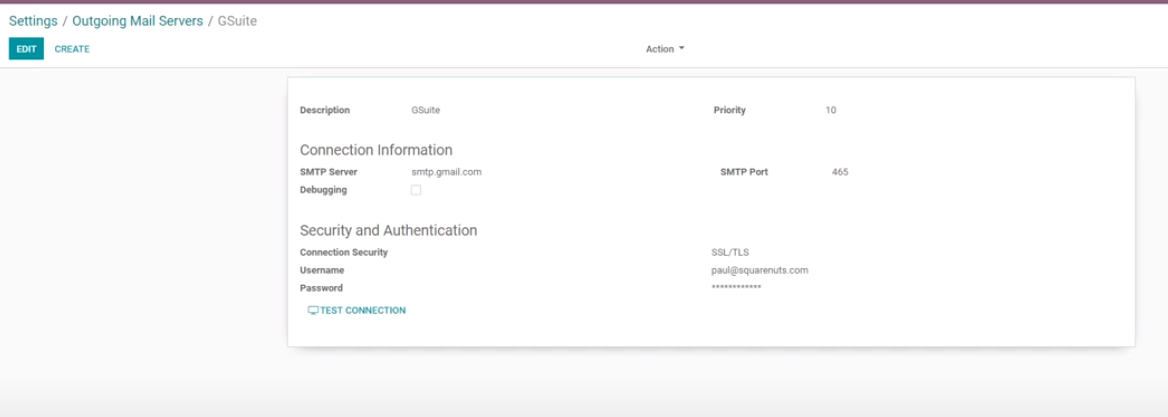
2. Create and configure the Outgoing Email Server as follow :
- Description : GSuite
- SMTP Server : smtp.gmail.com
- SMTP Port : 465
- Connection Security : SSL/TLS
- Username : john.doe@mydomain.com (this user has to be the administrator of the GSuite account)
- Password : [Ask your customer]
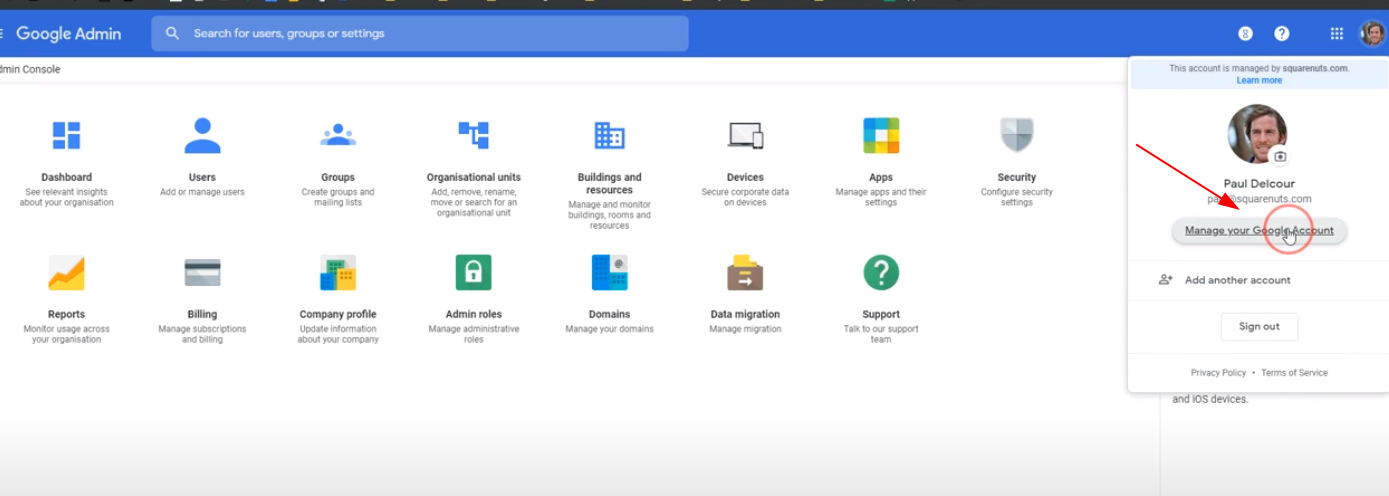
3. Go to the administration of GSuite by using the username and the password above.
4. Go to Manage your Google Account > Security and turn on the "Less secure app access" feature.
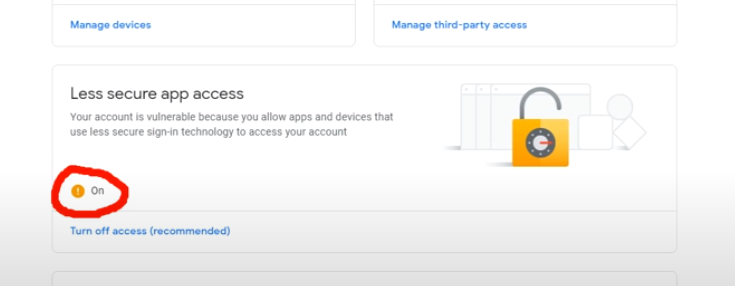
5. Wait five minutes and test the connection from Odoo.
6. Go to the administration of GSuite and create a new user with this following email : catchall@mydomain.com (are you surprised ?).
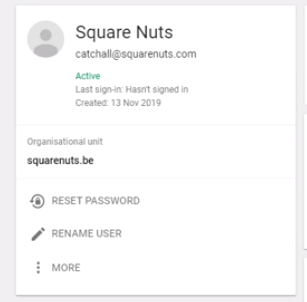
7. Go to the Gmail settings > Advanced Settings > Routing > Recipient address map and create the following mapping : catchall@mydomain.com,catchall@mydomain.odoo.com.
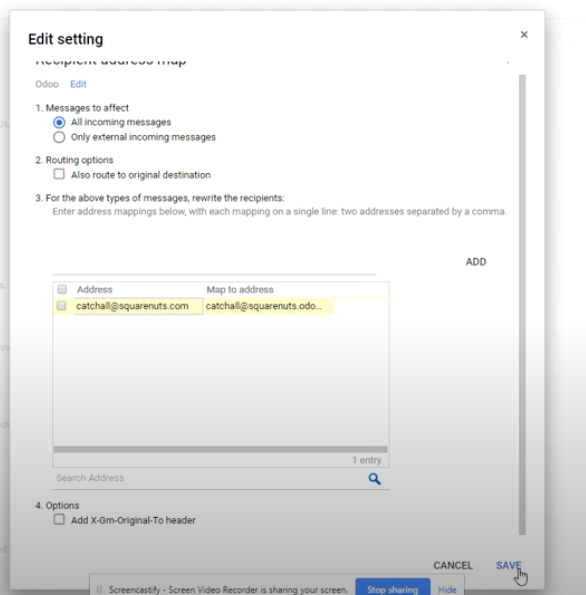
8. Don't forget to save the configuration.
9. Try it by sending a email through the chatter and answer.
10. Refresh the chatter and enjoy the result by drinking a beer.
| 相關帖文 | 回覆 | 瀏覽次數 | 活動 | |
|---|---|---|---|---|

|
0
12月 25
|
410 | ||

|
0
11月 25
|
363 | ||


|
1
7月 25
|
2263 | ||


|
5
11月 25
|
20336 | ||

|
0
4月 25
|
1994 |
