
Assuming we are a company that does custom products and require the capability to modify BOMs or create new ones from Sales orders, is there a way we can set this up in Odoo? Instead of creating preset BOMs, what is the best way to handle custom BOMs?
Odoo is the world's easiest all-in-one management software.
It includes hundreds of business apps:
- CRM
- e-Commerce
- Бухгалтерия
- Склад
- PoS
- Проекты
- MRP
Этот вопрос был отмечен
2
Ответы
6008
Представления

There are different options you can consider for BOMs that are not fixed. Let’s use examples to better explain these approaches.
Using Variants
This option is only viable if you have a fixed number of ways your BOM can be configured. In other words, the BOM is not fully customizable in the sense that there are only a specific number of options that the customer can pick from. In the same example, assume that the material of the tabletop can only be either hardwood or glass and the number of legs can only be 4 or 6. This gives us an idea of the total number of possible BOMs.
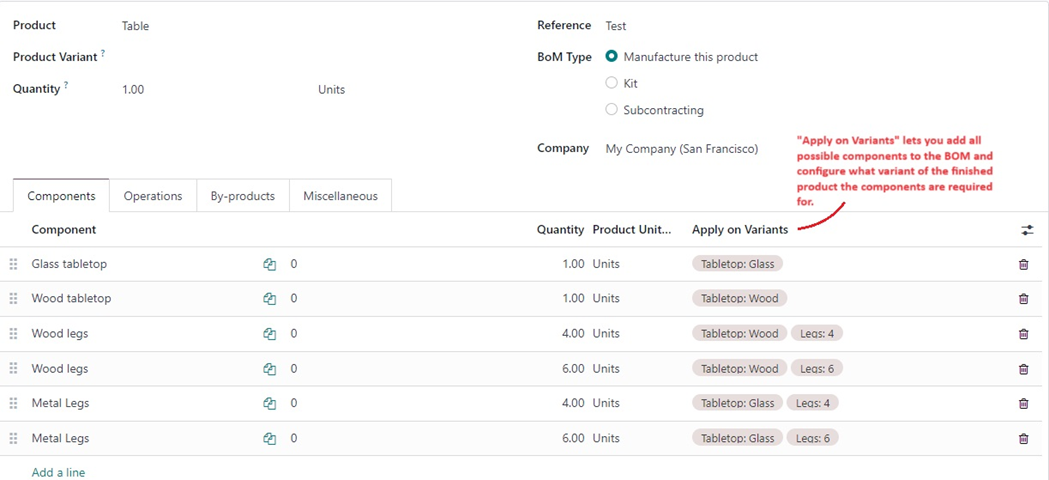
We can then create variants for the Table for tabletop and legs. Following this, we create 1 master BOM for the table and add all the possible components to the BOM. The way Odoo differentiates the components that go into different variants is by using the “Apply on Variants” field on the BOM lines.
Based on what variant the customer selects on the Sale Order, Odoo will create MOs using only the components that are required for that specific variant, hence ignoring all the other components.
Limitation
of this method – Can only be used for BOMs that have fixed number of
permutations and combinations rather than being a fully flexible BOM.
Creating the BOM from the Sale Order
This method involves creating/editing a BOM from the Sale Order, while adding the product. However, this involves a couple of extra clicks to get to the BOM model from the Sale Order but is a good option for companies that are onboard with the idea of modifying the BOM for each Sale Order.
Consider this use case – every table you sell to a customer is completely unique so a BOM created for a Sale Order will likely never be used again because of how complex the combination of components is. In such a scenario, every BOM you create will probably be used just to help trigger the MO but after that the BOM is completely obsolete. Being able to get to the BOM from the SO will help you modify the old BOM with new components for the next Sale Order. Alternatively, you can create a new BOM for each Sale Order, with the caveat of having multiple redundant BOMs in the system.
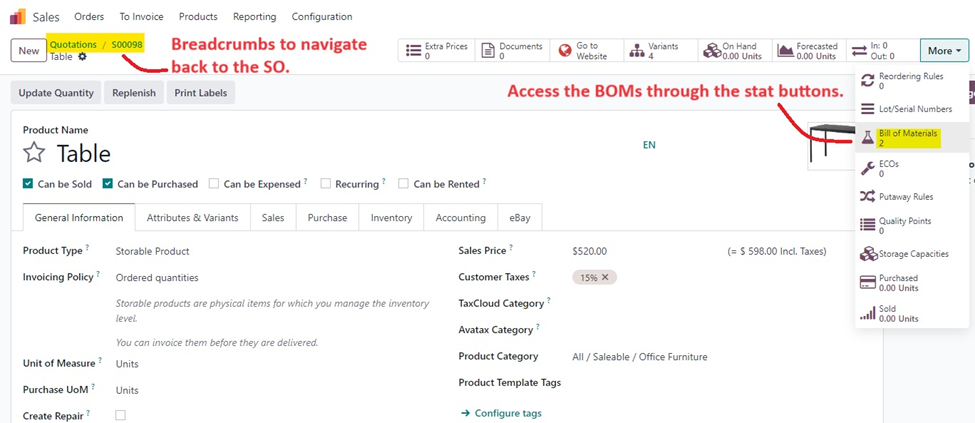
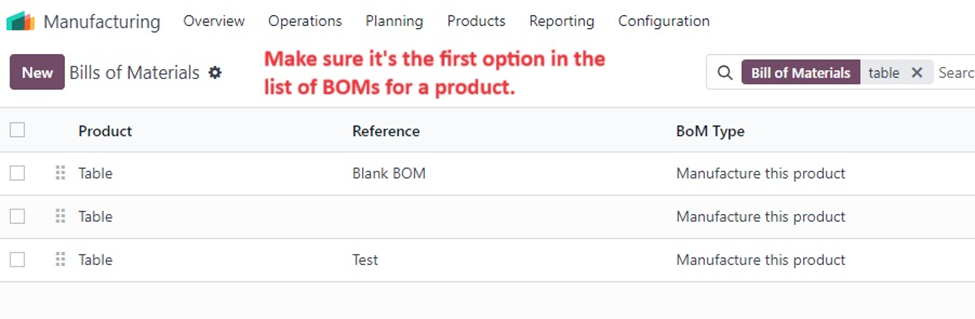
To achieve this, you simply add a product to a Sale Order but before you confirm the sale order, open up the product through the SO and then hit on Bill of Materials on the product template. You can then either edit an existing BOM or create a brand new one on the fly. Keep in mind that if you are creating a brand new one, you MUST drag it to the very top of all the BOMs so that it gets triggered over the others. Once the BOM has been created/modified, navigate back to the SO through the breadcrumbs and then confirm the order, which will trigger the MO using the BOM that you just created. This method gives you the option to be completely flexible with your components and operations as you are creating this on the fly.
Limitation of this method – Sales users will need to always open up the BOM every time they create an SO. If you sell products frequently, or use eCommerce to sell your products, this may not be feasible because of the number of orders coming in. Additionally, this method can ONLY be used if the older BOMs will not be used again.
Draft MO on confirming SO
This option is different from the other 2 in the sense that you do not modify the BOM but rather the MO that gets triggered after confirming the SO. This lets you modify each MO uniquely to a customer need without having to create redundant BOMs for each one of these custom combinations.
By default, if a BOM exists, Odoo will always create a “Confirmed” MO when you confirm the SO. At the point of confirmation of SO, Odoo will use the first BOM (if there are multiple BOMs for the same product) and then trigger a confirmed MO for that product. This method utilizes a workaround to have Odoo create an MO, but instead have it created in the “Draft” stage instead.
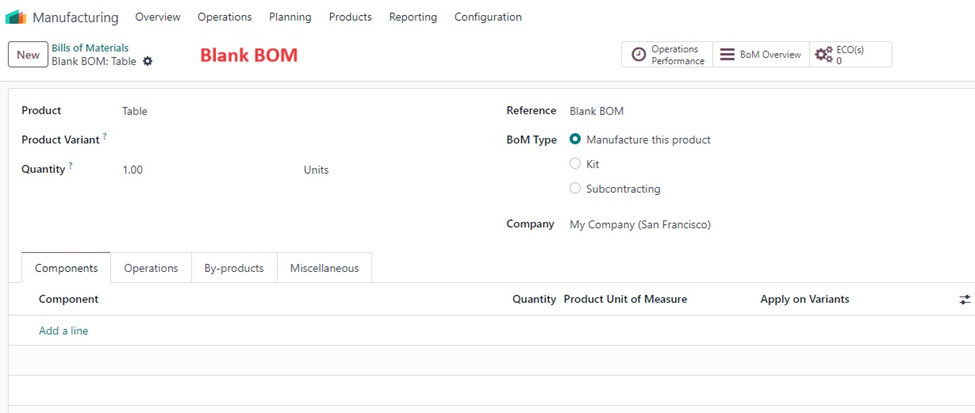
We are going to take advantage of the fact that Odoo uses the BOM that is first in the list of BOMs for the same product. To do this, simply create a blank BOM (BOM with no components or operations) for the product and make sure that it is always first in the list of BOMs. Since the BOM exists, Odoo will be forced to create the MO but since it does not have any components or operations, the MO will be in Draft. You can then open the MO and add the components and operations unique to the customer’s needs. This method comes with the advantage of not having to deal with BOMs but rather directly making changes to the MO.
Limitation of this method - There really isn’t a limitation to doing it this way, apart from the fact that you will not be saving any combination of components/operations in a BOM, which is fine because we are assuming that this method will be employed for highly customizable products.

Thanks for the comprehensive answer.
How is the custom product sales prices handled in all of your scenarios?
Ideally all products/components added to a BoM would have a sale price and the manufactured product's sale price is the sum of the component's sales price.
I could be wrong but I don't think Odoo can do this out of the box.
Hey Raf,
Thanks for your question.
Odoo can do this out-of-the-box if you set the costing methods for the finished product as First in First out (FIFO) or Average Costing. Odoo will always compute the cost of the finished product as a sum of the cost of components and all the operations and landed costs that went into making the product. This will automatically be stored in Odoo as the cost and then when you sell it, you can chose to sell it at the same price or add a margin on top of it if you want.
Не оставайтесь в стороне – присоединяйтесь к обсуждению!
Создайте аккаунт сегодня, чтобы получить доступ к эксклюзивным функциям и стать частью нашего замечательного сообщества!
Регистрация| Похожие посты | Ответы | Просмотры | Активность | |
|---|---|---|---|---|

|
2
мая 25
|
6438 | ||

|
1
апр. 25
|
2317 | ||
|
|
1
сент. 24
|
7020 | ||
|
|
1
сент. 24
|
3706 | ||

|
1
февр. 24
|
4098 |
