Odoo's tax engine is very flexible and support many different type of taxes: value added taxes (VAT), eco-taxes, federal taxes, retention, withholding taxes, etc. For most countries, the chart of account you setup is automatically pre-configured with the main taxes of the country.
Deze sectie geeft details over hoe uw nieuwe belastingen kan definiëren voor specifieke cases.
Belastingen beheren
Nieuwe belastingen definiëren
In order to create new taxes, use the menu in the accounting application. From this menu, you will get all the taxes you can use: sales taxes and purchase taxes.

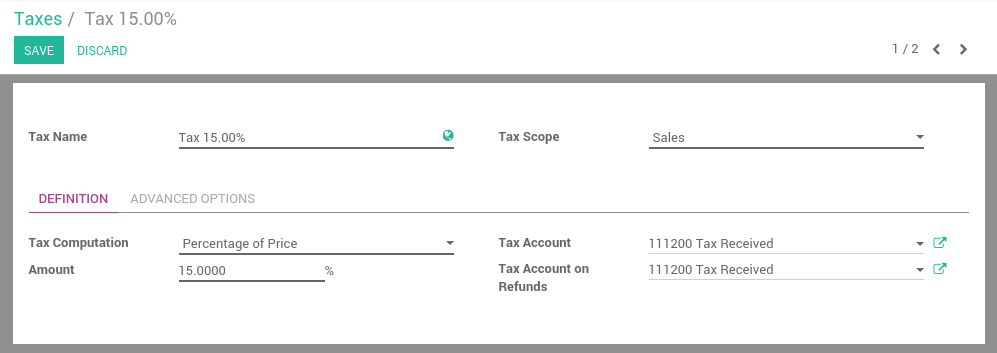
Wanneer u een nieuwe belasting aanmaakt kan u de volgende informatie instellen:
- Scope: Sales, Purchases or None (e.g. deprecated tax)
- Tax Account: is the account where the tax journal item will be posted. This field is optional, if you keep it empty, Odoo posts the tax journal item in the income account.
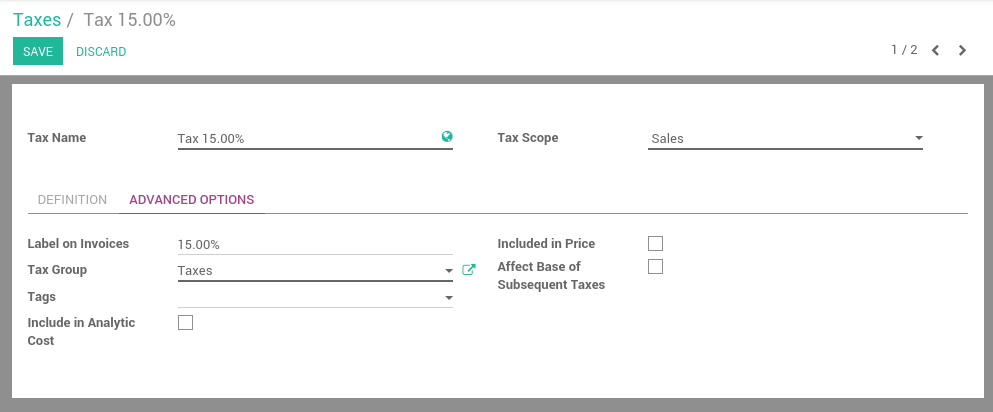
- Label on Invoices: a short text on how you want this tax to be printed on invoice line. For example, a tax named "21% on Services" can have the following label on invoice "21%".
- Tax Group: defines where this tax is summed in the invoice footer. All the tax belonging to the same tax group will be grouped on the invoice footer. Examples of tax group: VAT, Retention.
- Include in Analytic Cost: the tax is counted as a cost and, thus, generate an analytic entry if your invoice uses analytic accounts.
- Tags: are used for custom reports. (usually, you can keep this field empty)
Belastingen staan verschillende berekening methode mechanismes toe:
Vast, bijvoorbeeld: een eco-belasting van $1.34 per batterij
Percentage, bijvoorbeeld: 15% verkoop belasting
Percentage van prijs, belasting inbegrepen: voorbeeld in Brazilië
Groep van belastingen: staat een samengestelde belasting toe
Notitie
if you need more advanced tax mechanism, you can install the module account_tax_python and you will be able to define new taxes with Python code.
If a tax is included in price, it means that the price set on the product form includes this tax. As an example, let's say you have a product with a sale tax of 10%. The sale price on the product form is $100.
Indien de belasting niet in de prijs is inbegrepen krijgt u:
Prijs zonder belastingen: $100
Belastingen: $10
Totaal te betalen: $110
Als de belasting is inbegrepen in de prijs
Prijs zonder belastingen: 90.91
Belastingen: $9.09
Totaal te betalen: $100
Stop met het gebruik van belastingen
If you want to avoid using a tax, you can not delete it because the tax is probably used in several invoices. So, in order to avoid users to continue using this tax, you should set the field Tax Scope to None.
Standaard belastingen instellen
Once you have created your taxes, you can define which tax is the default one when creating new products (for sales and purchase taxes). To set the default taxes, in the accounting application, go in the menu .
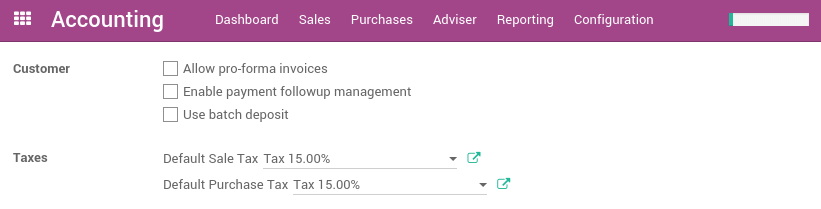
Once taxes are set by default, when you create a new product, Odoo will propose you the right taxes by default on the product form.
Notitie
Setting the default taxes impact the creation of product, but not sales order or invoices. The tax used on sales order or invoices is defined by the product on the sale order line.