
How to set up the EPSON ™-m30 III without IOT
Odoo is the world's easiest all-in-one management software.
It includes hundreds of business apps:
- 客戶關係
- e-Commerce
- 會計
- 庫存
- PoS
- 專案管理
- MRP
此問題已被標幟
2
回覆
10423
瀏覽次數

How to set up the EPSON ™-m30 III
First step: Connect your printer to your WIFI
Turn on the EPSON printer
A receipt is printed with some information on it and a QR code

Scan the QR code with your phone and connect to the printer network

Once you click on it wait a bit and another receipt will be printed and scan the QR code or you can reach the page by typing the information you see directly in your browser here in the example “http://172.16.10.1”

You reach this page

Click on wifi and connect with the serial number of the printer (in the back of the printer) as password

Select your wifi and connect to it

Your printer is connected to your wifi !
Second step: Connect your printer to your Database ?
Turn on the EPSON printer
A receipt is printed with some information on it

Add your EPSON in your DB
Go in your DB
POS application
Configurations
Connected devices => EPOS printer
Add the IP address that you see on the receipt that was printed (here: 10.10.31.219)
Add a system parameters
Put Debug mode
System parameters
Create a new system parameters with :
Key: point_of_sale.enforce_https
Value: True
Check if you have a self signed certificate (Odoo Documentation)
Type the IP address of the printer in your browser (here: 10.10.31.219)

Click on advanced and proceed to the page
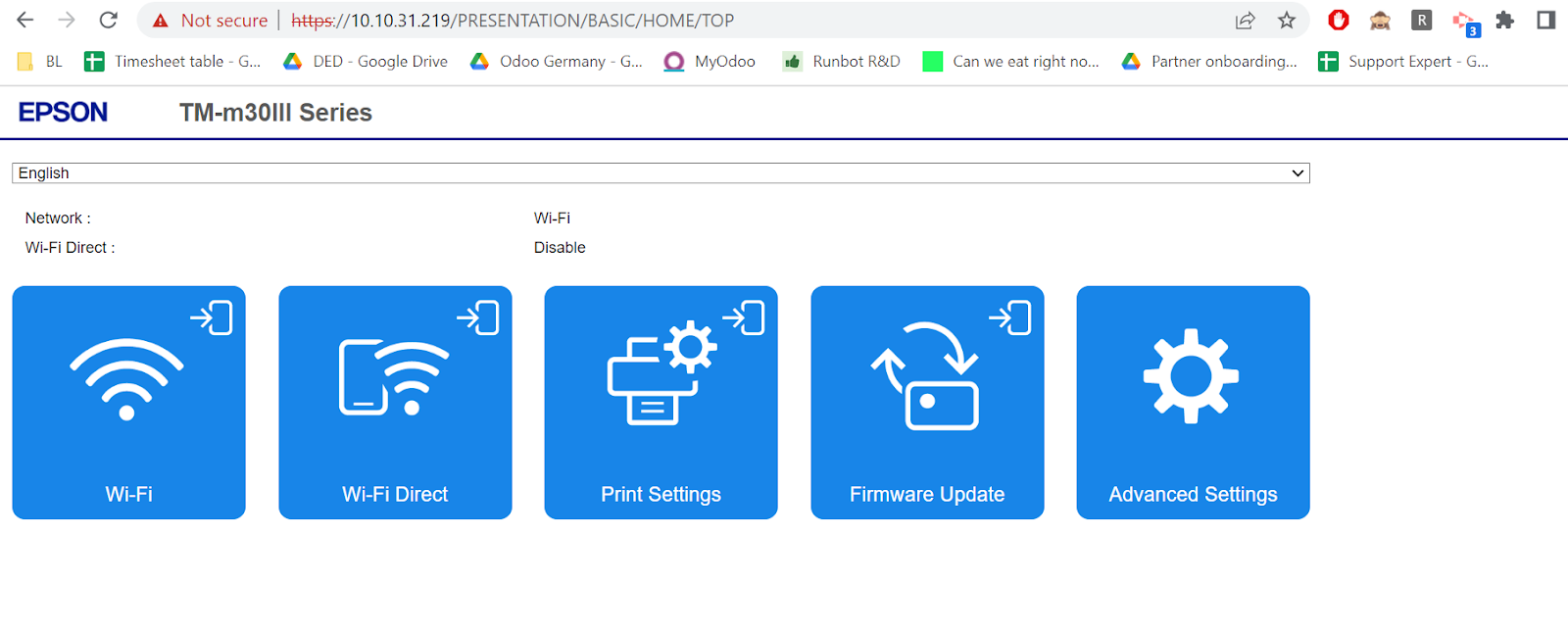
Go on advanced settings


If there is no self signed certificate, create one
Connect with the Administrator login (top right corner of the screen)
Use “epson” as login in the “ID” field and the serial number of the printer (is at the back of the printer) as “Password”
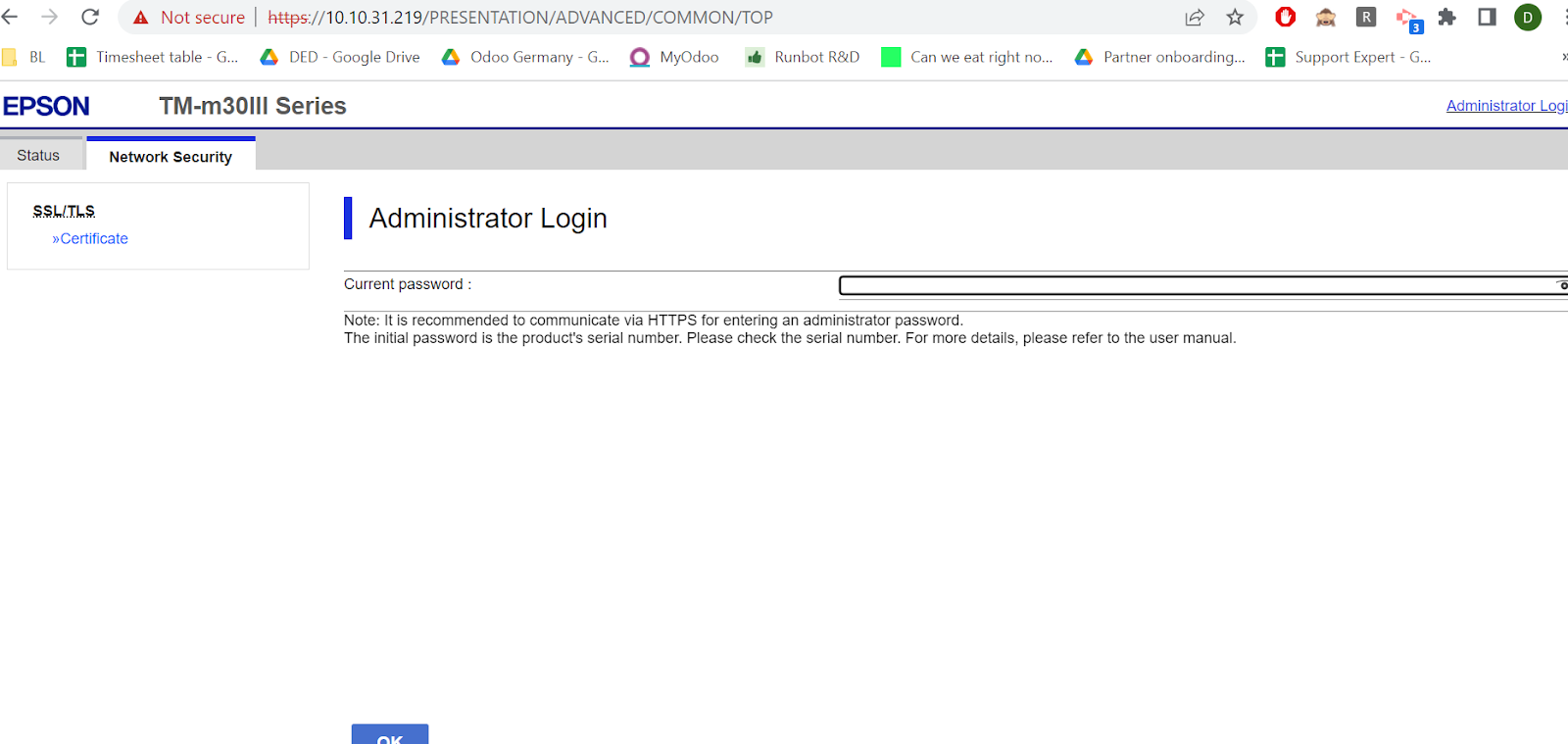
Go in Network Security (Advanced settings)
SSL/TLS
Certificate

Click on create on Self Signed certificate part
Once the certificate is created, export it (Video here)
On your browser click on the “Not secure”

Click on Certificate is not valid
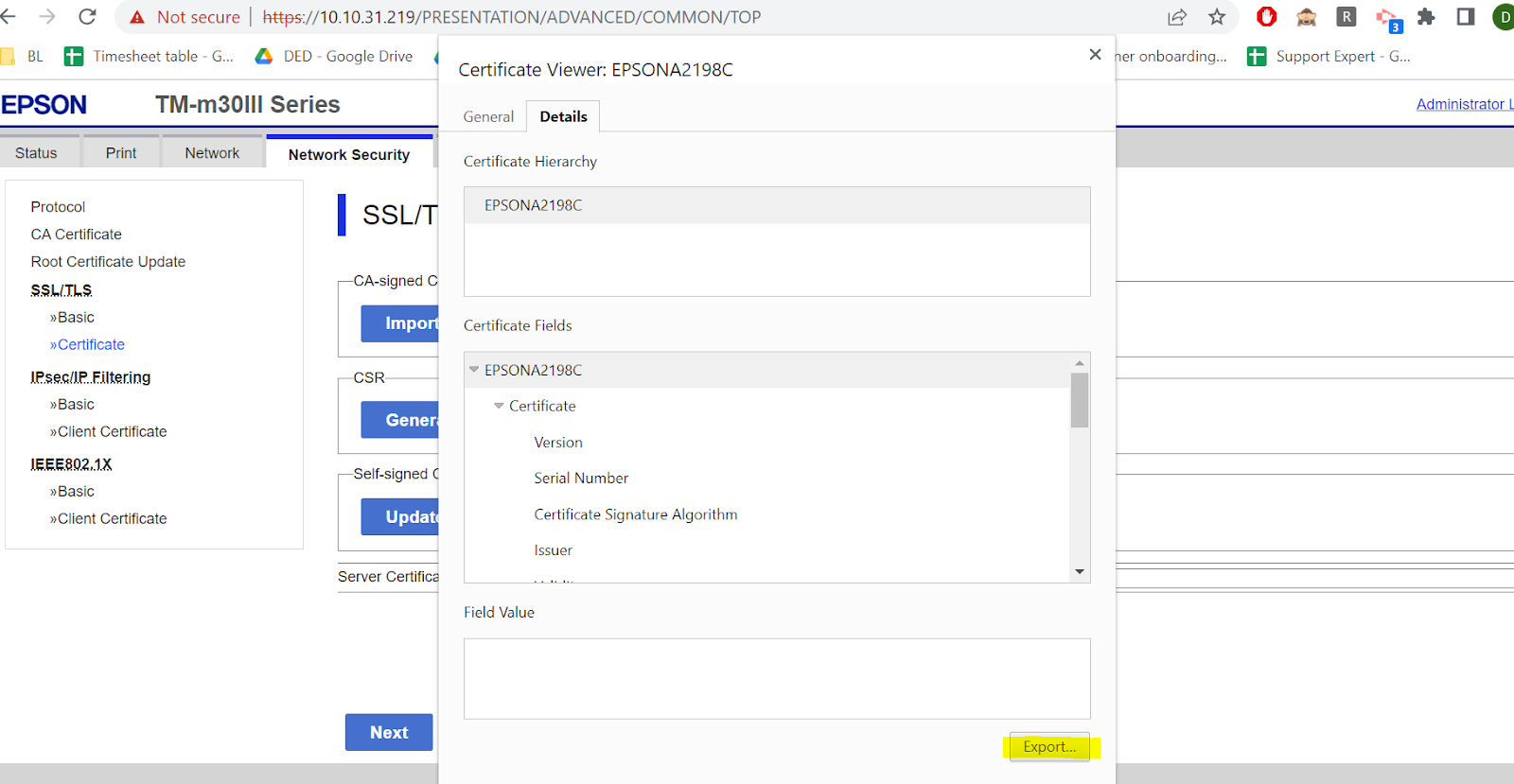
Click on the”Details” tab
Click on export
Save the certificate on your computer BUT
Add “.crt” at the end of the name of the file
Be sure it is saved as Base64-encoded ASCII, single certificate

Import the certificate in your browser (Different if from Windows or Linux see in Odoo doc) Here explained for Linux (Video here)
Open your browser
Go to settings => Privacy and security => Security => Manage device certificates => Authorities


Accept all warnings
Click ok
Restart your browser
You are connected to your Database, you can now use your POS with your printer !
How to reset your printer to connect your printer to another WIFI ?
On the back of your printer you have a small button that you can press with a pen
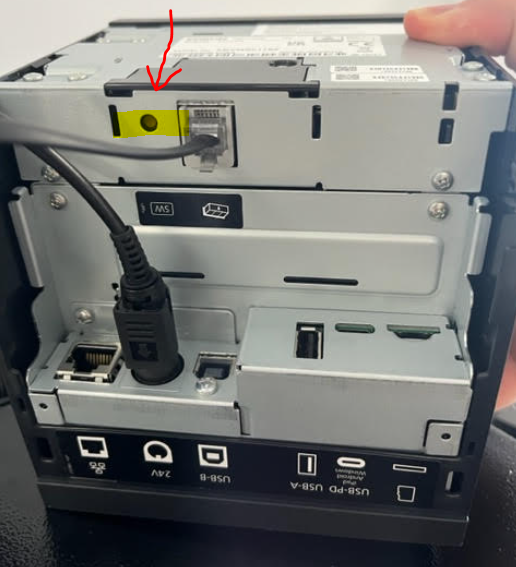
Press it and the button “ON” of the printer at the same time until a receipt is printed
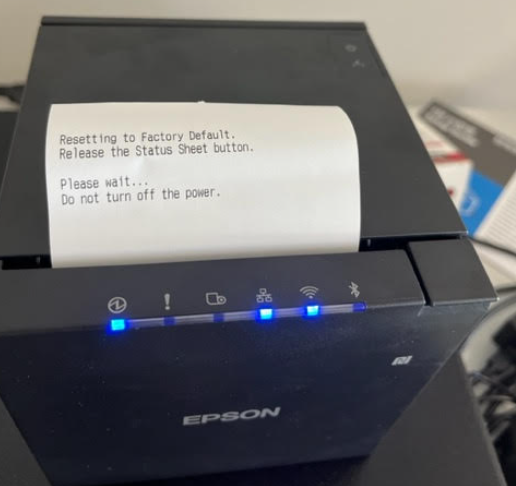
It is done, your printer is reset !
Any insights if this method would work with other epson printers for printing labels?

**edit** If in doubt, factory reset and start again. Seemed to sort it.
Thanks for this - It doesn't work for me, either on my Linux (ubuntu 22.04) PoS boxes, or my Windows laptop. I've tried both Chrome & Firefox. I still get certificate errors.
The rouite to the printer:
Robustel R5020 Router > TP Link Switch > TP Link Archer AC Router (in access point mode) > TM-M30iii connected via wi-fi, on a static IP on my intranet.
My PoS boxes are running Ubuntu 22.04, on static internal IPs via the R5020, and all accessible on those IPs via SSH etc. They are on various subnets (in different rooms). The Printer web interface is accessible via it's fixed intranet IP from any subnet, but always shows up as having certificate errors
Do I need to run a DNS server for the intranet and use FQDNs rather than IPs, Is there any other troubleshooting/methodology I can go through?
| 相關帖文 | 回覆 | 瀏覽次數 | 活動 | |
|---|---|---|---|---|


|
2
11月 23
|
2461 | ||

|
1
4月 23
|
3456 | ||

|
0
8月 22
|
3536 | ||


|
3
6月 25
|
8403 | ||

|
0
6月 25
|
3580 |
