
How to recreate a website from a different Odoo instance?
Odoo is the world's easiest all-in-one management software.
It includes hundreds of business apps:
- 客戶關係
- e-Commerce
- 會計
- 庫存
- PoS
- 專案管理
- MRP
此問題已被標幟
1
回覆
7777
瀏覽次數

Websites mainly consist of 4 parts.
1. Theme Information
2. Snippets
3. Media
4. Records
Theme Information
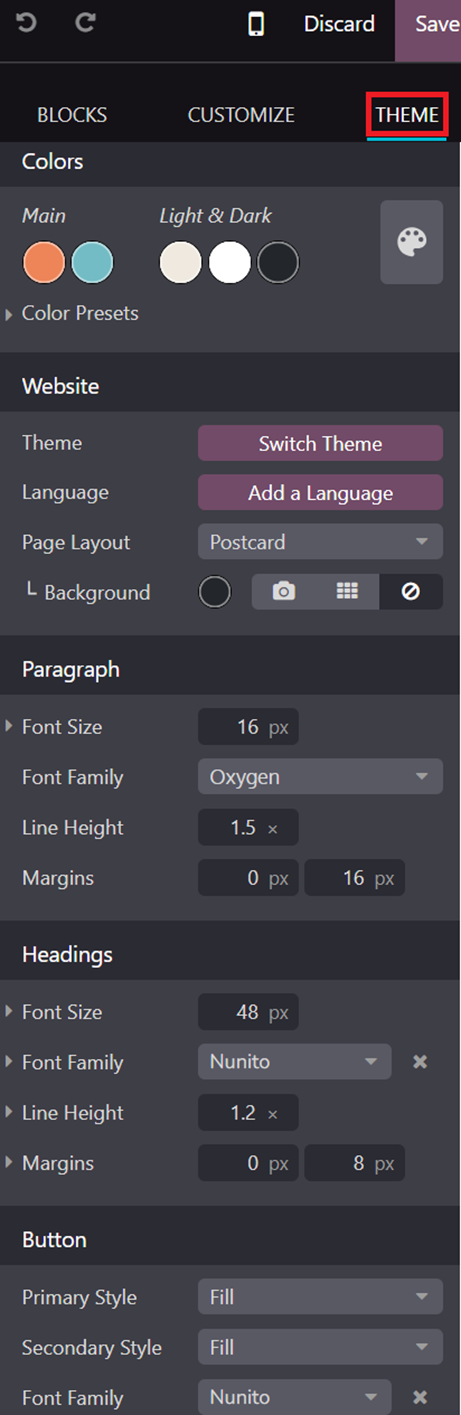
Theme Information includes the Theme of the website, but also the color palette, Text styles, and sizes.
A Theme is set when
creating the website. These can then be viewed/changed on the Theme section of
the Website edit menu.
Snippets
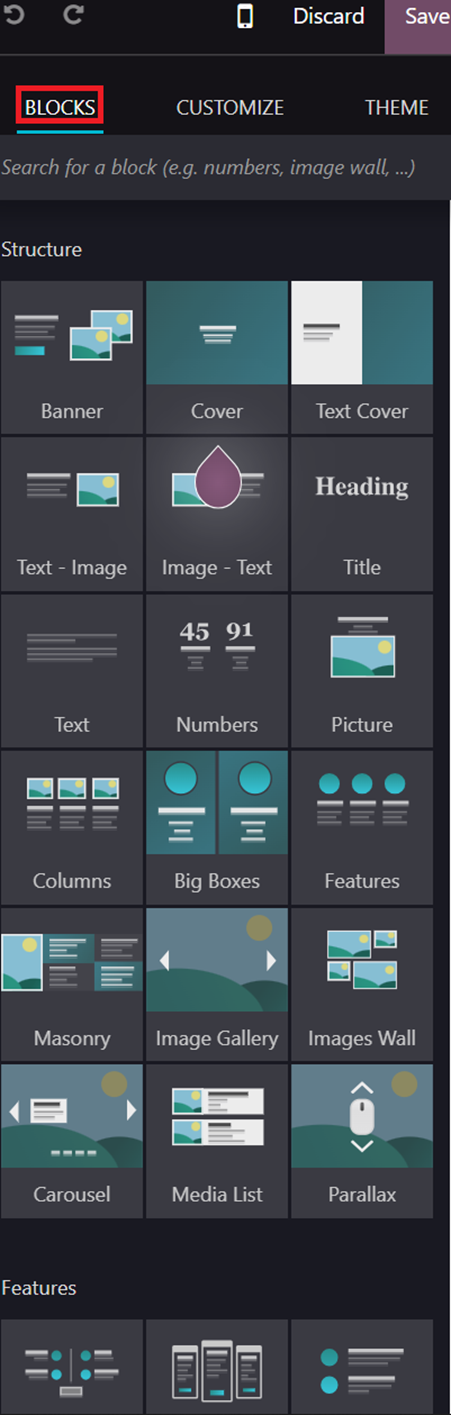
Snippets are the building blocks that are used to build websites. These are available under the Blocks section of the website edit menu that gives structure to the webpage.
Media files
Media files refer to the images, videos and files that you add on a building block.
Records
Records refer to a group of data within the same structure.
For example: a Product is a record, and it holds the data on all the fields.
These four elements constitute the website, and in the frontend, some of these are seen and noticed, however adding all of these adds pieces of code into the database.
A Website is a collection of pages, Hence Making a copy of the website can be achieved by making a copy of the individual pages of the website. A Website can be created by importing these pages into Odoo.
However, just the pages alone will not completely make a website as there are still elements which have to be added and changed manually to get a complete duplicate.
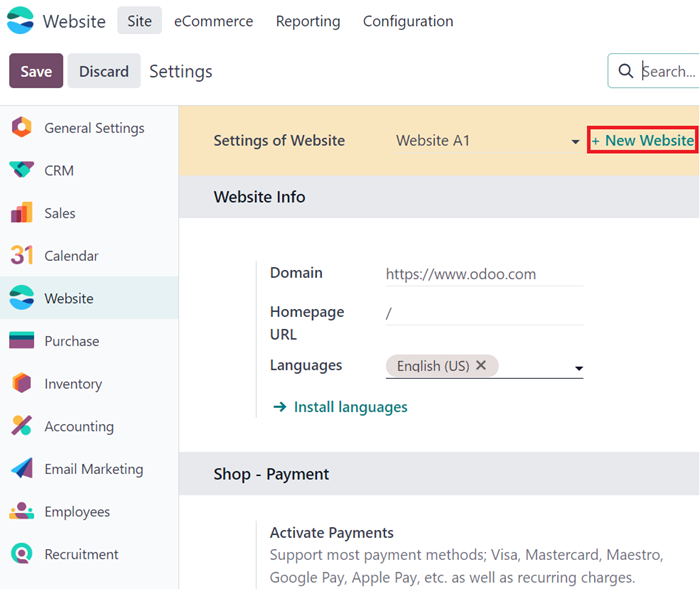
Create a Website from Website -> Configuration -> Settings and select “+ New Website” button.
The website configurator appears, it will go through the website configurator part where, Color, theme, purpose, functionality of this website can be defined.
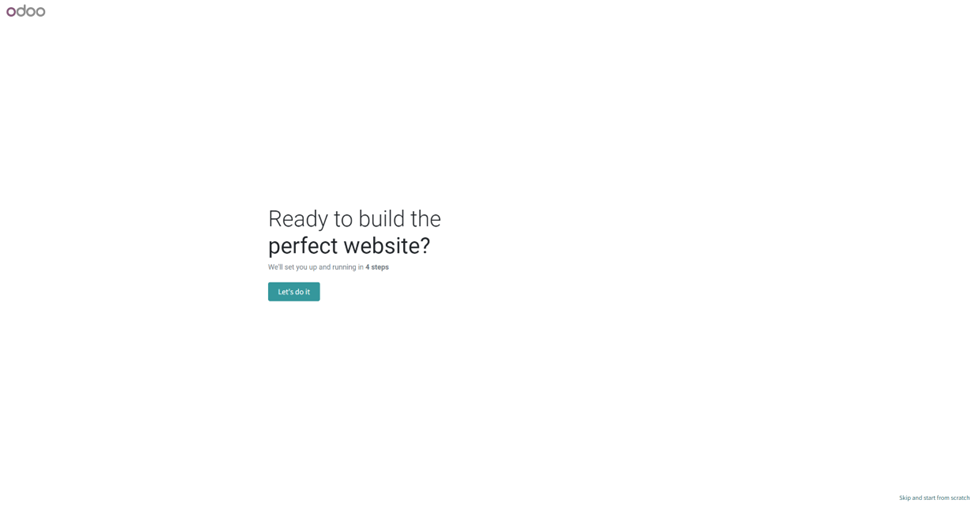
if you remember the original selections, Select the same prompts as the original website in the Website configurator to recreate an exact website theme
If not, once the website is created, go to Website editor -> Theme and Select the same Theme as the original website.
Expand the colors to setup each individual segment within the sections to match the original website.
Select the fonts and configure it to match the original website.
Select the Header and footer to match the original website.
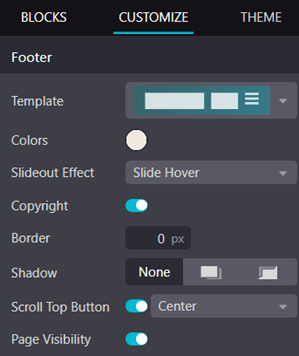
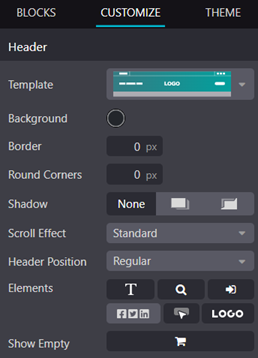

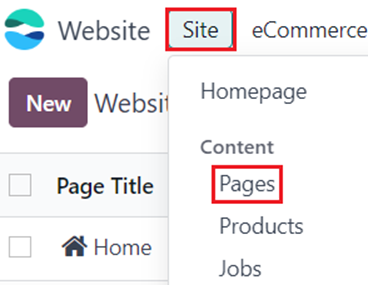
Once the initial theme is set up go to Site -> Pages
Export the View Architecture from the original website and import them into the duplicate website.
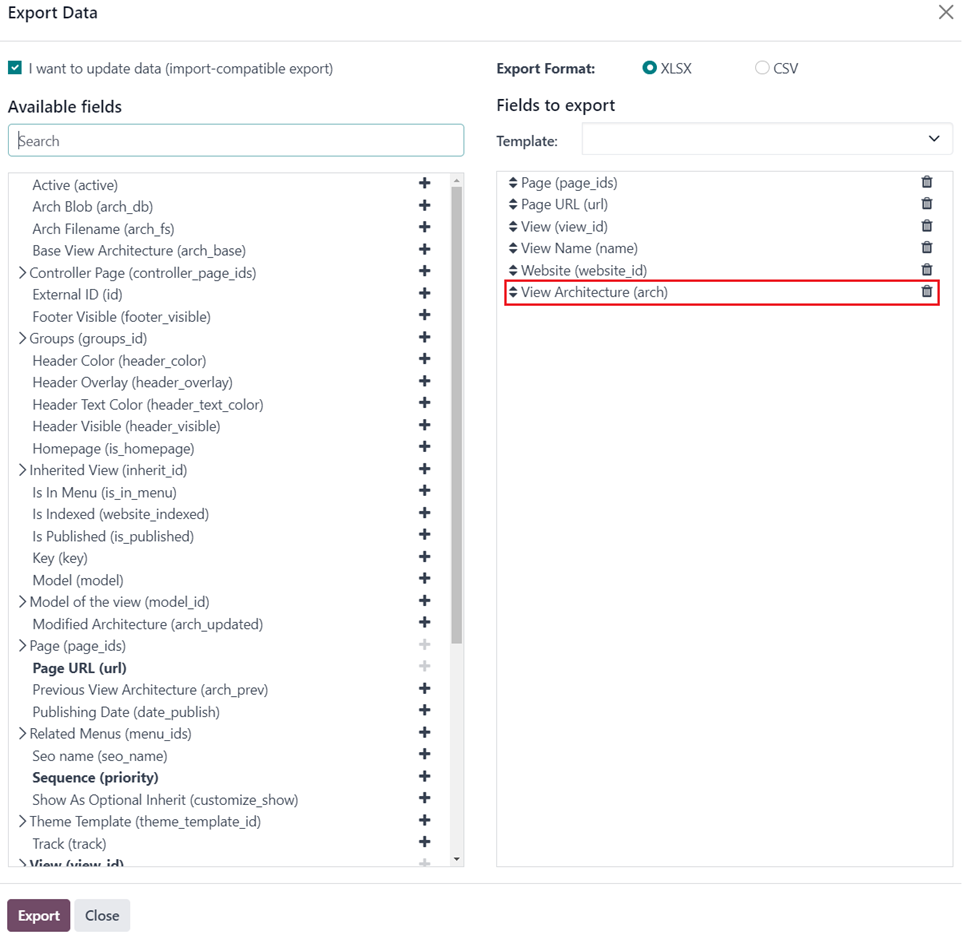
Note: Make sure to add the external ID’s of already existing pages that need to be updated like the home page.
This will add all the blocks with the default images and the text and links provided in the original page. This does not change the images which were added to the website. This is because images and media added to the website are website specific and hence have to be added again.
Once the pages are built, the final step is to add the pages to the menu. Which can again be done via import similar to pages.
Export the following fields from the Menus sub-menu under the website configuration menu.
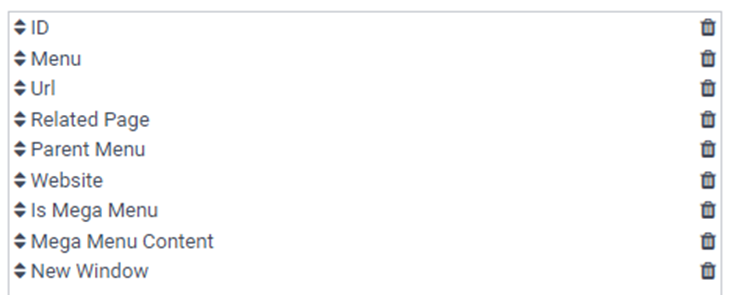
Export all the menu items, which are from the new parent menu or pages from the original website.
Remove the External IDs from all the lines.
Change the Website on the excel sheet on all the menu items from the original website to the new website.
Related Page for menus that are not linked to any page like a parent menu, or a mega menu needs to be set as “#”
Remove the Parent menu from all the child menus, as in menus that do not belong to “Top Menu for Website 1”
Change the Parent menu to “Top Menu for Website 2”, or the current website number on the menus which are not a child menu. This can be seen as an existing menu item on the website. This “Top Menu for Website X” gets created automatically when a website is created.
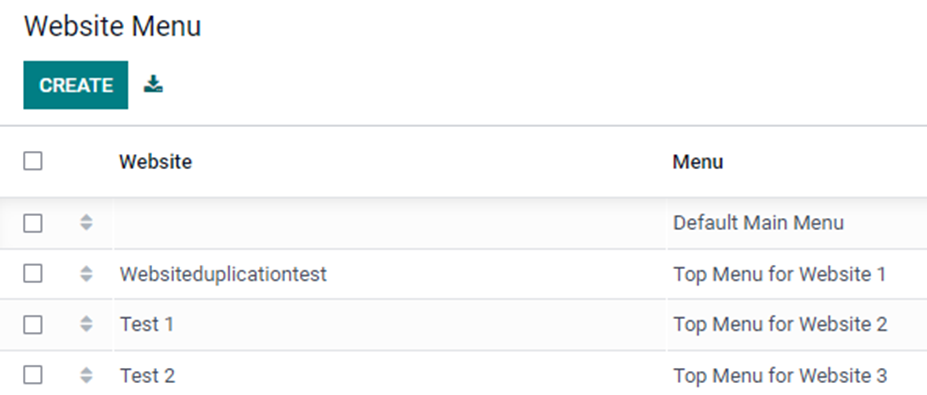
The Import sheet will look something like this once the changes are done.
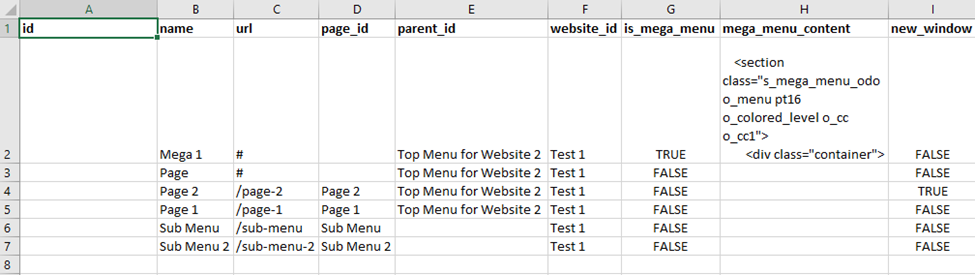
If the pages have the same names on both websites, make sure to use the database id or the external id instead.
Add the respective Parent menu to the sub-menus.
With this, you have successfully recreated the website.
| 相關帖文 | 回覆 | 瀏覽次數 | 活動 | |
|---|---|---|---|---|
|
|
1
10月 24
|
6226 | ||

|
2
4月 25
|
4120 | ||
|
|
1
4月 25
|
9804 | ||

|
2
6月 25
|
3490 | ||

|
2
9月 25
|
4083 |
