Skip ke Konten
Odoo Menu
  • Login
  • Uji coba gratis
  • Aplikasi
    Keuangan
    • Akuntansi
    • Faktur
    • Pengeluaran
    • Spreadsheet (BI)
    • Dokumen
    • Tanda Tangan
    Sales
    • CRM
    • Sales
    • POS Toko
    • POS Restoran
    • Langganan
    • Rental
    Website
    • Website Builder
    • eCommerce
    • Blog
    • Forum
    • Live Chat
    • eLearning
    Rantai Pasokan
    • Inventaris
    • Manufaktur
    • PLM
    • Purchase
    • Maintenance
    • Kualitas
    Sumber Daya Manusia
    • Karyawan
    • Rekrutmen
    • Cuti
    • Appraisal
    • Referensi
    • Armada
    Marketing
    • Social Marketing
    • Email Marketing
    • SMS Marketing
    • Acara
    • Otomatisasi Marketing
    • Survei
    Layanan
    • Project
    • Timesheet
    • Layanan Lapangan
    • Meja Bantuan
    • Planning
    • Appointment
    Produktivitas
    • Discuss
    • Approval
    • IoT
    • VoIP
    • Pengetahuan
    • WhatsApp
    Aplikasi pihak ketiga Odoo Studio Platform Odoo Cloud
  • Industri-Industri
    Retail
    • Toko Buku
    • Toko Baju
    • Toko Furnitur
    • Toko Kelontong
    • Toko Hardware
    • Toko Mainan
    Makanan & Hospitality
    • Bar dan Pub
    • Restoran
    • Fast Food
    • Rumah Tamu
    • Distributor Minuman
    • Hotel
    Real Estate
    • Agensi Real Estate
    • Firma Arsitektur
    • Konstruksi
    • Estate Management
    • Perkebunan
    • Asosiasi Pemilik Properti
    Konsultansi
    • Firma Akuntansi
    • Mitra Odoo
    • Agensi Marketing
    • Firma huku
    • Talent Acquisition
    • Audit & Sertifikasi
    Manufaktur
    • Tekstil
    • Logam
    • Perabotan
    • Makanan
    • Brewery
    • Corporate Gift
    Kesehatan & Fitness
    • Sports Club
    • Toko Kacamata
    • Fitness Center
    • Wellness Practitioners
    • Farmasi
    • Salon Rambut
    Perdagangan
    • Handyman
    • IT Hardware & Support
    • Sistem-Sistem Energi Surya
    • Pembuat Sepatu
    • Cleaning Service
    • Layanan HVAC
    Lainnya
    • Organisasi Nirlaba
    • Agen Lingkungan
    • Rental Billboard
    • Fotografi
    • Penyewaan Sepeda
    • Reseller Software
    Browse semua Industri
  • Komunitas
    Belajar
    • Tutorial-tutorial
    • Dokumentasi
    • Sertifikasi
    • Pelatihan
    • Blog
    • Podcast
    Empower Education
    • Program Edukasi
    • Game Bisnis 'Scale Up!'
    • Kunjungi Odoo
    Dapatkan Softwarenya
    • Download
    • Bandingkan Edisi
    • Daftar Rilis
    Kolaborasi
    • Github
    • Forum
    • Acara
    • Terjemahan
    • Menjadi Partner
    • Layanan untuk Partner
    • Daftarkan perusahaan Akuntansi Anda.
    Dapatkan Layanan
    • Temukan Mitra
    • Temukan Akuntan
    • Temui penasihat
    • Layanan Implementasi
    • Referensi Pelanggan
    • Bantuan
    • Upgrades
    Github Youtube Twitter Linkedin Instagram Facebook Spotify
    +1 (650) 691-3277
    Dapatkan demo
  • Harga
  • Bantuan

Odoo is the world's easiest all-in-one management software.
It includes hundreds of business apps:

  • CRM
  • e-Commerce
  • Akuntansi
  • Inventaris
  • PoS
  • Project
  • MRP
All apps
Anda harus terdaftar untuk dapat berinteraksi di komunitas.
Semua Post Orang Lencana-Lencana
Label (Lihat semua)
odoo accounting v14 pos v15
Mengenai forum ini
Anda harus terdaftar untuk dapat berinteraksi di komunitas.
Semua Post Orang Lencana-Lencana
Label (Lihat semua)
odoo accounting v14 pos v15
Mengenai forum ini
Help

[18.0] How can I add a sequence to the lines in my sale order, invoice or purchase order?

Langganan

Dapatkan notifikasi saat terdapat aktivitas pada post ini

Pertanyaan ini telah diberikan tanda
salespdfsale.order.linequickstartQuickstart
3 Replies
7463 Tampilan
Avatar
Orlanda Rodríguez Montenegro (orrm)

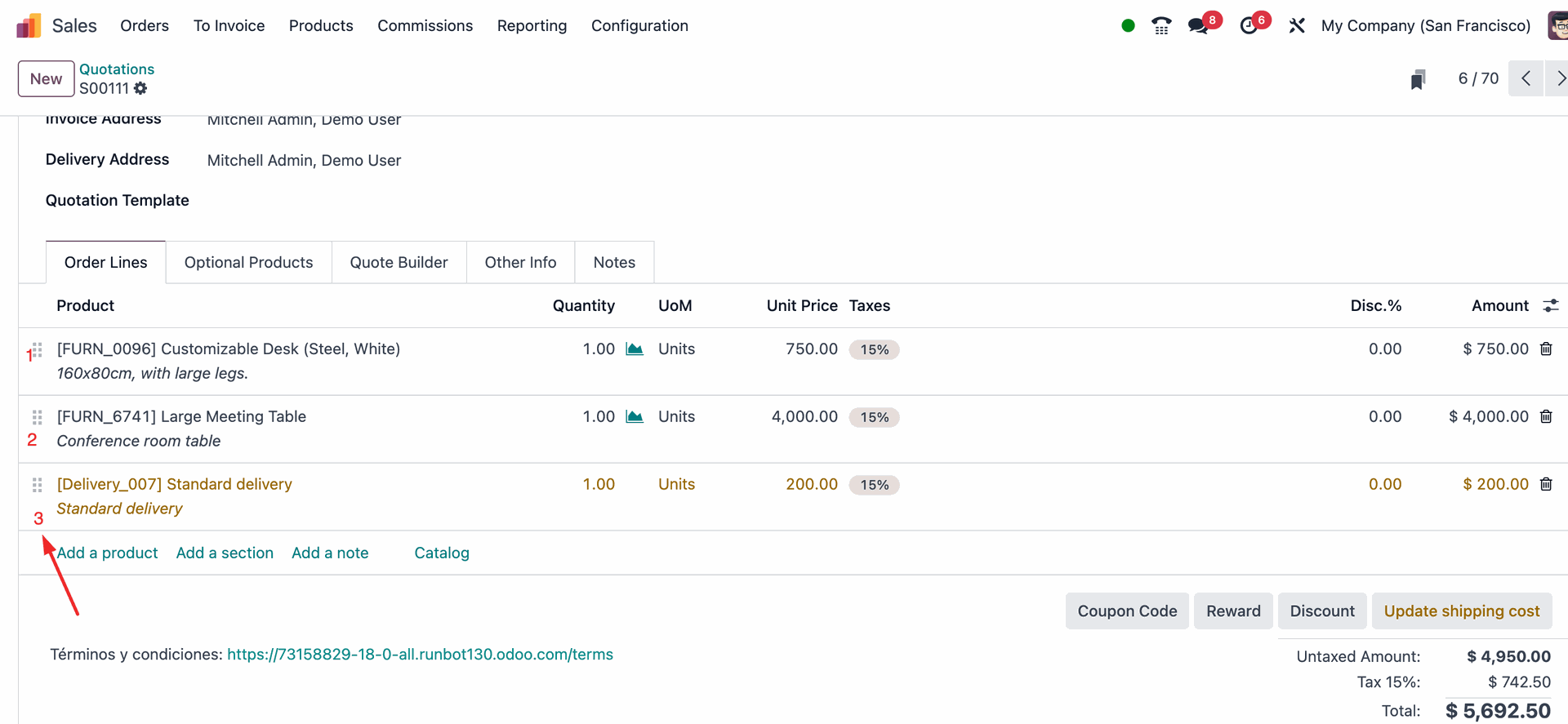
I want to add a sequence to my sale order that addds a numerator on each line starting at 1. I'd like it to be on my sales PDF and in the view so the customer can make reference to a specific line.
0
Avatar
Buang
Marcucci Jeremy

Good afternoon, 

Thanks a lot for all the explaination. I need it also for my order.

I have a small difference compare to the original asking, I need to start from 10 and increase each line by 10.

For example line 1 will be 10, line 2 will be 20, etc. Is it possible to make it ? I search all the day for it... 

I'm on odoo sh.

Thanks for your help and have a nice day.

Jeremy

Dinesh Hassani

I tried Ken's version and got success on all fronts, but couldn't get it on printed reports.... help if you know any better. I am using Odoo 19.

Avatar
Orlanda Rodríguez Montenegro (orrm)
Penulis Jawaban Terbai

Part 1: (V.18) Add the sequence number for each item/product in the sales.order.line model. 


  1. From the sales.order model go to Studio.

2. Click on the “Edit list view” button to go to the sale.order.line model 


3. Add a related field to “sequence”.

4. Activate the Developer Mode

5. (Best practice) Change the label and then the technical name. 

Extra tip: When you finish typing the label, type "enter", wait for studio to load and it's coppied to the technical name.


6. Go to the a Sale Order and add a product in the sale lines to see how it works. 

We haven´t finished! The sequence starts with the number 10 and we need it to start from 1) Please go to the next step


7. In order to predefine the number 1 for the sequence as the default. Go to Settings / Technical / Actions / Use-defined defaults

8. Create a new User-defined Default 

  • Add the field: Sequence (Sales Order Line) -> You might need to search for it on the "search more" option
  • Default value: 1

If you don't find the field "search more" with these values: field: sequence, model: sale.order.line
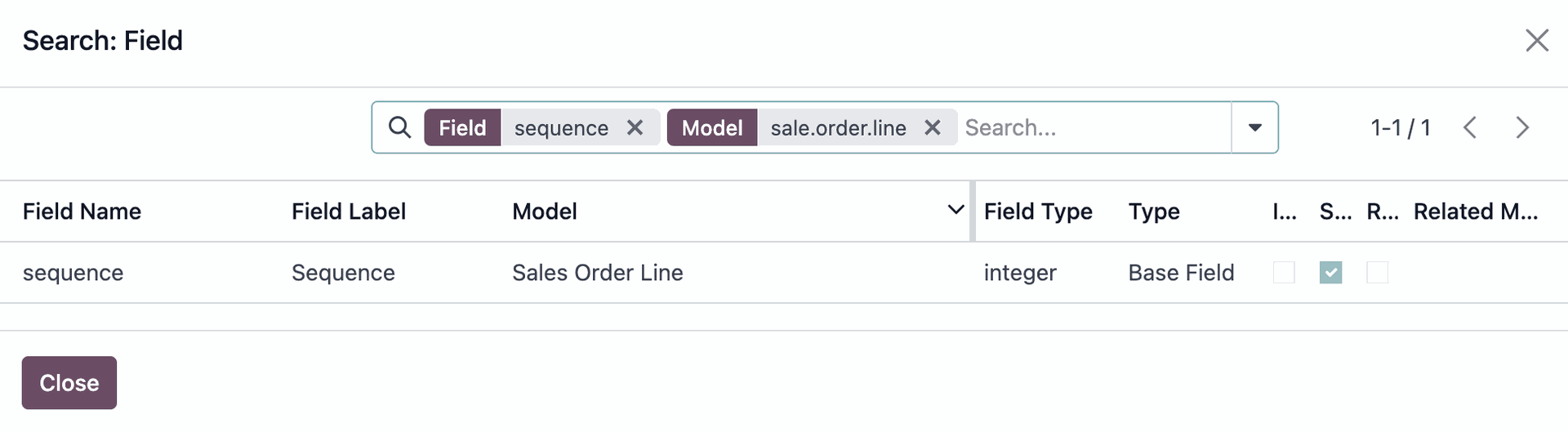

9. Go to the sale.order model and see how it works. 


Note: You need to save it, in order to have a correct sequence. If you don't save it, you will always have the number 1 in the sequence field. 

Once it's saved you will have the correct sequence. 


Forum post part 2:

(V.18) How to add the sequence to the PDF?

  1. From the sale.order model go to Studio and find the reports you want to add the sequence field.


2. Insert a field 


3. Change the name of the field

4. In the rectangle below Type “/” and select “field”

5. Add the native field of Sequence (integer): 

6. Don´t forget to Save it 


7. Print the PDF and the sequence field will be shown.


7
Avatar
Buang
Ahmed khalifa

I followed the same steps but it shows 1 , 1 , 1 for the line items then when i save it shows again 10,11,12
i compare the field: sequence which you made with mine, your screenshot shows the type is Base Field but mine shows it's Custom Field.
Could that be the problem?

Chris TRINGHAM

The Base Field is used on the pdf. It's already shown on the Form View but with a drag handle to re-sequence lines, so a new related field is added.

Probably you are trying to set the default value to 1 on the new related field, it needs to be on the Base field.

Christine Nguyen

Thank you, your solution is great. I followed it, but when I save, the sequence still stays as 1, 1, 1. It only reorders automatically when I drag and drop a line. How can I make it automatically adjust the sequence numbers 1, 2, 3 when I save the SO?

Admin

when i add sequence field in report start the 0 not 1?

Apiuser

Is this possible to set up on CE?

Avatar
Ken Nguyen
Jawaban Terbai

For those who are still struggling with these solutions, I combined both methods, and it seems to work.  I used Sai's method up to the Sales Order Code.  I couldn't figure out which model the Invoice code was supposed to be on.  I also created the same code for the Purchase Order model.

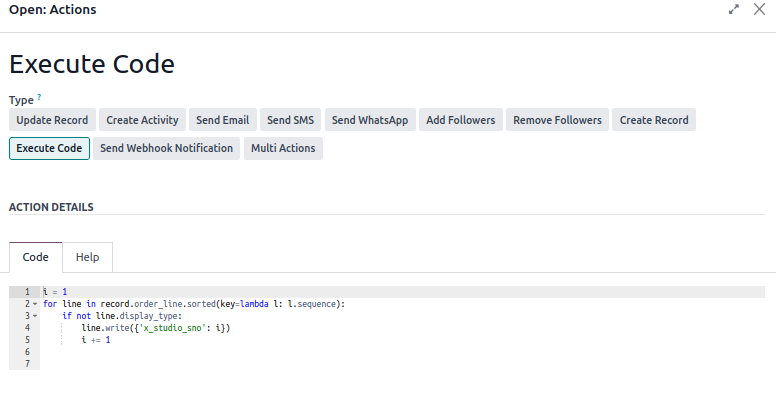
i = 1
for line in record.order_line.sorted (key = lambda l: l.sequence):
    if not line.display_type:
        line.write ({'x_studio_line_number': i})
        i += 1

To get it to show on the Sales Quote or Purchase RFQ pdf, I used the part 2 instructions from Orlanda.  When you get to step Part 2 - Step 5, search for the Label or the Technical Name that you created from Sai's Step 1.  In my case, my Label is just "Line" while the technical name is "x_studio_line_number".  Once saved, it should now update the correct sequence.  Replicating other reports is the same process.  Go to the report, add a field, search for the field, and select the right label.  You don't need to redo Sai's step.

0
Avatar
Buang
Avatar
Sai Praveen
Jawaban Terbai

1.Create a custom integer field on the line model (e.g., x_studio_no for sale order lines).

  • Go to Studio → Sale Order → Order Lines → Add a field (Integer).
  • Label it something like "Line Number" or "S.No."

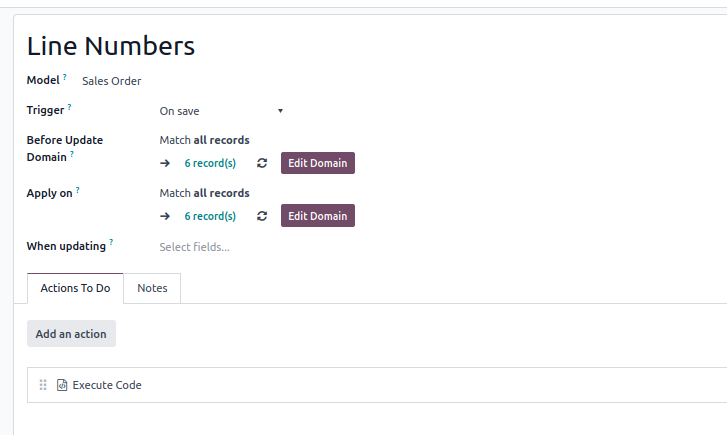
2.Create an Automation Rule

  • Go to: Settings → Technical → Automation → Automated Actions.
  • Create a new rule:
    • Model: Sales Order
    • Trigger: On Save
    • Apply On Domain: leave it empty or match active orders
    • Add Server Action: Execute Python Code


  • Sample Code for Sale Order Lines:


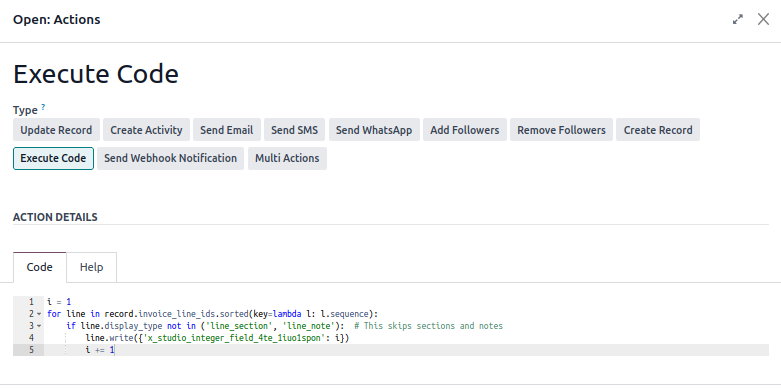
  • Sample Code for Invoice Lines:


Note:The sequence field will show 0  before saving.It gets updated only after you save the record, because the automation is triggered On Save.


-3
Avatar
Buang
Menikmati diskusi? Jangan hanya membaca, ikuti!

Buat akun sekarang untuk menikmati fitur eksklufi dan agar terlibat dengan komunitas kami!

Daftar
Post Terkait Replies Tampilan Aktivitas
How to use the PDF Quote Builder and add Dynamic Fields with LibreOffice? [V17] Diselesaikan
sales pdf quickstart Quickstart
Avatar
Avatar
Avatar
3
Jun 25
8592
How to achieve the effect shown in the image? The video is from the official channel: 2 Minutes to Understand Odoo
sales pdf
Avatar
0
Nov 25
322
adding custom field in quotation/invoice
sales pdf
Avatar
Avatar
1
Nov 25
826
How do I connect the Epson TM-T88VII to Odoo?
quickstart Quickstart
Avatar
Avatar
2
Okt 25
1097
How to Set Customer-Specific Product Names Diselesaikan
quickstart Quickstart
Avatar
1
Nov 25
1728
Komunitas
  • Tutorial-tutorial
  • Dokumentasi
  • Forum
Open Source
  • Download
  • Github
  • Runbot
  • Terjemahan
Layanan
  • Odoo.sh Hosting
  • Bantuan
  • Peningkatan
  • Custom Development
  • Pendidikan
  • Temukan Akuntan
  • Temukan Mitra
  • Menjadi Partner
Tentang Kami
  • Perusahaan kami
  • Aset Merek
  • Hubungi kami
  • Tugas
  • Acara
  • Podcast
  • Blog
  • Pelanggan
  • Hukum • Privasi
  • Keamanan
الْعَرَبيّة Català 简体中文 繁體中文 (台灣) Čeština Dansk Nederlands English Suomi Français Deutsch हिंदी Bahasa Indonesia Italiano 日本語 한국어 (KR) Lietuvių kalba Język polski Português (BR) română русский язык Slovenský jazyk slovenščina Español (América Latina) Español ภาษาไทย Türkçe українська Tiếng Việt

Odoo adalah rangkaian aplikasi bisnis open source yang mencakup semua kebutuhan perusahaan Anda: CRM, eCommerce, akuntansi, inventaris, point of sale, manajemen project, dan seterusnya.

Mudah digunakan dan terintegrasi penuh pada saat yang sama adalah value proposition unik Odoo.

Website made with

Odoo Experience on YouTube

1. Use the live chat to ask your questions.
2. The operator answers within a few minutes.

Live support on Youtube
Watch now