
Website analytics
Website analytics helps website owners monitor how people use their site. It provides data on visitor demographics, behavior, and interactions, helping improve websites and marketing strategies.
You can track your Odoo website’s traffic using Plausible.io or Google Analytics. We recommend using Plausible.io as it is privacy-friendly, lightweight, and easy to use.
Plausible.io
Odoo hosts its own Plausible.io server, and the Plausible Analytics dashboard is integrated into Odoo and can be accessed via .
Databases hosted on Odoo Online benefit from a free, ready-to-use Plausible.io solution with automatically generated credentials and a preconfigured Plausible account. To enable it, go to , then, in the Tracking & SEO section, enable Plausible Analytics, and click Save. The credentials are automatically filled in the Shared Link Auth and the Site fields.
Tip
Click the See Analytics Report link to open the corresponding report.
Note
If you already have a Plausible.io account and you want to connect it to your Odoo Online
database, you must create two ir.config.parameters to use Plausible.io’s servers. To do so,
enable the developer mode and go to . Click New and fill in the following Key
and Value fields:
Key
Value
website.plausible_script
https://plausible.io/js/plausible.js
website.plausible_server
https://plausible.io
Then, go to the Plausible website and follow the steps to set up your account and link it to your Odoo database.
Warning
Deactivating the free Plausible.io account linked to your Odoo Online database will also remove the existing keys. As a result, new keys will be generated, while all historical data will remain associated with the old keys. If you plan to deactivate the account, it is recommended to save the existing keys to preserve access to that data.
If your database is hosted on Odoo.sh or On-premise, you need to create your own Plausible.io account or use an existing one and link it to your database. To do so, follow these steps:
If you are creating a new account, go through the registration and activation steps. On the Add a website page, enter your website Domain name without including
wwworhttp(e.g.,example.com), and click Add site. On the Add tracking to your site page, follow the instructions to install Plausible on your site. Once done, click I’ve installed it to proceed to the next step.Once done, click the Plausible.io logo in the upper-left part of the page to access the list of websites, then click the (ellipsis) icon next to the website and select Settings.

In the sidebar, select Visibility, then click Add shared link.
Enter a Name, keep the Password protect option disabled, as the Plausible analytics dashboard integration in Odoo does not support it, then click Create shared link.
Click COPY to add the shared link to the clipboard.
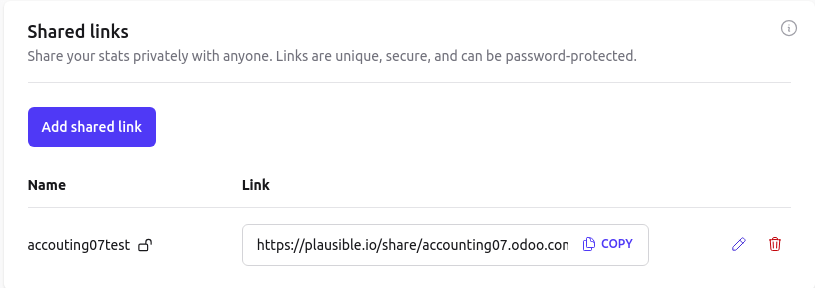
In Odoo, go to .
In the Tracking & SEO section, enable Plausible Analytics, then paste the Shared Link Auth and click Save.
Tip
If you have multiple websites, add them to your Plausible.io account by going to https://plausible.io/sites and clicking + Add Website. In the Odoo Website settings, ensure that the correct website is selected from the dropdown menu at the top of the page before pasting the shared link.
Odoo automatically pushes two custom goals:
Lead GenerationandShop. Custom goals can be added via Plausible.io. To do so, click the (ellipsis) button on the relevant website card, then navigate to Goals in the sidebar menu, and click Add goal .
Google Analytics
To follow your Odoo website’s traffic with Google Analytics:
Create or sign in to a Google account using the following link: https://analytics.google.com.
If you are setting up Google Analytics for the first time, click Start measuring and go through the account creation step.
If you already have a Google Analytics account, sign in and click the icon in the bottom-left corner of the page to access the Admin page. Then, click Create and select Property from the drop-down menu.
Complete the next steps: property creation, Business details, and Business objectives, and click Create.
When you reach the Data collection step, choose the Web platform.
Set up your data stream: Specify your Website URL and a Stream name, then click Create & continue in the upper-right corner.
Close the Set up a Google Tag popover, as no Google Tag is required to link Google Analytics to Odoo.
In the Web stream details popover, copy the Measurement ID.

In Odoo, go to .
In the Tracking & SEO section, enable Google Analytics, then paste the measurement ID in the Measurement ID or Tag field and click Save.
Tip
If you have multiple websites with separate domains, it is recommended to create one property per domain. In Odoo, in the Website settings, make sure to select the correct website in the field next to New website at the top of the page before pasting the Measurement ID.
Google Tag Manager
Google Tag Manager is a tag management system that allows you to easily update measurement codes and related code fragments, collectively known as tags, on your website or mobile app, directly through the code injector.
Note
GTM is not an analytics tool and does not offer reporting features. It is used to collect data and works alongside Google Analytics to provide more detailed insights. To use GTM properly, it is recommended to configure Google Analytics as well.
For more information, refer to the documentation on linking Google Analytics and Google Tag Manager.
Warning
Some GTM tags use data layers (e.g., advanced eCommerce tracking data layers) to retrieve variables and send them to Google Analytics. Data layers are currently not managed in Odoo.
Google Tag Manager may not be compliant with local data protection regulations.
To configure GTM, proceed as follows:
Create or sign in to a Google account by going to https://tagmanager.google.com/.
In the Accounts tab, click Create Account.
Enter an Account Name and select the account’s Country.
Enter your website’s URL in the Container name field and select the Target platform.
Click Create and agree to the Terms of Service.
Copy the
<head>and<body>codes from the pop-up window. Then, go to your website, click Edit, go to the Theme tab, scroll down to the Advanced section, then click <head> and </body> next to Code Injection to paste the codes, then click Save.
Note
The data is collected in the marketing tools used to monitor the website (e.g., Google Analytics, Plausible, Facebook Pixel), not in Odoo.