
Split and merge manufacturing orders
In Odoo Manufacturing, it is possible to create manufacturing orders (MOs) for a single unit of an item, or multiple units of the same item. A partially produced manufacturing order may be split to account for both completed units and remaining production requirements. This process ensures that the current MO reflects only the quantity actually finished, while supplementary MOs track the balance.
An MO should be split if the remaining quantity cannot be completed immediately due to internal or external constraints.
When a split is executed, the system updates the original MO to reflect the specific quantity that has been produced and is ready for closing. Then, new MOs are automatically generated for the difference between the original planned quantity and the actual produced quantity. This ensures that lead times, labor costs, and material consumption remain accurately allocated to the specific timeframe in which the work occurred.
Splits can be set up from the MO form.
Important
An MO can only contain one unit of a product, or multiple units of a single product that all use the same bill of materials (BoM). As a result, it is only possible to merge MOs for the same products with the same BoM.
Split manufacturing orders
MOs can be split in two ways:
From the actions menu
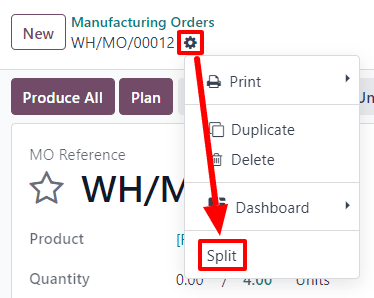
To split an MO into multiple orders, begin by navigating to , then select a confirmed MO. At the top of the page, next to the New button, the MO’s reference number appears with a (Actions) icon next to it.
Click the (Actions) icon to reveal the drop-down menu for the MO, then select Split.
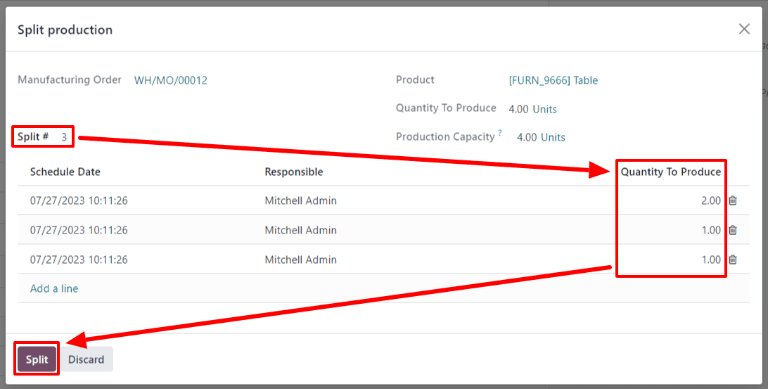
After selecting Split, a Split production pop-up window appears. In the Max Batch Size field, enter the number of units that each batch should be split into, then click outside of the field. The # Splits field updates with the total number of MOs that will be created. A table appears below, with a line for each new MO that will be created by the split. In the Quantity To Produce column, enter the number of units that will be assigned to each new MO. Finally, click Split to split the MO.
Example
A work order for 5 units of the Drawer product are split with a Max Batch Size of
2. This creates 3 splits; two of the splits contain 2 units each, and the final split
contains a single unit.
After clicking Split, the original MO is split into the number of orders that was
specified in the # Split field. The reference numbers for the new MOs are the
reference number for the original order with -### tags added to the end.
Example
MO WH/MO/00012 is split into three separate orders. The reference numbers for the new orders
are:
WH/MO/00012-001WH/MO/00012-002WH/MO/00012-003
To complete the MOs, complete all work orders, then click the Produce All button on the MO form.
From the Change Quantity to Produce window
To split an MO from the Change Quantity to Produce window, first navigate to . Open a confirmed MO from the list, or create a new one by clicking New, completing the form, and clicking Confirm.
After the MO is confirmed, its Quantity to Produce can be updated to account for a split MO. Click the second value in the Quantity field, next to Units To Produce.

The Change Quantity to Produce pop-up window opens. Change the Quantity to Produce value to the actual quantity currently produced, then click the Split button.

After clicking Split, the original MO is split into two orders. The reference numbers
for the new MOs are the reference number for the original order with -### tags added to the end.
Example
The parent order WH/MO/00015 with 10 units of the Drawer product is split based on
production progress. The two MOs created are:
WH/MO/00015-001with7unitsWH/MO/00015-002with3remaining units.
For traceability, the Backorders smart button appears. Click it to view both MOs.
Additionally, in the first MO, a link to the second backorder appears in the chatter.

When the units for the first MO are produced, complete the work orders and click the Produce All button to complete it.
When the second MO is ready to complete, open it from the Manufacturing Orders page or from the chatter of the first MO. Complete all work orders and click the Produce All button.
Merge manufacturing orders
To merge two or more MOs into a single order, begin by navigating to . Select the MOs that will be merged by selecting the checkbox to the side of the name of each order.
Once all MOs have been selected, click .
The selected MOs are merged into a single order. The reference number for the new MO is the next sequential number that has not already been assigned to an order.
Example
The last reference number used for an MO was WH/MO/00012. Two MOs, WH/MO/00008 and
WH/MO/00009, are merged into a single order. The reference number for the MO created by the
merger is WH/MO/00013.