
Headcount report
The Headcount report in the Payroll app shows the number of employees on payroll and allows headcount comparisons between different periods of time.
Create a headcount report
Create a headcount report to see the number of employees at a specific time or compare headcounts across periods.
To create a headcount report, navigate to and click New.
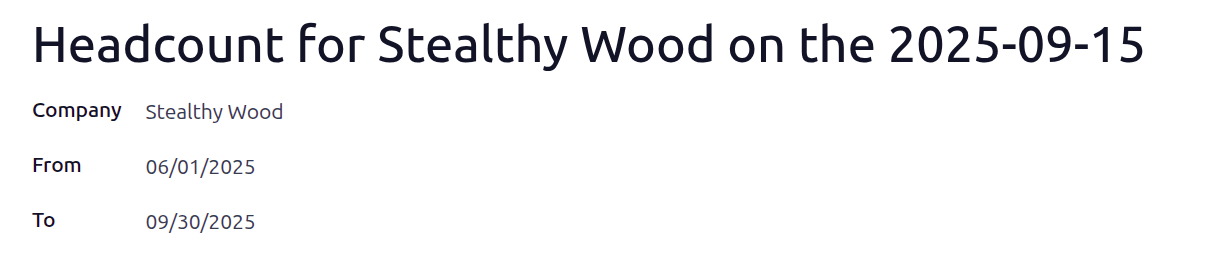
Report name: The name is generated automatically as
Headcount for (Company Name) on
the (YYYY-MM-DD)
and cannot be modified.Company: The company is automatically populated (works in both single and multi-company databases).
From: Using the calendar selector, select the start date for the report. The current date populates this field by default.
To: Using the calendar selector, select the end date for the report.
Next, click Populate to generate the report.
At the top of the form, an Employees smart button appears. Clicking the button displays the total number of employees for the selected period.
View all headcount reports
See how the company headcount has changed over time by viewing all headcount reports in a list view.
To view all headcount reports, navigate to .
View employees in a headcount
To get an overall view of employees and their salary impact on the company, view all employee records of a specific headcount report.
To view the employees of a specific headcount report, click the Employees smart button at the top of a headcount report.
All employees from the headcount appear in a list view, grouped by Department.
Employee: The employee’s full name.
Department: The department their job position is in.
Job Title: Their specific role.
Employer Cost: How much the company pays the employee each pay period.
Wage On Payroll: The monetary amount on payroll reports.
Click on any department to expand the list and view the employees.
