
Prices
Odoo offers multiple options for configuring prices in e-commerce. For example, you can apply prices per unit, offer discounts, and set up pricelists.
Taxes
To add a tax on a product, you can either set a tax in the Sales Taxes field of the product form or use fiscal positions.
See also
Choosing the displayed price tax usually depends on a country’s regulations or the type of customers (B2B vs. B2C). To select the type of price displayed, go to , select the website, scroll down to the eCommerce section, and under Display Product Prices select between:
Tax Excluded: The price displayed on the website is tax-excluded, and the tax is computed at the Order summary step.
Tax Included: The price displayed on the website is tax-included.
Note
This setting is website-specific and can therefore be configured independently for every website in the database.
Tip
Switch the Tax indication toggle on in the website editor to explicitly indicate if the price is
Tax excludedorTax includedon the Product page.Enable specific B2B fields during checkout in the delivery step using the website editor.
Price per unit
To display a price per unit alongside the sales price on the product page, follow these steps:
Go to .
Enable the Product Reference Price checkbox in the eCommerce section.
Set the product’s Sales Price and select the unit (e.g., Units).
In the Base Unit Count field, enter the number of units in the product.
Select the relevant unit from the drop-down list.
Example
Imagine you want to sell a 2-liter bucket of paint for $60, i.e., $30 per liter.
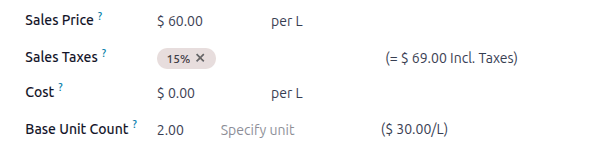
The price per unit, in this case per liter, is shown next to the sales price on the product page.

Note
The price per unit may be mandatory in some countries.
See also
Pricelists
Pricelists in Odoo allow for managing flexible pricing rules and offering different prices and discounts based on currencies, time periods, purchase volumes, customers’ location, and/or customer type.
To enable pricelists for eCommerce, go to , scroll down to the eCommerce section, enable Pricelists, and Save. Then, click Pricelists or go to and configure the relevant pricelists.
In the Ecommerce tab, configure options specific to online sales, such as assigning a Website to a pricelist, allowing customers to select it, and/or adding an E-commerce Promotional Code.
Tip
If you are using several websites and want to use the same pricelist on several of them, you need to duplicate the pricelist for each website. If you do not assign any website, the pricelist will not be used, unless it is selectable.
Pricelists can also be assigned to a specific customer.
Note
When pricelists are enabled in the Sales app, they are automatically enabled in the eCommerce app, and vice versa.
In the list of pricelists, order the pricelists by priority: the first takes precedence over the second, the second over the third, and so on.
It is also possible to create specific pricelists for variants.
See also
Selectable pricelists
Selectable pricelists are useful, for example, when selling products in multiple currencies, and allow customers to choose a pricelist using the pricelist selector in the catalog, located next to the search bar.
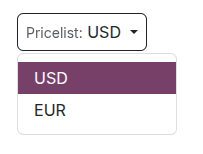
To make a pricelist selectable, enable Selectable.
Note
If a pricelist is designated as Selectable and not assigned to a specific website, it is selectable on all websites.
If a pricelist does not appear in the selector, it may be due to the following situations:
Only one pricelist is defined as Selectable, and the contact has a pricelist assigned.
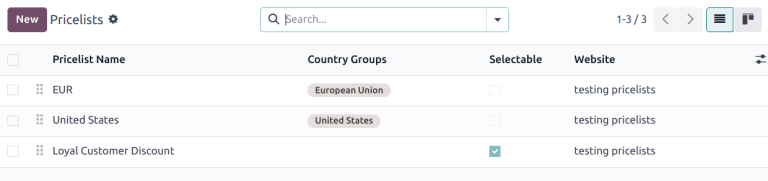
Multiple selectable pricelists exist, but only those matching the customer’s country group are shown. It is strongly recommended to disable the Selectable option when using pricelists with country groups on the e-commerce.
See also
GeoIP & country groups
It is possible to display a specific pricelist based on the visitor’s location and IP address by assigning country groups to pricelists.
To do so, navigate to the relevant pricelist form and select the appropriate Country Groups. Create or edit as many pricelists for specific regions as needed. For instance, select European Union to apply the pricelist to all EU member states.
To create a new country group, click Search more in the drop-down list, then Create New. Add a Group Name and select the relevant Countries. Use Custom filters if needed.
Note
Each country group must contain at least one country.
Example
Use the following filter to add all non-EU countries to the country group.
Country Groups + is not equal to + European Union

Important
When using GeoIP to determine the appropriate pricelist, all pricelists used on the e-commerce site must have a country group assigned.
It is strongly recommended to disable the Selectable option when using pricelists with country groups. Indeed, all pricelists with the relevant country group are automatically applied to the catalog, but if one of them is marked as Selectable, the others will disappear as soon as customers select the selectable pricelist.
Example
Imagine you create three pricelists:
EU regular priceswith theEUcountry group assignedEU prices with discountswith theEUcountry group assignedUS priceswith theUScountry group assigned
If the Selectable option is enabled for
EU regular pricesandUS prices, and the customer is from the European Union, only the pricelistsEU regular pricesandEU prices with discountswill be available. However, since theEU prices with discountlist is not selectable, it will disappear once the customer selects theEU regular priceslist, and prices will be displayed based on theEU regular pricespricelist in the catalog.
Pricelist application
On the e-commerce, the default pricelist is automatically selected for public, non-logged-in users when no country group is assigned. If GeoIP and country groups are used, public users see the pricelist of their country group by default.
Logged-in users with assigned pricelists see the assigned pricelist by default if it is assigned to the website they are visiting. If not, the website’s default pricelist is applied (i.e., the first available pricelist assigned to the website and without a country group, following the sequence order).
Assigned pricelists take precedence over country-based pricelists, when applicable, unless the assigned pricelist is linked to a different country group.
Example
A customer from the United States visits the website. They do not have a portal account. The United States pricelist is applied.
A different visitor, also from the United States, has the Loyal Customer Discount pricelist assigned in their contact form. This assignment takes precedence over the country group assignment, so the Loyal Customer Discount is applied.
Discounts
Discounts programs
To enable discount programs for your e-commerce, go to , scroll down to the eCommerce section, and enable the Discounts, Loyalty & Gift Card feature.
Configure the discount program, make sure the Website option is enabled, and add the relevant Pricelist and Website on the program form, if needed.
Permanent product discount
When the price of a specific product is permanently reduced, the strikethrough strategy is commonly used. This involves showing the new discounted price, with the original price crossed out alongside it.

To display a permanently discounted price, navigate to , scroll down to the eCommerce section, enable the Comparison Price option, and Save. Then go to the product form, enter the new (discounted) price in the Sales Price field, and the original price (strikethrough) in the Compare to Price field.
Note
The Compare to Price field must contain a price that is higher than the Sales Price for the original price to appear with a strikethrough.
Important
The Compare to Price is not displayed if discounted pricelists apply. If you want to use the Compare to price with another discount, configure a pricelist with a promotional code.
Discounted pricelists
It is also possible to create pricelists with discounts. To do so, create a pricelist and configure the discount.
If a pricelist contains a Discount price type, the price is striked through for applicable customers, even if the Comparison Price feature has not been enabled.
Note
If using pricelists with country groups, the discounted pricelist must be assigned the same country group as the non-discounted pricelist.
E-commerce promotional code
To offer a discounted pricelist for customers with a specific discount code, access the relevant
pricelist form, go to the Ecommerce tab, and add an
E-commerce Promotional Code, e.g., SUMMERSALE10%.
Then, go to the Rules tab, click Add a line, and configure the discount. When a customer enters the code during checkout, the discount is applied according to the configuration in the Rules tab.
Note
Make sure that the Promo Code option in the website editor is enabled and, if using country groups, that the discounted pricelist has the same country group assigned as the non-discounted pricelist.
Preventing direct sales and hiding prices
Some businesses, such as B2B shops or companies that sell luxury or custom items, may want to showcase their products online while restricting direct purchases and hiding prices.
To control price visibility and prevent direct online sales on the e-commerce site, go to , scroll down to the eCommerce section, and enable Hide Add To Cart.
Then, select one of the following options from the For drop-down list to define which products are affected:
For 0 price products: On the product form, set the price to
0for all desired products, or create a pricelist where all product prices are set to0. The price is then not displayed on the product page.Note
Ensure the pricelist is assigned to the correct website and is listed first among the website’s pricelists.
For Specific categories: Select one or more product categories from the Categories drop-down menu that appears. At least one category must be selected. The price is only displayed for products in these categories if it is not
0.
Then, enter a redirect URL in the Link URL field. The Add to Cart button on the product page for zero-priced products or the selected shop categories is then replaced by a default Contact us button, which can be customized if needed.
Tip
Ensure no pricelist used on the e-commerce has been marked as Selectable to prevent accidentally displaying the zero-priced pricelist.
To hide prices from public visitors while keeping them visible to logged-in customers, create a zero-priced pricelist for non-logged-in customers and assign a regular pricelist (with actual prices) to customers with portal access.
See also