
Work-in-progress costs
When manufacturing processes take extended periods to complete, temporary work-in-progress (WIP) accounting journal entries can help to accurately reflect the value of partially completed goods in financial statements, as well as potential insights on where cash might be tied up in the manufacturing process.
The Manufacturing app provides the option to manually post and reverse WIP journal entries associated with an ongoing manufacturing order (MO) to account for the real cost of components, work centers, and labor that have already been incurred at the time the entry is posted.
Costs included in WIP entries
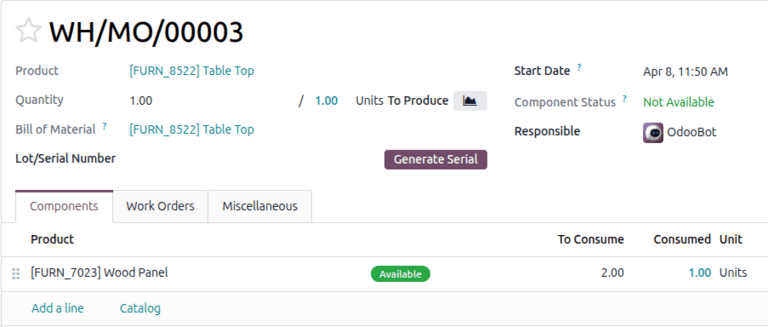
Consumption that is factored into the WIP accounting entry can be viewed in the MO. Those values are used to calculate the total real cost in the MO overview.
See also
To configure the unit prices and hourly rates used to calculate WIP costs, see Manufacturing order costs.
Consumption
To view the consumed component quantities for a WIP order, navigate to , then select the MO. In the Components tab, the Consumed column shows the quantity that has already been consumed for each component in the MO.
To view the real duration of work order operations for a WIP order, navigate to , then select the MO. In the Work Orders tab, the Real Duration column shows the duration of work that has already been carried out for each operation in the MO.

Real costs
To view the real costs of consumed components and labor, click the Overview smart button to visit the MO Overview. The MO Cost column represents planned costs based on the bill of materials, while the Real Cost column reflects actual incurred costs that will be recorded in the WIP entry. Work center overhead costs and labor costs are grouped together under the Operations section. The totals for both the MO Cost (expected) and Real Cost (incurred) are displayed in the Unit Cost row at the bottom.

Amounts displayed in red or green highlight significant differences between the MO Cost and Real Cost for each line item. This can help identify potential issues in the manufacturing process, such as unusually high component prices or slow operations.
Configuration
By default, the Odoo database tracks the value of WIP costs under the Current Assets account type. These default accounts can be replaced with custom accounts.
To configure WIP accounts, navigate to , then scroll down to the Inventory Valuation section. Under the Manufacturing section, select the accounts for both of the drop-down fields:
WIP Account: tracks the value of WIP goods. The default account is 110500 Work in Progress.
WIP Overhead Account: tracks overhead costs. The default account is 110400 Cost of Production.
WIP entry workflow
WIP accounting entries are not automatically tied to MO progress. They reflect costs at the moment the entry is posted, based on what has already been consumed. These entries must be manually posted in order to accurately reflect WIP valuation in the Accounting app.
WIP entries also need to be reversed once the manufacturing process is complete. These entries are used to temporarily reflect manufacturing consumption and need to be returned to an empty state in order to be used again in another period. If needed, they can be reversed manually.
Post WIP entries
To manually post WIP entries:
Go to and access the desired order.
Click the icon and select Post WIP Accounting Entry.
In the Post WIP Accounting Entry window, select the WIP accounting journal.
Adjust the dates and line items as needed, then click Post WIP.
Verify the entries are posted by reviewing the Balance Sheet report for that period.
Reverse WIP entries
To manually reverse WIP entries:
Go to and access the desired order.
Click the WIP smart button to display the WIP entries associated with it.
Select the relevant reversal entry, click Actions, and select Confirm Entries.
Verify the reversal is posted by reviewing the Balance Sheet report for that period.
Note
By default, an action is automatically scheduled for the next day to reverse the initial WIP entries once they are posted. If needed, this can be adjusted when posting the initial WIP entry using the Reversal Date field.
Verify WIP entries
To verify that WIP accounting entries are being posted and reversed correctly, go to . The values should reflect manufacturing consumption at the time of posting and return to zero once reversed.
Tip
If the WIP accounting entries do not appear as expected in the Balance Sheet, double-check the dates and filters applied to ensure they align with the posting and reversal dates of the WIP accounting entries.