

In Odoo v18.4 and v19, it is possible to add AI Studio fields. You only need to install the AI app, and it will allow you to convert any type of field—text, monetary, float, etc.—into an AI field.
This helps you create calculated fields in an easy way, and you can even apply conditions based on the prompt content.
Example:
if /field x contains "100", then = /field y + 100
if /field x contains "50", then = /field y + 50
With "/field x" being the condition field and "/field y" the field used for the calculation.
However, the AI prompt does not allow the result to be (0, 0.00, blank, empty, etc.), because an error popup will appear.

It is also common that the AI calculation result looks identical but is not actually correct.
Example: 10,748.00 instead of 10,738.00
Solution to these errors:
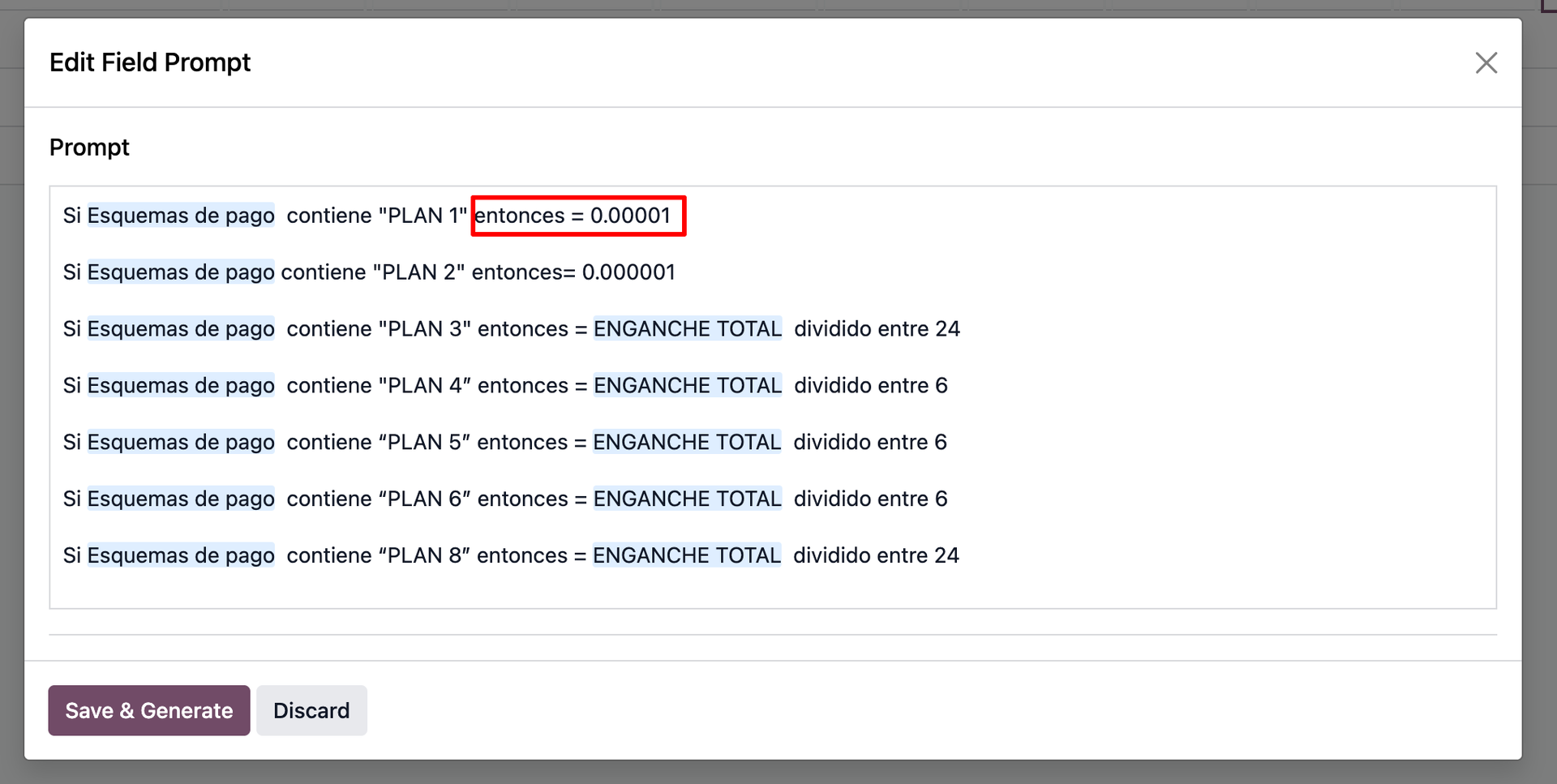
If the expected result should be “0”, change the prompt result to a long decimal value, such as “0.000001”, to avoid rounding issues. Then, reduce the decimals of the field so it only displays “0.00”.
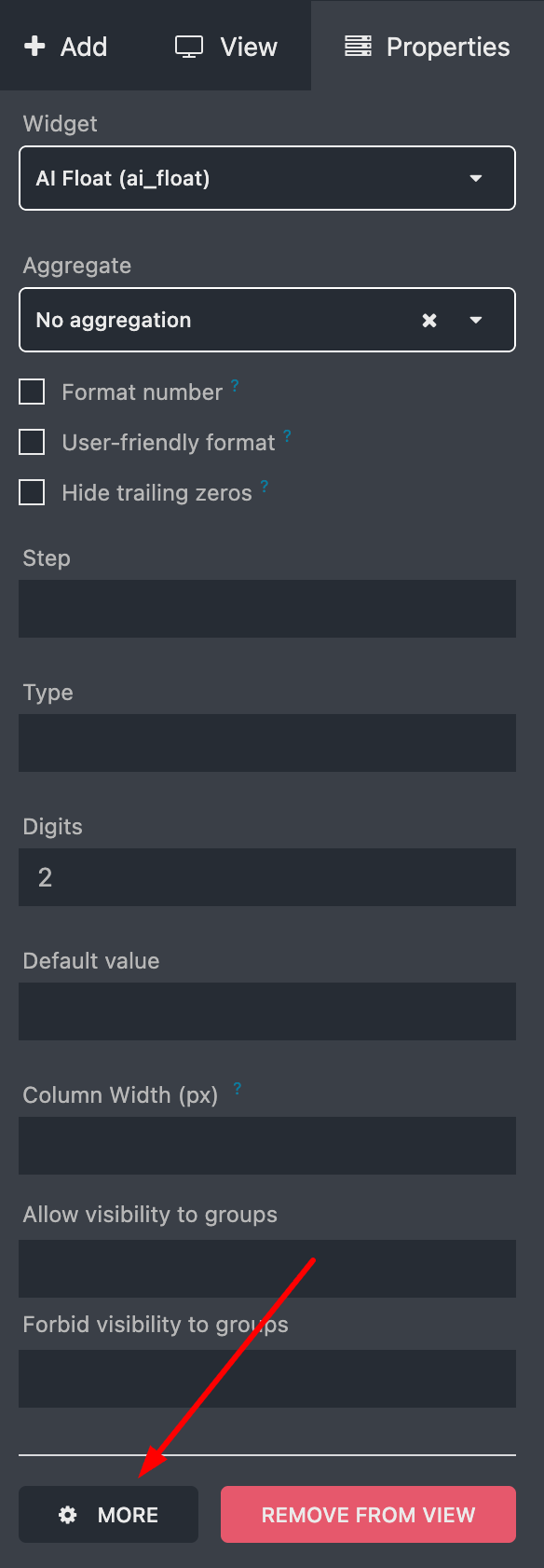
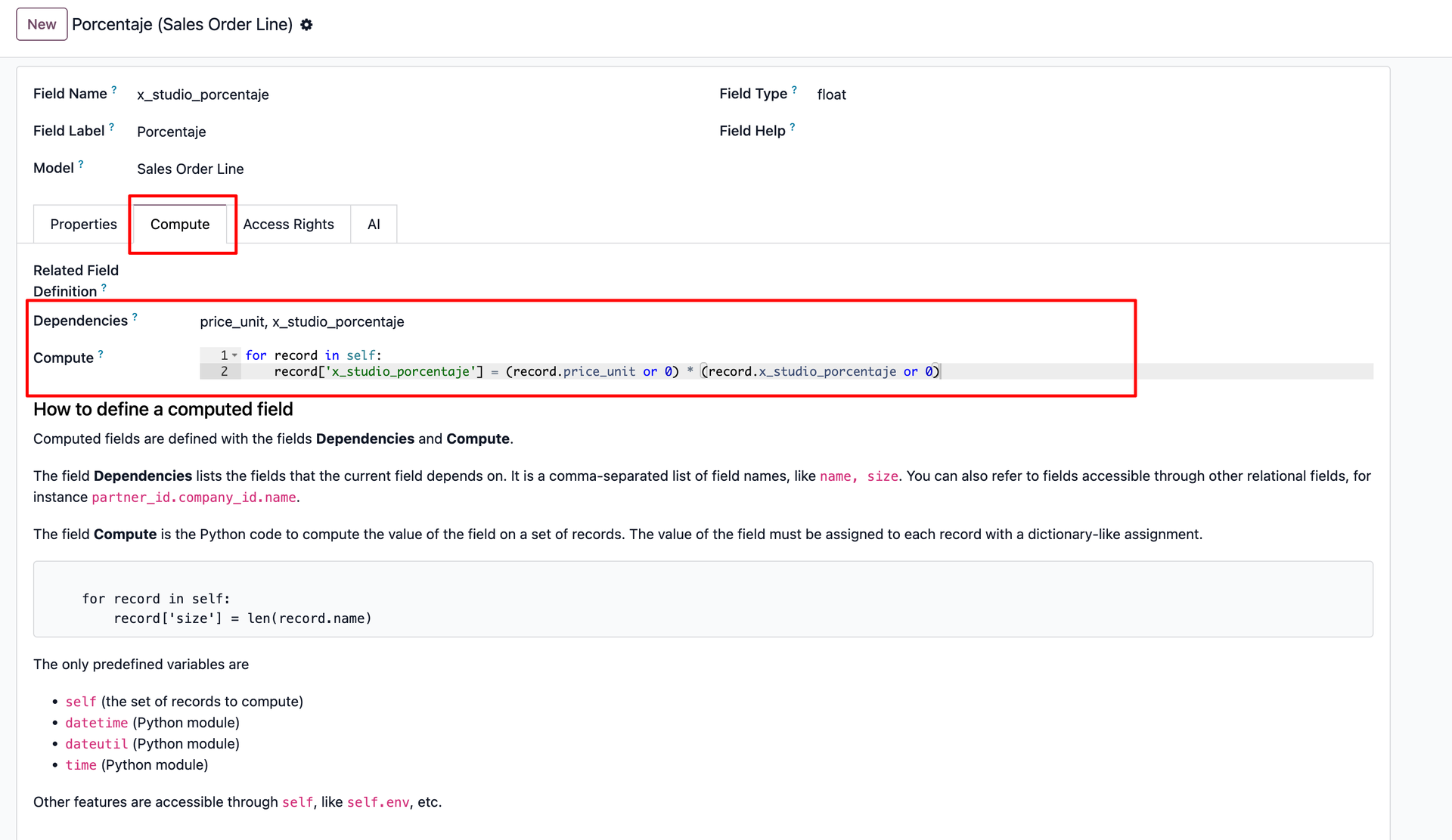
2. To ensure the calculation result is correct, we need to create a computed field instead, go to the “More” option on the Studio field and then open the “Compute” tab. There, Odoo explains how to create a computed field by simply:
- Adding the field names to be used under “Dependencies”, and
- Writing the Python order in the “Compute” section



Does this really explain how to create an AI field? How is the compute related to the prompts that were entered?