
España
Módulos
The following modules are installed automatically with the Spanish localization:
Nombre |
Nombre técnico |
Descripción |
|---|---|---|
Spain - Accounting (PGCE 2008) |
|
Spanish fiscal localization package, complete with the Spanish chart of accounts, taxes, tax report, and fiscal positions. |
Spain - Accounting Reports |
|
Accounting reports for Spain. |
Spain - Facturae EDI |
|
Creates EDI Facturae files required to send to AGE (Administración General del Estado). |
Additionally, the following modules must be manually installed:
Nombre |
Nombre técnico |
Descripción |
|---|---|---|
Spain - Intrastat Declaration |
|
Adds Interstat report. |
Spain - Point of Sale + TicketBAI |
|
Sends invoices to the Diputaciones Forales of Araba/Álava, Bizkaia and Gipuzkoa. |
Spain - Accounting Reports Libro IVA PoS |
|
PoS of support for the Spanish VAT record books. |
Spain - SII EDI Suministro de Libros |
|
Sends taxes information to SII (Suministro Inmediato de Información). |
Spain - TicketBAI |
|
Sends invoices and vendor bills to the Diputaciones Forales of Araba/Álava, Bizkaia and Gipuzkoa. |
Spain - Veri*Factu |
|
Sends Veri*Factu XML to AEAT (Agencia Estatal de Administración Tributaria). |
Spain - Veri*Factu for Point of Sale |
|
Adds Veri*Factu support to Point of Sale. |
Spain - Real Estates |
|
Allows users to add real estate related to data to the Spanish localization and generate a mod 347 report. |
Spain - Amazon Connector |
|
Bridging module between the Spanish localization and Amazon integration. |
Nota
In some cases, such as when upgrading to a version with additional modules, it is possible that modules may not be installed automatically. Any missing modules can be manually installed.
Localization overview
The Spanish localization package ensures compliance with Spanish fiscal and accounting regulations. It includes tools for managing taxes, fiscal positions, reporting, and a predefined chart of accounts tailored to Spain’s standards.
The Spanish localization package provides the following key features:
Chart of accounts: a predefined structure tailored to Spanish accounting standards.
Taxes pre-configured tax rates, including standard VAT, zero-rated, and exempt options.
Fiscal positions: automated tax adjustments based on customer or supplier registration status.
Nota
There are several distinct Spanish fiscal localization packages available, each featuring its own pre-configured PGCE (Plan General de Contabilidad) chart of accounts:
Spain - SMEs (2008)
Spain - Non-profit entities (2008)
Spain - Cooperatives - Complete (2008)
Spain - Cooperatives - SMEs (2008)
Spain - Complete (2008)
New Odoo Online databases created with Spain as the selected country are set up by default with the Spain - SMEs (2008) fiscal localization package.
Informes
The Spanish-specific statement reports available are:
Balance general
Profit & Loss (ES)
Lista de ventas de la CE
Informe de impuestos
To access Spain-specific tax reports (Modelo), go to , click Report: and select one of the following:
Tax Report (Mod 111)(ES)
Tax Report (Mod 115)(ES)
Tax Report (Mod 303)(ES)
Tax Report (Mod 347)(ES)
Tax Report (Mod 349)(ES)
Tax Report (Mod 390)(ES)
Truco
To export the VAT records books (Libros de IVA) in XLSX format, click Report: and select Generic Tax report. Then, click the (down arrow) and select VAT Records Books (XLSX) to generate the XLSX file.
Modelo 130
Cambiar el porcentaje
Si desea cambiar el cálculo del porcentaje en la casilla [04] de la sección I o en la casilla [09] de la sección II:
Active el modo de desarrollador, vaya a y seleccione Informe de impuestos (Modelo 130).
Haga clic en el icono (engranajes) que se encuentra a la derecha de Informe: Informe de impuestos (Mod 130) (ES).
Haga clic en la casilla que desea cambiar y luego haga clic en la línea de porcentaje de la ventana emergente. Una vez allí, en el campo Fórmula cambie el valor al porcentaje que desea aplicar. Repita esta acción si también desea modificar la otra casilla.
Informes sobre la actividad agrícola
Si desea ingresar cualquier monto en la sección II (de las casillas [08] a [11]) debe cambiar el sector del contacto correspondiente a Agricultura.
Vaya al formulario de contacto ( o , por ejemplo) y seleccione un contacto.
En la pestaña Ventas y compra configure el campo Sector como Agricultura.
Repita esta operación para todos los contactos relacionados con el sector agrícola.
Veri*Factu
Nota
Los sistemas informáticos de facturación Veri*Factu deben contar con una declaración responsable que acredite el cumplimiento de todos los requisitos técnicos exigidos por el reglamento. Descargar la «declaración responsable» de Odoo
Veri*Factu is the Spanish Tax Agency’s verifiable invoice issuance system. It is mandatory for most taxpayers in Spain, except for those who use the SII system or are under a regional tax regime (i.e., TicketBai).
Odoo allows invoices and Point of Sale orders to be automatically sent to the tax authorities.
Configuración
To enable Veri*Factu, follow these steps:
Open the Settings app to make sure your company’s Country and Tax ID are correctly set in the Companies section.
Install the Spain - Veri*Factu (
l10n_es_edi_verifactu) module.Go to or , scroll to the Veri*Factu section, check the Enable Veri*Factu option, and click Manage certificates to add a certificate.
In the Certificates for Veri*Factu list view, click New.
Click Upload your file, then select a certificate file and enter the Password needed to open the certificate (if there is one).
Nota
At least one certificate has to be uploaded.
By default, Veri*Factu is in testing mode. The data is sent to test servers and is not considered official. When official data can be sent to the production servers, go to the Veri*Factu section in the Settings and disable Test Environment.
Facturas
Once an invoice is confirmed, it can be sent. In the Send window, the Veri*Factu option is available if Veri*Factu has been enabled.
Click Send to generate a JSON file containing the invoice details. This file is stored as a Veri*Factu document. In the Veri*Factu tab, all corresponding documents are listed by their creation date and current status.
Truco
To download a JSON file, click on its document in the Veri*Factu tab. Then, in the Open: Veri*Factu Documents window, click the link in the JSON field.
Nota
The document should be sent to the AEAT immediately. However, it may be delayed due to mandatory waiting periods between submissions required by the AEAT. In such cases, the document is automatically sent the next time a scheduled action runs.
A Veri*Factu QR code appears on the invoice PDF. Scan this code to verify that the invoice has been received and recognized by the AEAT.
Point of sale orders
Once an order has been paid, a JSON file containing the order details is generated. This file is stored as a Veri*Factu document.
Go to . In the Orders list view, select the relevant order. In the Veri*Factu tab, all the corresponding documents are listed by their creation date and current status.
Truco
To download a JSON file, click on its document in the Veri*Factu tab. Then, in the Open: Veri*Factu Documents window, click the link in the JSON field.
Nota
The document should be sent to the AEAT immediately. However, it may be delayed due to mandatory waiting periods between submissions required by the AEAT. In such cases, the document is automatically sent the next time a scheduled action runs.
If an invoice is generated for an order during the payment process, the Veri*Factu document is created and sent for the invoice instead.
Nota
A Veri*Factu QR code appears on the order receipt, even if an invoice is created for the order. Scan this code to verify that the invoice has been received and recognized by the AEAT
TicketBAI
Ticket BAI or TBAI is an e-Invoicing system used by the Basque government and its three provincial councils (Álava, Biscay, and Gipuzkoa). Odoo supports the TicketBAI (TBAI) electronic invoicing format for all three regions of the Basque Country.
Nota
To use TicketBAI, make sure:
Country and Tax ID fields on the company record are filled in.
Spain -TicketBAI (
l10n_es_edi_TBAI) module is installed.
To configure TicketBAI, follow these steps:
Go to and scroll down to the Spain Localization section.
In the Registro de Libros connection TicketBAI section, select a region in the Tax Agency for TBAI field and Save.
Click Manage certificates (TicketBAI).
In the Certificates for EDI TicketBAI invoices on Spain view, click New.
Click Upload your file to upload the certificate, enter the Certificate Password provided by the tax agency, and select TBAI in the Certificate scope field.
Advertencia
To test certificates, go to and, in the Spain Localization section, enable TBAI Test Mode.
Caso de uso
Once an invoice is created and confirmed, follow these steps:
Click Send.
In the Print & Send window, make sure the TicketBAI option is enabled and click Send
In the TicketBAI invoice tab, the TicketBAI status is updated to Sent, and the XML file is available in the TicketBAI Post File field.
Nota
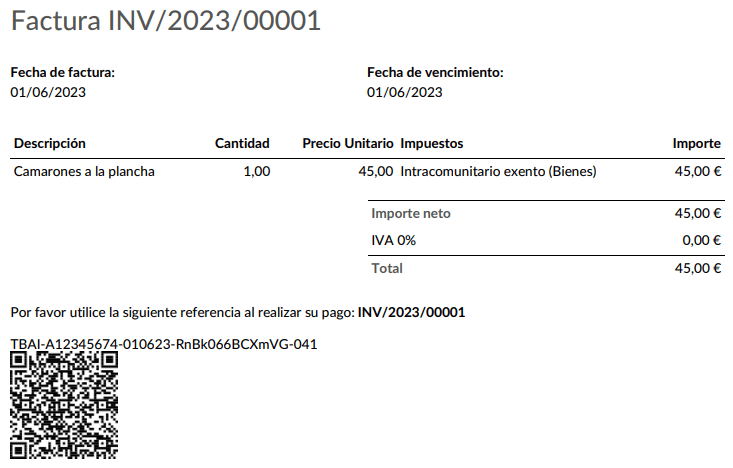
El código QR de TBAI aparece en el PDF de la factura.
FACe
Nota
Make sure the Spain - Facturae EDI (l10n_es_edi_facturae) module is installed.
FACe es la plataforma de facturación electrónica utilizada por las administraciones públicas en España para el envío de facturas electrónicas.
To configure FACe, follow these steps:
Go to or , and select Certificates in the Spain Facturae EDI section.
Click New to create a new certificate.
Click Upload your file to upload the certificate, enter the Certificate Password provided by the tax agency, and select Facturae in the Certificate scope field.
Caso de uso
Once an invoice is created and confirmed, follow these steps:
Make sure the customer has a valid VAT number and that their country is set to
Spain.Click Send.
In the Print & Send window, make sure the Factura-e option is enabled and click Send.
The generated XML file, available in the chatter, must then be sent manually.
Advertencia
The XML file is NOT sent automatically.
Truco
FACe XML files can be sent in batch through the governmental portal.
Centros administrativos
For FACe to work with administrative centers, the invoice must include specific data about the centers.
Nota
Make sure the Spain - Facturae EDI (l10n_es_edi_facturae) module is
installed.
To add administrative centers, create a new contact for the partner company. Select FACe Center as the type, assign one or more role(s) to that contact, and Save. The three roles usually required are:
Órgano gestor: Receptor;
Unidad tramitadora: Pagador;
Oficina contable: Fiscal.

Truco
If administrative centers need different Codes per role, different centers must be created for each role.
When an electronic invoice is created with a partner that has administrative centers, all administrative centers are included in the invoice.
A contact can hold multiple roles, or multiple contacts can each have different roles.