
Autenticación de dos factores
Two-factor authentication (2FA) is a security measure that helps prevent unauthorized access to user accounts.
Practically, 2FA means storing a secret in an authenticator, usually on a mobile phone, and exchanging a code from the authenticator when logging in.
This means an unauthorized user would need to guess the account password and have access to the authenticator, which is a more difficult proposition.
Nota
Some governments, such as the Australian government, require 2FA. For these fiscal localizations, it is not possible to deactivate 2FA.
Requerimientos
Importante
La siguiente lista solo incluye ejemplos, no hacemos promoción a un software específico.
Los autenticadores para móvil son los más fáciles y utilizados. Algunos ejemplos incluyen:
Otra de las opciones disponibles son los gestores de contraseña como:
Nota
El resto de este documento utiliza el autenticador de Google como ejemplo porque es uno de los más utilizados, no es promoción para el producto.
Configuración de la autenticación de dos factores
After selecting an authenticator, log in to Odoo, then click the profile avatar in the upper-right corner, and select My Preferences from the resulting drop-down menu.
Click the Security tab, then click Enable 2FA.

This generates an Access Control pop-up window that requires password confirmation to continue. Enter the Odoo account password, then click Confirm Password. Next, a Two-Factor Authentication Activation pop-up window appears, with a QR code.
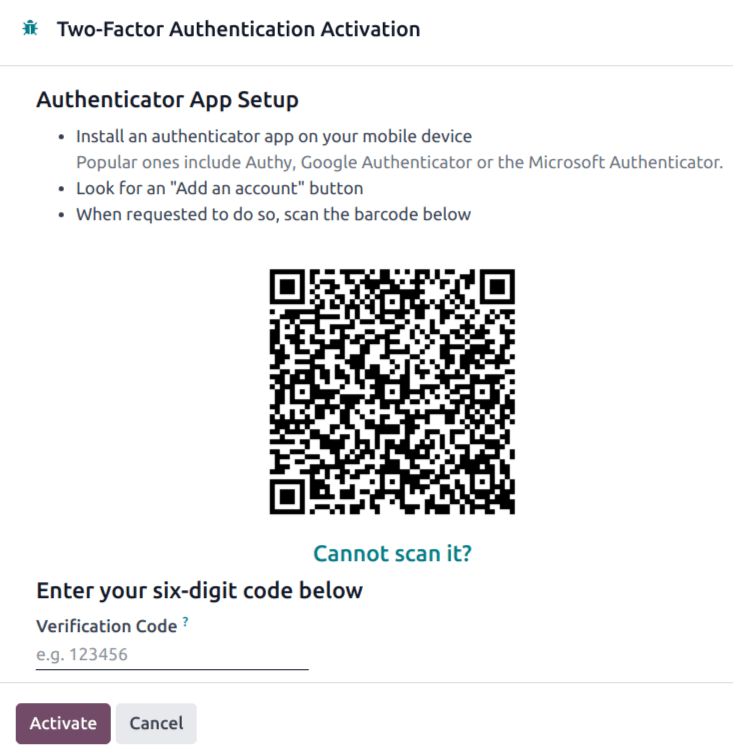
Using the desired authenticator application, scan the QR code code.
Truco
If scanning the screen is not possible (e.g., the setup is being completed on the same device as the authenticator application), click the provided Cannot scan it? link, or copying the code to set up the authenticator manually, is an alternative.

Después, el autenticador debe mostrar un código de verificación.
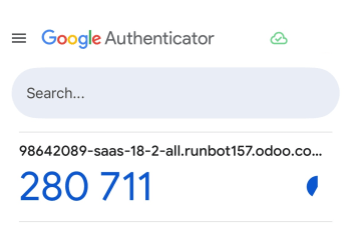
Enter the code into the Verification code field, then click Enable Two-Factor Authentication.
Iniciar sesión
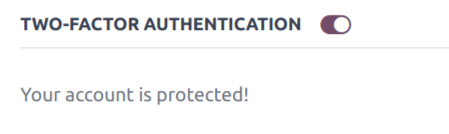
Cierre su sesión de Odoo para verificar que completó la configuración de la autentificación de dos factores.
Escriba su nombre de usuario y contraseña en la página de inicio de sesión y luego haga clic en Iniciar sesión. En la página Autenticación de dos factores escriba el código proporcionado por el autenticador que eligió en el campo Código de autenticación y después vuelva a hacer clic en Iniciar sesión.

Peligro
En caso de que un usuario pierda acceso a su autenticador, el administrador debe desactivar la autenticación de dos factores en la cuenta antes de que el usuario pueda iniciar sesión.
Forzar la autenticación de dos factores
To enforce 2FA for every user in the database, navigate to the app. In the Permissions section, tick the checkbox labeled Enforce two-factor authentication. Then, use the radio buttons to choose whether to apply this setting to Employees only or All users.
Nota
Selecting All users applies the setting to portal users in addition to employees.
Haga clic en Guardar para implementar los cambios.

Nota
If users are frequently required to log in again and complete two-factor authentication, it may be due to session or inactivity timeout policies configured for one or more of their user groups.
Administrators can configure these policies using the Timeouts settings available on user groups when the auth_timeout module is installed. See Session and inactivity timeouts for more information.