
Campos y widgets
Fields structure the models of a database. If you think of a model as a table or spreadsheet, fields are the columns and records are the individual rows. Fields also define the type of data that is stored within them. The way in which a field’s data is presented and formatted on the UI is controlled by its widget.
With Studio, it is possible to:
add new fields to your database. From a technical point of view, there are 15 field types in Odoo. However, you can choose from 21 field types in Studio, as some field types are available more than once with a different default widget;
add existing fields, i.e., fields that already exists on a model, to any view of that model;
Studio fields vs. property fields
Fields created using Studio are saved as columns in your Odoo database. Property fields, on the other hand, act as pseudo-fields; they are shared by all records that are linked to the same parent record (e.g., for tasks, the project, or for a product, the product category), but they are not saved as columns in your database.
Example
Adding a Deadline field to the form view of a task using Studio makes that field visible in every task in your database. Adding a Special instructions property field to a task makes the field visible in all tasks within the same project (i.e., its parent) while other projects’ tasks remain unaffected.
Field types
Fields can be broadly divided into two categories:
Simple fields, which contain basic values, such as text, numbers, files, etc.
Relational fields, which are used to link and display the data from records on another model.
AI fields
AI fields are essentially standard Odoo fields with added AI capabilities that allow their values to be generated automatically through prompts.
Campos simples
Nota
Non-default widgets, when available, are presented as bullet points or sub-headings.
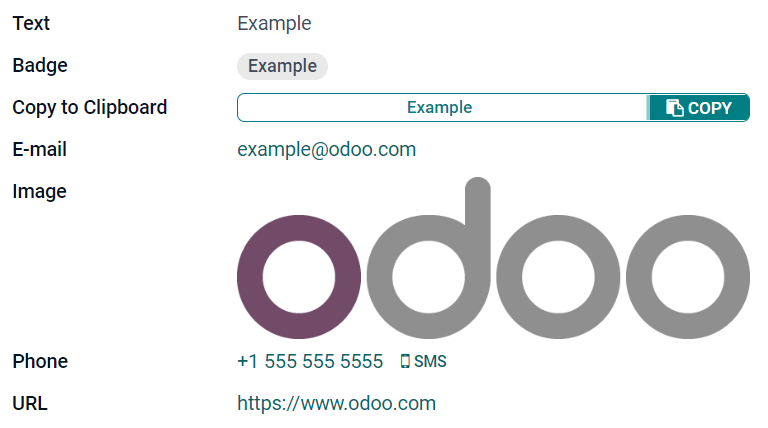
Texto (char)
El campo de Texto se utiliza para textos cortos que incluyen cualquier carácter. Aparece una línea de texto cuando se completa el campo.
Insignia: muestra el valor dentro de una forma redonda, similar a una etiqueta. El valor no se puede editar en la interfaz de usuario, pero puede establecer un valor predeterminado.
Copiar al portapapeles: los usuarios pueden copiar el valor al hacer clic en un botón.
Correo electrónico: el valor se convierte en un enlace mailto en el que se puede hacer clic.
Imagen: muestra una imagen que utiliza una URL. El valor no se puede editar de forma manual, pero se puede establecer un valor predeterminado.
Nota
This works differently from selecting the Image field directly, as the image is not stored in Odoo when using a Text field with the Image widget. For example, it can be useful if you want to save disk space.
Teléfono: el valor se convierte en un enlace tel en el que se puede hacer clic.
Truco
Seleccione Habilitar SMS para agregar la opción de enviar un SMS desde Odoo junto al campo.
URL: el valor se convierte en una URL en la que se puede hacer clic.
Example
Texto multilínea (text)
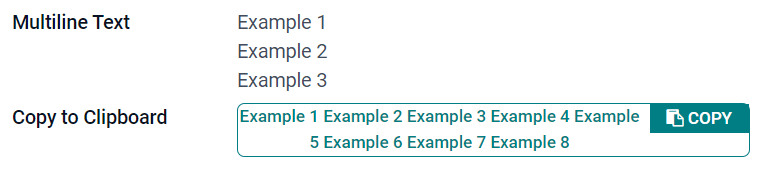
El campo de Texto multilínea se utiliza para textos más largos que contienen cualquier tipo de carácter. Aparecen dos líneas de texto en la interfaz de usuario cuando se completa el campo.
Copiar al portapapeles: los usuarios pueden copiar el valor al hacer clic en un botón.
Example
Entero (integer)
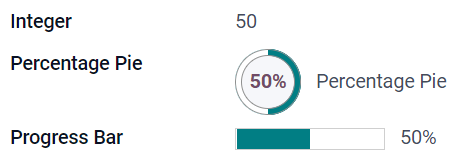
El campo entero se utiliza para todos los números enteros (positivos, negativos o cero, sin decimales).
Círculo de porcentaje: muestra el valor en un círculo de porcentaje, por lo general para valores calculados. El valor no se puede editar en la interfaz de usuario, pero puede establecer un valor predeterminado.
Barra de progreso: muestra el valor junto a una barra de porcentaje, por lo general para valores calculados. El campo no se puede editar de forma manual, pero puede establecer un valor predeterminado.
Manija: muestra un icono de manija para ordenar registros de forma manual en la vista de lista.
Example
Decimal (float)
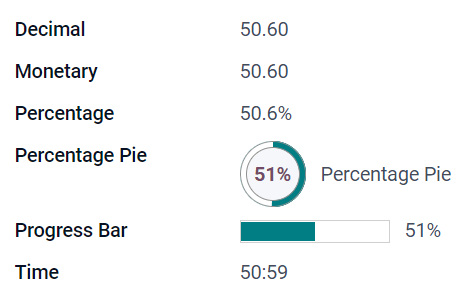
El campo de decimal se utiliza para números decimales (positivos, negativos o cero, con decimales).
Nota
Los números decimales se muestran en la interfaz de usuario con dos decimales después del punto, pero se almacenan en la base de datos con mayor precisión.
Monetary: it is similar to using the Monetary field. It is recommended to use the latter as it offers more functionalities.
Porcentaje: muestra un carácter de porcentaje
%después del porcentaje.Porcentaje circular: muestra el valor dentro de un porcentaje circular, por lo general para valores calculados. El campo no se puede editar de forma manual, pero puede establecer un valor predeterminado.
Barra de progreso: muestra el valor junto a una barra de porcentaje, por lo general para valores calculados. El campo no se puede editar de forma manual, pero puede establecer un valor predeterminado.
Tiempo: el valor debe seguir el formato hh:mm con un máximo de 59 minutos.
Example
Monetario (monetary)
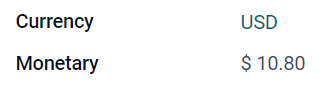
El campo Monetario se utiliza para todos los valores monetarios.
Nota
Cuando agrega por primera vez un campo Monetario, se le invita a agregar un campo de Divisa si no existe ninguno en el modelo. Odoo le ofrece agregar el campo de Divisa por usted. Una vez agregado, agregue el campo Monetario otra vez.
Example
Html (html)
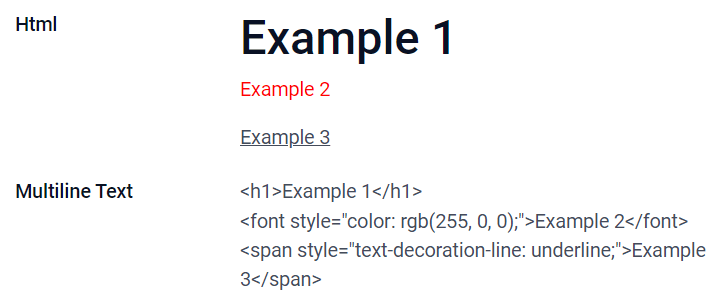
El campo Html se utiliza para agregar texto que se puede editar mediante el editor HTML de Odoo.
Texto multilínea: deshabilita el editor HTML de Odoo para permitir editar el HTML sin procesar.
Example
Fecha (date)
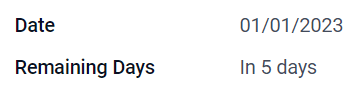
El campo Fecha se usa para seleccionar una fecha en el calendario.
Remaining Days: the remaining number of days before the selected date is displayed (e.g., In 5 days), based on the current date. This field should be set to Read only.
Example
Fecha y hora (datetime)
El campo Fecha y hora se utiliza para seleccionar una fecha en el calendario y una hora en un reloj. Si no se establece ninguna hora, se utilizará la hora actual del usuario.
Truco
As well as general properties, some specific properties are available for Date & Time fields that have the Date & Time or Date Range widget set.
Date Range (daterange)
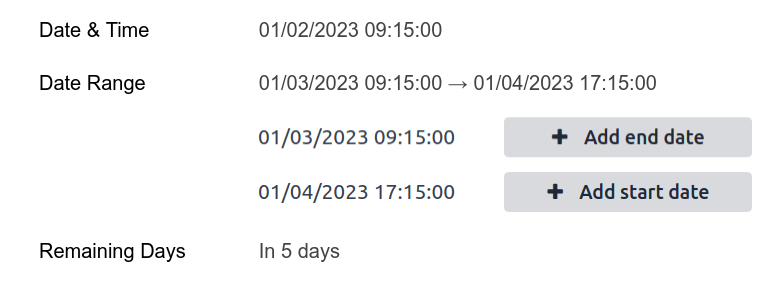
The Date Range widget is used to display a period of time defined by a start date and an end date in a single line. A date range can have a mandatory start and end date, e.g., for a multi-day event, or allow an optional start or end date, e.g., for a field service intervention or a project task.
Adding a date range requires two fields: a Date & Time field with the Date Range widget set and another field that is selected as the start date or end date. This underlying field can be an existing Date or Date & Time field, or one created specifically for this purpose.
To add a date range:
Identify an existing Date or Date & Time field that can be used as the underlying start/end date field, or add a new one. If the date range:
has a mandatory start date and end date, this field can be either the start date or end date; the outcome is the same.
allows an optional start or end date, this field is the start date or end date, respectively.
Truco
To avoid displaying the same information twice, the underlying start/end date field can be made invisible by enabling Invisible or removed from the view by clicking Remove from view.
Add a Date & Time field and set the Widget field to Date Range.
Enter an appropriate Label.
Select the underlying start/end date field from the Start date field or End date field dropdown, as relevant.
If the date range should have a mandatory start and end date, enable Always range.
Update any other general properties or specific properties for Date & Time fields as needed, then click Close in the upper right corner of the screen.
Example
Remaining Days (remaining_days)
The Remaining Days widget displays the remaining number of days before the selected date (e.g., In 5 days), based on the current date and time. This field should be set to Read only.
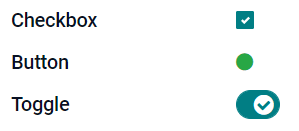
Casilla (boolean)
El campo Casilla se utiliza cuando un valor solo puede ser verdadero o falso y esto se indica al seleccionar o desmarcar una casilla.
Botón: muestra un botón de opción. El widget funciona sin tener que cambiar al modo de edición.
Activar: muestra un botón de activación. El widget funciona sin tener que cambiar al modo de edición.
Example
Seleccionar (selection)
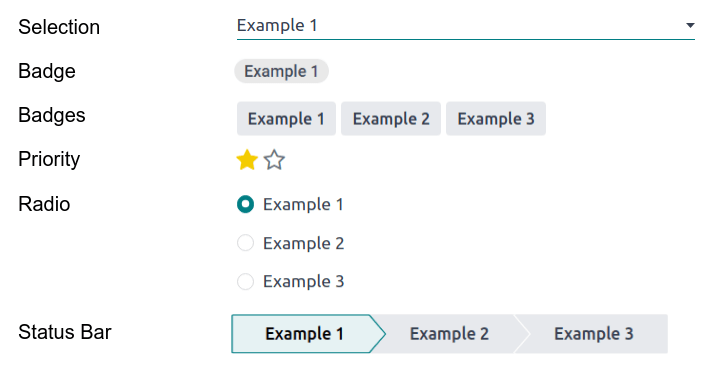
El campo Selección se utiliza cuando los usuarios deben seleccionar un valor único de un grupo de valores predefinidos.
Insignia: muestra el valor dentro de una forma redonda, similar a una etiqueta. El valor no se puede editar en la interfaz de usuario, pero puede establecer un valor predeterminado.
Insignias: muestra todos los valores seleccionables dentro de formas rectangulares, organizadas de manera horizontal.
Priority: displays star symbols instead of values, which can be used to indicate an importance or satisfaction level, for example. This has the same effect as selecting the Priority field, although, for the latter, four priority values are already predefined.
Radio: muestra todos los valores seleccionables como los botones de opción.
Truco
By default, radio buttons are organized vertically. Enable Display horizontally to switch the way they are displayed.
Status Bar: displays all selectable values at the same time as an arrow progress bar.
Truco
By default, values on the status bar are selectable. Disable Clickable to prevent the value being edited on the UI.
Example
Prioridad (selection)
The Priority field is used to display a three-star rating system, which can be used to indicate importance or satisfaction level. This field type is a Selection field with the Priority widget selected by default and four priority values predefined. Consequently, the Badge, Badges, Radio, and Selection widgets have the same effects as described under Selection.
Truco
Para cambiar el número de estrellas disponibles al agregar o eliminar valores, haga clic en Editar valores. Tenga en cuenta que el primer valor es igual a 0 estrellas (es decir, cuando no se selecciona ninguna estrella), por lo que tener cuatro valores da como resultado un sistema de clasificación de tres estrellas.
Example

Archivo (binary)
El campo Archivo se utiliza para subir cualquier tipo de archivo, o para firmar un formulario (widget Firmar).
Image: users can upload an image file, which is then displayed in Form view. This has the same effect as using the Image field.
Lector de PDF: los usuarios pueden subir un archivo PDF, que puede ver desde la Vista de formulario.
Sign: users can electronically sign the form. This has the same effect as selecting the Sign field.
Example
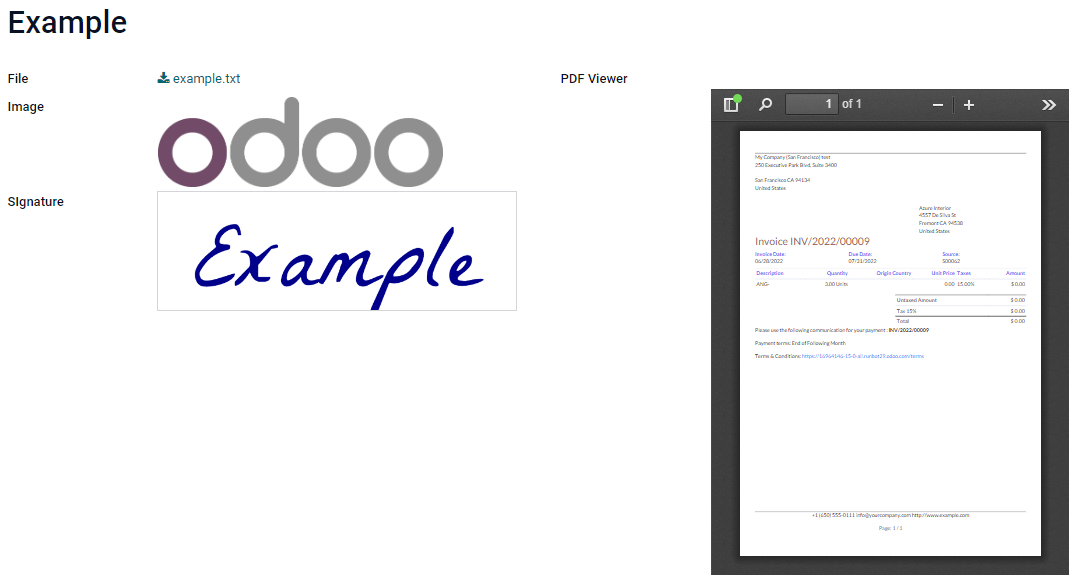
Imagen (binary)
The Image field is used to upload an image and display it in Form view. This field type is a File field with the Image widget selected by default. Consequently, the File, PDF Viewer, and Sign widgets have the same effects as described under File.
Truco
Para cambiar el tamaño de visualización de las imágenes subidas, seleccione Pequeño, Medio o Grande en la opción Tamaño.
Firmar (binary)
The Sign field is used to sign the form electronically. This field type is a File field with the Sign widget selected by default. Consequently, the File, Image, and PDF Viewer widgets have the same effects as described under File.
Truco
To give users the Auto option when having to draw their signature, select one of the available Auto-complete with fields (Text, Many2One, and Related Field on the model only). The signature is automatically generated using the data from the selected field.
Campos de relación
Nota
Non-default widgets, when available, are presented as bullet points or sub-headings.
Many2One (many2one)
El campo Many2One se utiliza para vincular otro registro (de otro modelo) al registro que se está editando. Por lo tanto, se mostrará el nombre del registro del otro modelo en el registro que se está editando.
Example
En el modelo Orden de venta, el campo Cliente es un campo Many2One que dirige al modelo Contacto. Esto permite vincular varias órdenes de venta a un contacto (cliente).

Truco
Para evitar que los usuarios creen un nuevo registro en el modelo vinculado, marque Desactivar creación.
Para evitar que los usuarios abran los registros en una ventana emergente, marque Desactivar apertura.
Para ayudar a los usuarios a seleccionar únicamente el registro correcto, haga clic en Dominio para crear un filtro.
To only trigger the search for a linked record after a minimum number of characters has been entered, enter the desired number in the Typeahead search field. In situations where the data set is large, this can enhance both search relevancy and performance.
Insignia: muestra el valor dentro de una forma redonda, similar a una etiqueta, y no se puede editar en la interfaz del usuario.
Radio: muestra todos los valores seleccionables como los botones de opción.
One2Many (one2many)
El campo One2Many se usa para mostrar las relaciones existentes entre un registro del modelo actual y varios registros de otro modelo.
Example
Podría añadir un campo One2Many en el modelo Contacto para ver varias órdenes de venta de un cliente.

Nota
To use a One2Many field, the two models must have been linked already using a Many2One field. One2Many relations do not exist independently: a reverse-search of existing Many2One relations is performed.
Líneas (one2many)
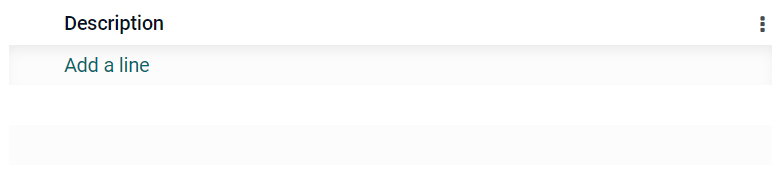
El campo Líneas se utiliza para crear una tabla con filas y columnas (por ejemplo, las líneas de productos de una orden de venta).
Truco
Para modificar las columnas, haga clic en el campo Líneas y luego en Editar vista de lista. Haga clic en Editar vista de formulario para editar el formulario que aparece cuando un usuario hace clic en Agregar una línea.
Example
Many2Many (many2many)
The Many2Many field is used to link multiple records from another model to multiple records on the current model. Many2Many fields can use Disable creation, Disable opening, Domain, just like Many2One fields.
Example
En el modelo Tarea, el campo Asignados es un campo Many2Many que apunta al modelo Contacto. Esto permite que un solo usuario pueda estar asignado a muchas tareas y que muchos usuarios estén asignados a una sola tarea.

Truco
To only trigger the search for the linked record after a minimum number of characters has been entered, enter the desired number in the Typeahead search field. In situations where the data set is large, this can enhance both search relevancy and performance.
Casillas: Los usuarios pueden seleccionar varios valores con las casillas.
Tags: users can select several values appearing in rounded shapes, also known as tags. This has the same effect as selecting the Tags field.
Etiquetas (many2many)
The Tags field is used to display several values from another model appearing in rounded shapes, also known as tags. This field type is a Many2Many field with the Tags widget selected by default. Consequently, the Checkboxes and Many2Many widgets have the same effects as described under Many2Many.
Truco
Para mostrar etiquetas con diferentes colores de fondo, haga clic en Usar colores.
Example

Add a field to a view
With Studio, it is possible to add:
a new field to a form or list view of a model
an existing field, i.e., a field that already exists on the model in question, to any view of that model
Truco
Add a new field to a form or list view to save it to the model and make it available as an existing field in other views of the same model.
Add a new field
Truco
Activate developer mode before adding a new field to see, and be able to edit, the field’s technical name during configuration.
To add a new field, follow these steps:
Navigate to the relevant form or list view, then click the (Toggle Studio) icon in the upper-right corner. Alternatively, with any app open, click the (Toggle Studio) icon, then navigate to the relevant form or list view.
In the Add tab, drag the relevant field type from the New Fields section and drop it in the desired position. If the new field is a relational field, select the relevant reciprocal field, model, or related field in the pop-up.
In the Properties tab, configure the field’s properties:
Enter the Label to be displayed as the field name on the UI; this is also used to generate the default technical name of the field.
Click anywhere outside the Label field to see the Technical Name updated with the default technical name.
Nota
The Technical Name of a new field can be edited in Studio during the configuration process. At any other time, a field’s technical name can only be modified via the technical settings of the database.
The technical name of a new field added using Studio is by default prefixed by
x_studio_.
Optionally, select a different Widget via the dropdown; the default widget for the field type is selected by default.
Optionally, configure any other field properties.
Click Close in the top-right corner to close Studio.
Ver también
Add an existing field
To add a field that exists on the model but that is not present on the current view, follow these steps:
Navigate to the relevant view, then click the (Toggle Studio) icon in the upper-right corner. Alternatively, with any app open, click the (Toggle Studio) icon, then navigate to the relevant view.
In the Add tab, in the left panel, click Existing Fields to reveal a list of all the model’s fields that are not currently present in the view.
Drag the relevant field and drop it in the desired position.
In the Properties tab, configure the relevant properties for the field in the current view.
Nota
Various properties can be configured independently for different views, if needed, such as the Label, the Widget, the visibility of the field for certain user groups, as well as whether or not the field is Invisible, Required, or Readonly.
Click Close in the top-right corner to close Studio.
Field properties
A series of general properties can be configured for most combinations of field type and widget. Additional properties are available depending on the specific field type and widget selected. For example, Date & Time fields using the Date & Time or Date Range widget have various specific properties that can be configured.
General properties
Class: Use Bootstrap or other custom classes defined in Odoo to customize how the field is styled and displayed on the UI.
Invisible: Enable this property when it is not necessary for users to view a field on the UI. This helps declutter the UI by only showing the essential fields depending on a specific situation.
Required: Enable this property if a field should always be completed by the user before being able to proceed.
Readonly: Enable this property if users should not be able to modify a field.
Truco
The Invisible property also applies inside Studio. To view hidden fields in Studio, click on a view’s View tab and enable Show Invisible Elements.
The Invisible, Required, and Readonly properties can be enabled for specific records only by clicking on Conditional and creating a filter.
Example
On the form view of the Contact model, the Title field only appears when Individual is selected, as that field would not be helpful for a Company contact.
Label: This is the field name on the UI; the label is used to generate the technical name of the field.
Help Tooltip: To explain the purpose of a field, add a description. The text is displayed inside a tooltip box when hovering with your mouse over the question mark beside the field’s label.
Technical Name: To view a field’s technical name in Studio (and, during the configuration of a new field, edit it if desired), activate developer mode.
Truco
If this field needs to be updated but is no longer editable via Studio, the technical name can be modified via the technical settings of the database.
Widget: Si desea cambiar la apariencia o función predeterminada de un campo, seleccione uno de los widgets disponibles.
Placeholder: To provide an example of how a field should be completed, add a fixed placeholder text. The text appears in light gray until a value is entered.
Dynamic Placeholder: To provide the value of the selected field as an example of how a field should be completed. The text appears in light gray until a value is entered.
Default value: To display a default value in a field when a record is created, add a value.
Allow visibility to groups: To limit which users can view the field, select one or more user access groups.
Forbid visibility to groups: To prevent certain users from seeing the field, select one or more user access groups.
Properties for Date & Time fields
For Date & Time fields using the Date & Time or Date Range widget, some specific properties are available:
Minimal precision: Determine the smallest date unit that must be selected in the date selector. The possible values are
Day,Month,YearorDecade. If no value is selected, the user must select a day in the date selector.Maximal precision: Determine the largest date unit that can be used to navigate the date selector. The possible values are
Day,Month,YearorDecade. If no value is selected, the user can navigate the date selector by decade.Warning for future dates: Enable this property to display a warning icon if a future date is selected.
Date format: By default the date will be shown as
Apr 2, 2025, 08:05 AM. Enable this property to show the date in the format4/2/2025 08:05:00. The numeric mode is the format set on the current language. In this mode the seconds are always shown.Show date: This property is enabled by default for Date & Time fields. Disable this property to show only the time.
Show time: This property is enabled by default for Date & Time fields. On a read-only field, disable the property to show only the date. This can keep a list view less cluttered, for example.
Show seconds: This property is disabled by default for Date & Time fields. Enable the property to show the seconds.
Time interval: Enter a value to determine the minute intervals shown in the time selector. For example, enter 15 to allow quarter-hour intervals. The default value is set to 5 minutes.
Earliest accepted date: Enter the earliest date that can be selected in the date selector in ISO-format, i.e.,
YYYY-MM-DD. If the current date is always the earliest accepted date, entertoday. On the date selector, dates prior to the earliest accepted date are grayed out.Latest accepted date: Enter the latest date that can be selected in the date selector in ISO-format, i.e.,
YYYY-MM-DD. If the current date is always the latest accepted date, entertoday. On the date selector, dates later than the latest accepted date are grayed out.
Modify a field’s properties
To modify the properties of a field, follow these steps:
Navigate to the relevant view, then click the (Toggle Studio) icon in the upper-right corner. Alternatively, with any app open, click the (Toggle Studio) icon, then navigate to the relevant view.
Click on the relevant field.
In the Properties tab, make any desired changes to the field properties.
Truco
Various properties can be configured independently for different views, such as the Label, the Widget, the visibility of the field for certain user groups, as well as whether or not the field is Invisible, Required, or Readonly.
Click Close in the top-right corner to close Studio.
Nota
The Technical Name of a field (visible in Studio with developer mode activated) cannot be modified in Studio; this can be done via the technical settings of the database.
Modify a field’s technical name
To modify the technical name of a field, activate developer mode, then follow these steps:
With the field open in Studio, copy the technical name of the field.
Remove the field from all views in Studio, then click Close to close Studio.
Navigate to .
Paste the copied technical name into the search bar, then open the relevant field.
Modify the Field Name as needed.
Once the field’s technical name has been updated, the field can then be added (back) to the relevant view(s) from the list of existing fields.
Importante
When updating the technical name of a field, make sure to keep at least the x_ prefix, which is
required for any custom field; for fields created using Studio, keep the x_studio_ prefix to
allow such fields to be more easily identified.
Remove a field from a view
To remove a field from a view, follow these steps:
Navigate to the relevant view, then click the (Toggle Studio) icon in the upper-right corner. Alternatively, with any app open, click the (Toggle Studio) icon, then navigate to the relevant view.
Click on the relevant field.
Scroll to the bottom of the Properties tab, then click Remove from view.
Click Ok to confirm the action.
Truco
A removed field can be easily added back to the view at a later stage, if needed.
If the intention is to declutter the view, it is also possible to modify a field and make it Invisible on the view in question.