
Editor online
A visualização Editor Online permite editar o código-fonte de suas builds a partir de um navegador web. Também oferece a possibilidade de abrir terminais, consoles Python, consoles Odoo shell e Jupyter Notebooks.

Você pode acessar o editor de uma compilação através da aba de branches, do menu suspenso de compilações, ou adicionando /odoo-sh/editor à URL da compilação (por exemplo, https://odoo-addons-master-1.dev.odoo.com/odoo-sh/editor).
Editar o código-fonte
O diretório de trabalho é composto pelo seguinte:
.
├── home
│    └── odoo
│         ├── src
│         │    ├── odoo                Odoo Community source code
│         │    │    └── odoo-bin       Odoo server executable
│         │    ├── enterprise          Odoo Enterprise source code
│         │    ├── themes              Odoo Themes source code
│         │    └── user                Your repository branch source code
│         ├── data
│         │    ├── filestore           Database attachments, as well as the files of binary fields
│         │    └── sessions            Visitors and users sessions
│         └── logs
│              ├── install.log         Database installation logs
│              ├── odoo.log            Running server logs
│              ├── update.log          Database updates logs
│              └── pip.log             Python packages installation logs
Você pode editar o código-fonte (arquivos em /src) de compilações de desenvolvimento e preparação. Para compilações de produção, o código-fonte é somente leitura, porque aplicar alterações locais em um servidor de produção não é uma boa prática.
Nota
Suas alterações não serão propagadas para novas compilações. É necessário fazer commit delas no código-fonte se você quiser que elas persistam.
O código-fonte do seu repositório GitHub está localizado em
/src/user.O código-fonte do Odoo está localizado em:
/src/odoo(https://github.com/odoo/odoo)/src/enterprise(https://github.com/odoo/enterprise)/src/themes(https://github.com/odoo/design-themes)
Para abrir um arquivo no editor, clique duas vezes nele no painel do navegador de arquivos. Você pode então editar o arquivo. Para salvar suas alterações, vá em ou use o atalho de teclado Ctrl+S.
Se você salvar um arquivo Python no caminho de addons do seu servidor Odoo, o Odoo o detectará e recarregará automaticamente, o que significa que suas alterações são imediatamente visíveis.

No entanto, se suas alterações estão armazenadas no banco de dados, como o rótulo de um campo ou uma visualização, é necessário atualizar o módulo relacionado para aplicar as alterações. Para atualizar o módulo do arquivo atualmente aberto, vá em .
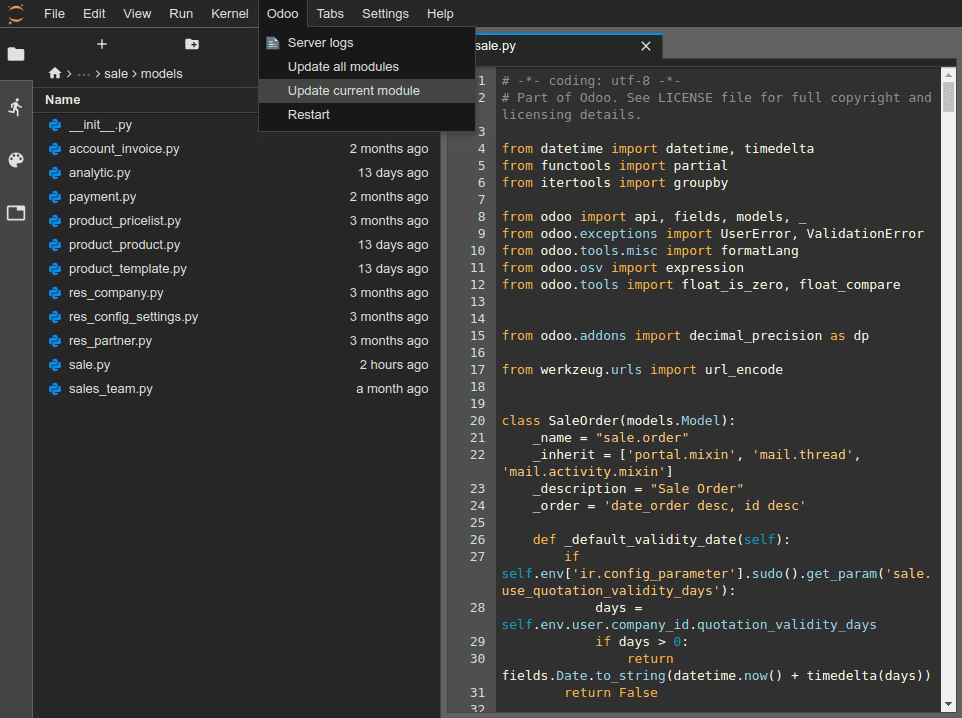
Dica
Você também pode executar o seguinte comando em um terminal para atualizar um módulo:
odoo-bin -u <comma-separated module names> --stop-after-init
Fazer commit e push de alterações
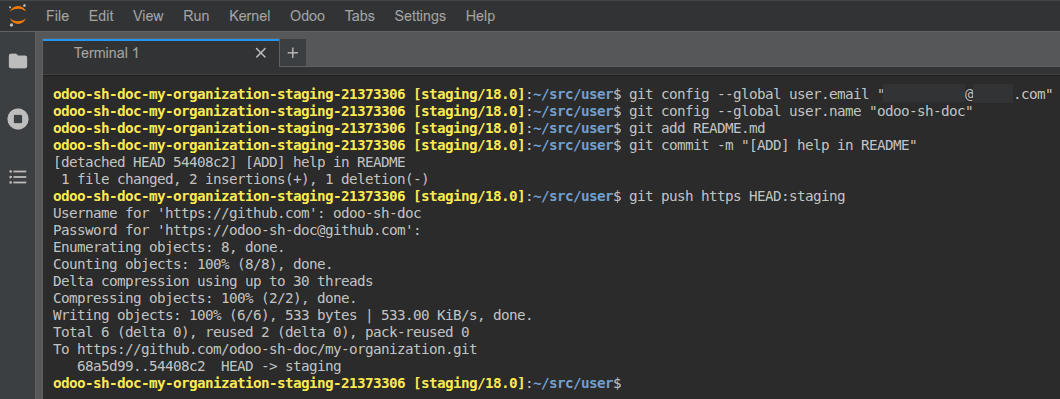
Para fazer commit e push de alterações para seu repositório GitHub:
Abra um terminal indo em .
Altere o diretório para
~/src/user.cd ~/src/userDeclare sua identidade.
git config --global user.email "you@example.com" && git config --global user.name "Your Name"
Prepare suas alterações.
git add
Confirme suas alterações.
git commit
Envie suas alterações.
git push https HEAD:<branch>
In this command:
httpsé o nome do seu repositório remoto GitHub HTTPS (por exemplo,https://github.com/username/repository.git).HEADé a referência à última revisão que você confirmou.<branch>deve ser substituído pelo nome do branch para o qual você deseja enviar as alterações, provavelmente o branch atual se você trabalha em uma compilação de desenvolvimento.
Você será solicitado a inserir seu nome de usuário e senha do GitHub. Após inserir suas credenciais, pressione enter.
Dica
Se você ativar a autenticação de dois fatores para sua conta do GitHub, pode criar um token de acesso pessoal e usá-lo como senha. Conceder a permissão de repositório é suficiente.
Nota
Não é possível autenticar-se usando SSH, pois sua chave SSH privada não é hospedada em seus contêineres de compilação por motivos de segurança, nem encaminhada por meio de um agente SSH, já que você acessa o editor através de um navegador web.
A pasta de origem
~/src/usernão está em checkout em um branch, mas sim em uma revisão desanexada. Isso ocorre porque as compilações trabalham em revisões específicas em vez de branches, o que significa que você pode ter várias compilações no mesmo branch, mas em revisões diferentes.
Depois que suas alterações forem enviadas, de acordo com o comportamento de push do branch, uma nova compilação pode ser criada. Você pode continuar trabalhando no editor de onde enviou, pois ele terá a mesma revisão da nova compilação criada. No entanto, sempre certifique-se de estar no editor de uma compilação usando a última revisão do seu branch.
Consoles
Você pode abrir consoles Python, que são shells interativos IPython. Usar esses consoles Python (em vez de shells IPython dentro de um terminal) permite utilizar suas capacidades de exibição avançada para exibir objetos em HTML.
Example
A classe Pretty exibe listas de forma legível.


Você pode abrir consoles shell do Odoo para experimentar com o registro do Odoo e métodos de modelo do seu banco de dados. Você também pode ler ou escrever diretamente em seus registros.
Aviso
Em um console shell do Odoo, as transações são confirmadas automaticamente. Isso significa que as alterações feitas nos registros são aplicadas ao banco de dados. Por exemplo, se você alterar o nome de um usuário, ele será atualizado no seu banco de dados também. Portanto, use os consoles shell do Odoo com cuidado em bancos de dados de produção.
Você pode usar env para invocar modelos do registro do seu banco de dados, por exemplo, env['res.users'].
env['res.users'].search_read([], ['name', 'email', 'login'])
[{'id': 2,
'login': 'admin',
'name': 'Administrator',
'email': 'admin@example.com'}]