
Gebruikers
Odoo definieert een gebruiker als iemand die toegang heeft tot een database. Een beheerder kan zoveel gebruikers toevoegen als het bedrijf nodig heeft en om het soort informatie waartoe elke gebruiker toegang heeft te beperken, kunnen regels worden toegepast op elke gebruiker. Gebruikers en toegangsrechten kunnen op elk moment worden toegevoegd en gewijzigd.
Zie ook
gebruikers/taal
gebruikers/toegang_rechten
toegangsrechten/groepen
Individuele gebruikers toevoegen
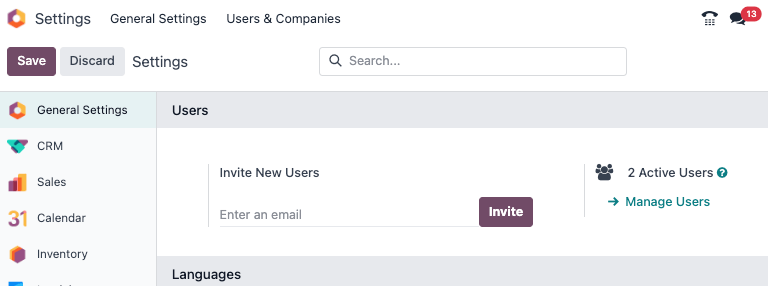
Om nieuwe gebruikers toe te voegen, navigeer je naar :menuselectie:`Instellingen app --> Gebruikers sectie --> Gebruikers beheren`, en klik je op Nieuw.
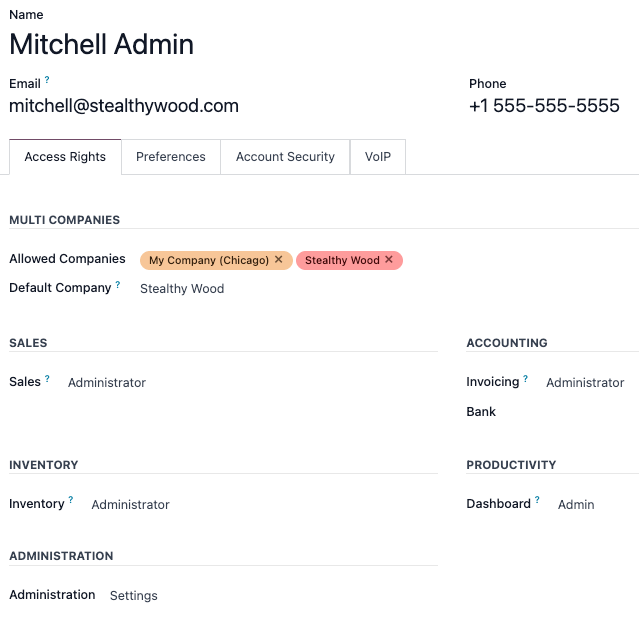
Vul het formulier in met alle vereiste informatie. Kies onder het tabblad Toegangsrechten de groep binnen elke applicatie waartoe de gebruiker toegang heeft.
De lijst met applicaties is gebaseerd op de applicaties die geïnstalleerd zijn in de database.
After filling out all the necessary fields on the page, (Save manually). An invitation email is automatically sent to the user, using the email in the Email Address field. The user must click on the link included in the email to accept the invitation, and to create a database login.

Waarschuwing
Als het bedrijf een maandabonnement heeft, wordt de database automatisch bijgewerkt met de toegevoegde gebruikers. Als het bedrijf een jaar- of meerjarenabonnement heeft, verschijnt er een banner in de database die aangeeft wanneer het abonnement afloopt. Je kunt een upsell-offerte maken door op de banner te klikken om het abonnement bij te werken. Je kunt ook een supportticket sturen om het probleem op te lossen.
Soort gebruiker
User Type can be chosen on the Manage Users page by clicking on the search bar, and then setting a filter for either Internal User or Portal User.
Odoo databases have three types of users: Internal User, Portal, and Public. Users are considered internal database users. Portal users are external users, who only have access to the database portal to view records. Public users are those visiting websites, via the website’s frontend. See the documentation on User portals.
The Portal user option does not allow the administrator to choose access rights. These users have specific access rights pre-set (such as, record rules and restricted menus), and usually do not belong to the usual Odoo groups.
User devices
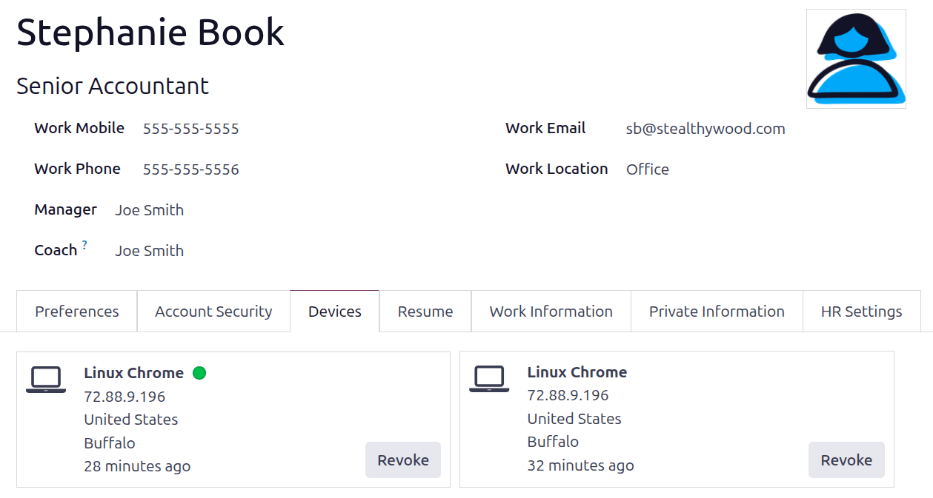
For security purposes, when a user logs into the database, the various login information, such as the IP address, is stored in the user’s profile. It is best practice to check this periodically, to ensure all access is from the user, and no one else has accessed the database.
To check the logged-in devices, click the user icon in the upper-right corner, and click My Preferences to open the user’s profile. Click the Security tab to view a list of all devices the user has logged into the database with. Any device currently logged into the system displays a green circle next to the device name on the Kanban card.
Revoke devices
If a listed device is not a legitimate user device and could be a potential security risk, remove the device and revoke access by clicking the Log out button.
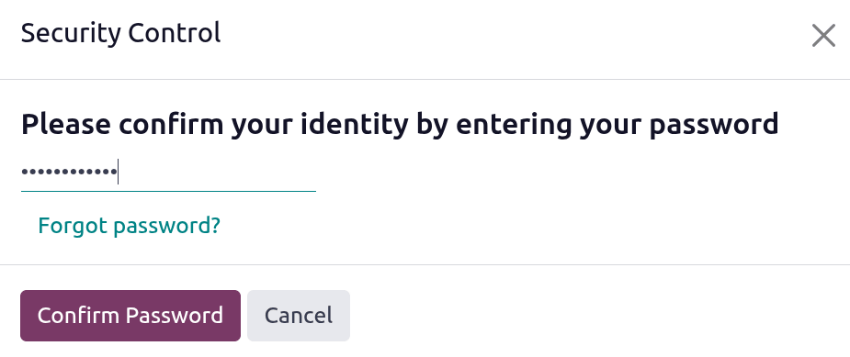
An Access Control pop-up window loads, requesting the user to confirm their identity. Enter the user’s password, then click Confirm Password.
The device disappears from the Security tab and can no longer be used to log into the database.
Gebruikers deactiveren
To deactivate (i.e. archive) a user, navigate to . Then, tick the checkbox to the left of the users to be deactivated.
After selecting the appropriate user to be archived, click the (Actions) icon, and select Archive from the resulting drop-down menu. Then, click OK from the Confirmation pop-up window that appears.
Fout: te veel gebruikers
Als er meer gebruikers in een Odoo database zijn dan zijn voorzien in het Odoo Enterprise abonnement, wordt het volgende bericht weergegeven.

Wanneer het bericht verschijnt, heeft de databasebeheerder 30 dagen de tijd om actie te ondernemen voordat de database verloopt. Het aftellen wordt elke dag bijgewerkt.
Om het probleem op te lossen, kunt je het volgende doen:
Add more users to the subscription by clicking the Upgrade your subscription link displayed in the message to validate the upsell quotation, and pay for the extra users.
Deactiveer gebruikers en wijs de upsell offerte af.
Waarschuwing
Als het bedrijf een maandabonnement heeft, wordt de database automatisch bijgewerkt met de toegevoegde gebruikers. Als het bedrijf een jaar- of meerjarenabonnement heeft, verschijnt er een banner in de database die aangeeft wanneer het abonnement afloopt. Een upsell-offerte kan worden aangemaakt door op de banner te klikken om het abonnement bij te werken. Gebruikers kunnen ook een supportticket sturen om het probleem op te lossen.
Once the database has the correct number of users, the expiration message disappears automatically after a few days, when the next verification occurs.
Wachtwoordbeheer
Wachtwoordbeheer is een belangrijk onderdeel om gebruikers altijd autonoom toegang te geven tot de database. Odoo biedt een paar verschillende methoden om het wachtwoord van een gebruiker opnieuw in te stellen.
Tip
To enforce a minimum password length requirement, install the
Password Policy (auth_password_policy) module. Then, open the Settings
app, navigate to the Permissions section, and enter the desired password length in the
Minimum Password Length field. By default, the value is 8.
Wachtwoord herstellen
Soms willen gebruikers hun persoonlijke wachtwoord resetten voor extra veiligheid, zodat zij de enigen zijn met toegang tot het wachtwoord. Odoo biedt twee verschillende resetopties: een die door de gebruiker wordt gestart om het wachtwoord te resetten en een andere waarbij de beheerder een reset activeert.
Wachtwoord resetten vanaf inlogpagina inschakelen
Het is mogelijk om het resetten van wachtwoorden direct vanaf de inlogpagina in of uit te schakelen. Deze actie wordt uitgevoerd door de individuele gebruiker en deze instelling is standaard ingeschakeld.
Om deze instelling te wijzigen, ga je naar sectie, activeer je Wachtwoord resetten en klik je vervolgens op Opslaan.

Klik op de inlogpagina op Wachtwoord resetten om het resetten van het wachtwoord te starten en een reset-token naar het e-mailadres in je bestand te sturen.
Stuur reset-instructies
Ga naar :menuselectie:`Instellingen app --> Gebruikers & Bedrijven --> Gebruikers`, selecteer de gebruiker uit de lijst en klik op Verstuur instructies voor het resetten van het wachtwoord op het gebruikersformulier. Er wordt automatisch een e-mail naar de gebruiker gestuurd met instructies voor het resetten van het wachtwoord.
Notitie
De knop Verstuur instructies voor het resetten van het wachtwoord verschijnt alleen als de e-mail met de Odoo-uitnodiging al door de gebruiker is bevestigd. Anders verschijnt er een Uitnodigingsmail opnieuw versturen knop.
Deze e-mail bevat alle instructies die nodig zijn voor het resetten van het wachtwoord, evenals een link die de gebruiker doorverwijst naar een inlogpagina van Odoo.

Gebruikerswachtwoord wijzigen
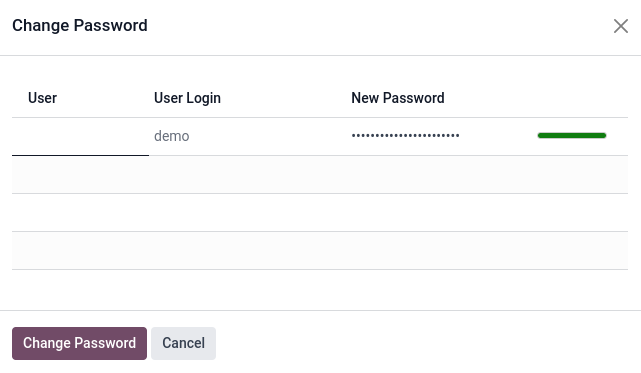
Go to , and select a user to access its form. Click on the (Actions) icon, and select Change Password from the resulting drop-down menu. Enter a new password in the New Password column of the Change Password pop-up window that appears, and confirm the change by clicking Change Password.
Notitie
This operation only modifies the password of the users locally, and does not affect their Odoo account.
If the Odoo password needs to be changed, use the send the password reset. Odoo.com passwords grant access to the My Databases page, and other portal features.
Nadat je op Wachtwoord wijzigen hebt geklikt, wordt de pagina omgeleid naar een Odoo inlogpagina waar je opnieuw toegang kunt krijgen tot de database met het nieuwe wachtwoord.
Multi companies
The Companies field on a user form determines which companies a user can access. To configure multi-company access, navigate to . Then select the desired user to open their user form.
In the Access Rights tab, under the Roles section, configure the Companies and Default Company fields:
Companies: Select one or more companies the user can access. The user’s access and editing permissions are determined by their assigned access rights.
Default Company: Select the company that is automatically selected when the user logs in. Only one company can be set as the default.
Waarschuwing
Incorrectly configuring multi-company access can result in inconsistent behavior across companies. Only experienced Odoo users should modify user access rights in databases with a multi-company configuration. For technical explanations, refer to the developer documentation on Multi-company Guidelines.

Zie ook