
Utilisateurs
Odoo defines a user as someone who has access to a database. An administrator can add as many users as the company needs and, in order to restrict the type of information each user can access, rules can be applied to each user. Users and access rights can be added and changed at any point.
Voir également
Ajouter des utilisateurs individuels
To add new users, navigate to , and click on New.

Fill in the form with all the required information. Under the Access Rights tab, choose the group within each application the user can have access to.
La liste des applications affichées est basée sur les applications installées sur la base de données.

After filling out all the necessary fields on the page, (Save manually). An invitation email is automatically sent to the user, using the email in the Email Address field. The user must click on the link included in the email to accept the invitation, and to create a database login.

Avertissement
If the company is on a monthly subscription plan, the database automatically updates to reflect the added users. If the company is on a yearly or multi-year plan, an expiration banner appears in the database. An upsell quotation can be created by clicking the banner to update the subscription. Alternatively, send a support ticket to resolve the issue.
User type
User Type can be chosen on the Manage Users page by clicking on the search bar, and then setting a filter for either Internal User or Portal User.
Odoo databases have three types of users: Internal User, Portal, and Public. Users are considered internal database users. Portal users are external users, who only have access to the database portal to view records. Public users are those visiting websites, via the website’s frontend. See the documentation on User portals.
The Portal user option does not allow the administrator to choose access rights. These users have specific access rights pre-set (such as, record rules and restricted menus), and usually do not belong to the usual Odoo groups.
User devices
For security purposes, when a user logs into the database, the various login information, such as the IP address, is stored in the user’s profile. It is best practice to check this periodically, to ensure all access is from the user, and no one else has accessed the database.
To check the logged-in devices, click the user icon in the upper-right corner, and click My Preferences to open the user’s profile. Click the Security tab to view a list of all devices the user has logged into the database with. Any device currently logged into the system displays a green circle next to the device name on the Kanban card.

Revoke devices
If a listed device is not a legitimate user device and could be a potential security risk, remove the device and revoke access by clicking the Log out button.
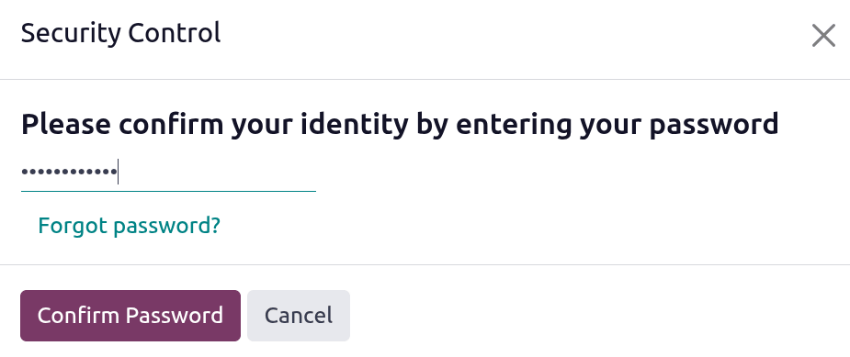
An Access Control pop-up window loads, requesting the user to confirm their identity. Enter the user’s password, then click Confirm Password.
The device disappears from the Security tab and can no longer be used to log into the database.
Désactiver des utilisateurs
To deactivate (i.e. archive) a user, navigate to . Then, tick the checkbox to the left of the users to be deactivated.
After selecting the appropriate user to be archived, click the (Actions) icon, and select Archive from the resulting drop-down menu. Then, click OK from the Confirmation pop-up window that appears.
Error: too many users
If there are more users in an Odoo database than provisioned in the Odoo Enterprise subscription, the following message is displayed.

When the message appears, the database administrator has 30 days to act before the database expires. The countdown is updated every day.
To resolve the issue, either:
Add more users to the subscription by clicking the Upgrade your subscription link displayed in the message to validate the upsell quotation, and pay for the extra users.
Deactivate users, and reject the upsell quotation.
Avertissement
If the company is on a monthly subscription plan, the database automatically updates to reflect the added users. If the company is on a yearly or multi-year plan, an expiration banner appears in the database. An upsell quotation can be created by clicking the banner to update the subscription. Alternatively, users can send a support ticket to resolve the issue.
Once the database has the correct number of users, the expiration message disappears automatically after a few days, when the next verification occurs.
Password management
Password management is an important part of granting users autonomous access to the database at all times. Odoo offers a few different methods to reset a user’s password.
Astuce
To enforce a minimum password length requirement, install the
Password Policy (auth_password_policy) module. Then, open the Settings
app, navigate to the Permissions section, and enter the desired password length in the
Minimum Password Length field. By default, the value is 8.
Reset password
Sometimes, users might wish to reset their personal password for added security, so they are the only ones with access to the password. Odoo offers two different reset options: one initiated by the user to reset the password, and another where the administrator triggers a reset.
Enable password reset from login page
It is possible to enable/disable password resets directly from the login page. This action is completed by the individual user, and this setting is enabled by default.
To change this setting, go to section, activate Password Reset, and then click Save.

On the login page, click Reset Password to initiate the password reset process, and have a reset-token sent to the email on file.
Send reset instructions
Go to , select the user from the list, and click on Send Password Reset Instructions on the user form. An email is automatically sent to them with password reset instructions.
Note
The Send Password Reset Instructions button only appears if the Odoo invitation email has already been confirmed by the user. Otherwise, a Re-send Invitation Email button appears.
Cet e-mail contient toutes les instructions nécessaires pour réinitialiser le mot de passe, ainsi qu’un lien redirigeant l’utilisateur vers une page de connexion Odoo.

Change user password
Go to , and select a user to access its form. Click on the (Actions) icon, and select Change Password from the resulting drop-down menu. Enter a new password in the New Password column of the Change Password pop-up window that appears, and confirm the change by clicking Change Password.

Note
This operation only modifies the password of the users locally, and does not affect their Odoo account.
If the Odoo password needs to be changed, use the send the password reset. Odoo.com passwords grant access to the My Databases page, and other portal features.
After clicking Change Password, the page is redirected to an Odoo login page where the database can be re-accessed using the new password.
Multi companies
The Companies field on a user form determines which companies a user can access. To configure multi-company access, navigate to . Then select the desired user to open their user form.
In the Access Rights tab, under the Roles section, configure the Companies and Default Company fields:
Companies: Select one or more companies the user can access. The user’s access and editing permissions are determined by their assigned access rights.
Default Company: Select the company that is automatically selected when the user logs in. Only one company can be set as the default.
Avertissement
Incorrectly configuring multi-company access can result in inconsistent behavior across companies. Only experienced Odoo users should modify user access rights in databases with a multi-company configuration. For technical explanations, refer to the developer documentation on Multi-company Guidelines.

Voir également