Verlof
Odoo’s Time Off application serves as a centralized hub for all time-off-related information. This application manages requests, balances, allocations, approvals, and reports. The following documents explain each aspect of the Time Off application:
Time off types
Before time off can be requested, the various time off types must be configured.
Feestdagen
Configure all public holidays so employees receive the correct days off according to local and national laws.
Toewijzingen
Some time off types require management to grant time off to employees before they can request it.
Opbouwplannen
If time off is earned as employees work, an accrual plan must be configured.
Request time off
Before employees take time off, they must submit a time off request.
My time
Manage personal time off balances, allocations, and time off requests.
Management
Review time off and allocation requests from their respective dashboards.
Rapportages
View a summary of all time off, by employee, time off type, or balance.
Overzicht
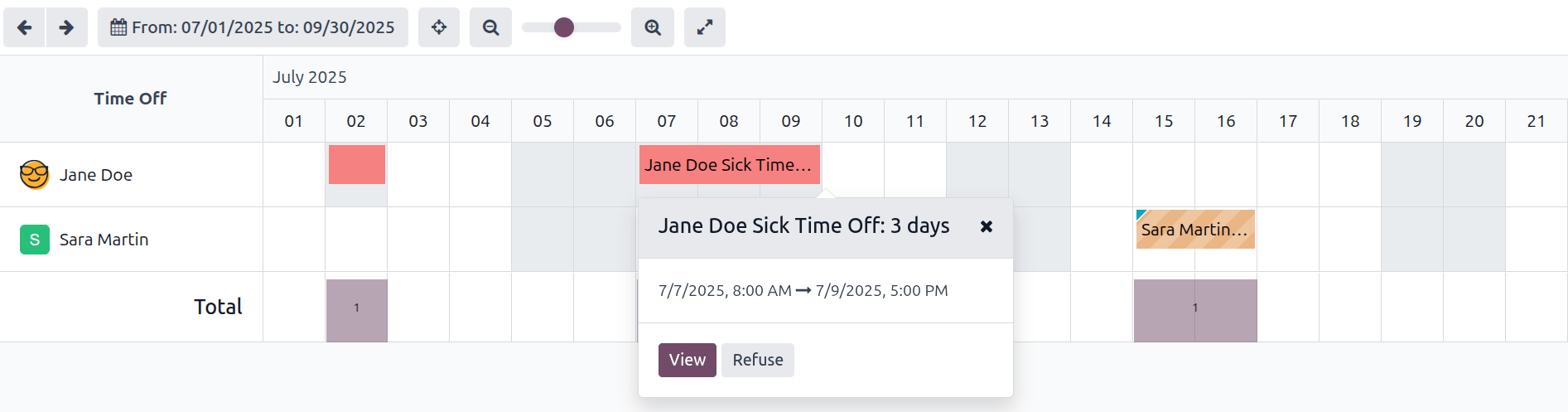
To view a color-coded schedule of the user’s time off and the team they manage, navigate to . This loads the All Time Off dashboard, which displays a Gantt view of all time off requests for the user and their team, grouped by employee.
The All Time Off dashboard presents three months of data, the previous, current, and following months, with the current month visible by default. To change the time period displayed, click the Month button to reveal a drop-down menu. Then, select either Day, Week, Month, Quarter, Year, or a custom time period.
To navigate forward or backward in time in the selected increment (Month, Week, etc.), click the (left arrow) or (right arrow) buttons. For example, if Month is selected, the arrows adjust the view by one month. To return to a view containing the current day, click the Today button at any time.
Team members are listed alphabetically by first name, and display their time off requests with a status of Approved or Second Approval. Each employee is color-coded. The employee’s color is selected at random, and does not correspond to the type of time off requested.
The status of the time off is represented by the color detail of the request, either appearing solid (Approved) or striped (Second Approval).
Each time off entry displays the employee name, time off type, and the amount of time requested.
Notitie
If the time off entry is small and cannot display any text, the entry appears as a solid color with no text. All other entries display the text, but it may be cut off depending on the request size.
At the bottom of the calendar, in the Total line, a bar graph shows how many employees are projected to be out on any given day. The number on each bar represents the number of employees out on the highlighted days.
Click on a time off entry to open a Time Off Request pop-up window, containing a summary of the time off entry. The Employee, Time Off Type, Dates, and notes are displayed.