IoT connection to Odoo
Prerequisites
To connect the IoT gateway to an Odoo database, the following prerequisites must be met:
The Odoo IoT app must be installed.
The IoT gateway must be connected to the network.
The device connecting to Odoo must be on the same network as the IoT gateway.
Note
It is recommended to connect the IoT gateway to a production instance, as other types of environments may cause issues (e.g., with HTTPS certificate generation).
See also
Connection
To connect the IoT gateway to an Odoo database, open the IoT app and click Connect.
The browser then scans the network to which the computer is connected for available IoT gateways. If an IoT gateway is detected, it is connected automatically. If multiple IoT gateways are found, select the appropriate one in the popup that opens, then click Connect. If no IoT gateway is detected automatically, try connecting it to the database using a pairing code or a connection token.
Tip
The IoT gateway’s name is composed of either the IoT Box or the Windows computer’s motherboard serial number, followed by its pairing code.
Connection using a pairing code
Note
The pairing code is valid for up to 2 hours after the IoT gateway powers on. If the code is no longer valid, restart the IoT Box or restart the Windows virtual IoT service to display another pairing code. Alternatively, connect the IoT gateway to the database using a connection token.
The pairing code is not displayed if the IoT gateway is already connected to a database (e.g., a test database). If necessary, disconnect the IoT gateway from the database.
Retrieve the IoT gateway’s pairing code:
Connect the IoT Box to an external monitor or a USB printer. If the IoT Box was already plugged in prior to this, restart it.
External monitor: The pairing code will be displayed on the screen after (re)starting the IoT Box.
USB-connected printer: The pairing code should be printed automatically.
Tip
If no external monitor or printer is connected to the IoT Box, access the IoT Box’s homepage; the code is displayed in the Pairing Code section.
On the computer with the Windows virtual IoT installed, open the IoT gateway’s homepage in a web browser by navigating to the URL
http://localhost:8069. Then, scroll to the Pairing Code section.In Odoo, open the IoT app and click Connect.
In the Searching for an IoT Box popup that opens, click Use Pairing Code.
Enter the Pairing code and click Connect.
Connection using a connection token
In Odoo, open the IoT app and click Connect.
In the Searching for an IoT Box popup that opens, click Offline pairing.
In the Pair an IoT Box offline popup that opens, copy the Token.
Access the IoT Box’s or Windows virtual IoT’s homepage.
In the Odoo database connected section, click Configure.
Paste the token into the Server Token field and click Connect.
Note
Once the IoT gateway is connected to a database:
If the Point of Sale app is installed, a popup appears to select the POS the IoT gateway should be associated with.
If using an IoT Box, wait a few minutes for it to update before using the connected devices.
The IoT gateway automatically requests an HTTPS certificate and its homepage is updated to a new HTTPS URL ending with
.odoo-iot.comwhen it becomes available.
See also
IoT gateway form
Click the card to open the IoT gateway’s form, which lists the devices connected to the IoT gateway and provides access to the IoT Box’s or Windows virtual IoT’s homepage.
Tip
Enable the developer mode to access the IoT gateway’s Technical Information, such as its Domain Address, Image Version, and SSL Certificate End Date. By default, drivers are automatically updated every time the IoT gateway is restarted. To disable automatic updates, uncheck the Automatic drivers update option.
On the IoT gateway’s form, click the Test button to test the connection between the IoT gateway and Odoo and assess the quality of the gateway’s Internet connection.
Disconnecting an IoT gateway from a database
To disconnect the IoT gateway from a database, follow these steps:
Open the IoT app and click the relevant IoT gateway’s card.
Click the (Actions) icon, and select Delete.
Tip
Alternatively:
Access the IoT Box’s or Windows virtual IoT’s homepage.
Click Configure in the Odoo database connected section.
Click Disconnect in the popup that opens.
HTTPS certificate
HTTPS is the secure, encrypted version of HTTP. It uses TLS (previously SSL) certificates to authenticate the server and protect the data exchanged between a browser and a website. Some network devices, such as payment terminals, require a valid HTTPS certificate to communicate with the IoT gateway; without it, they cannot interact properly.
Note
In this documentation and throughout Odoo, the term HTTPS certificate refers to a valid SSL certificate that allows an HTTPS connection.
When the IoT gateway is (re)started and connected to a database, it automatically downloads the HTTPS certificate if the database meets the following eligibility criteria:
The database must be a production instance. The database instance should not be a copy, a duplicate, a staging, or a development environment.
The Odoo subscription must be ongoing (In Progress status).
When the certificate has been received:
The IoT gateway’s homepage address is updated to a new HTTPS URL ending with
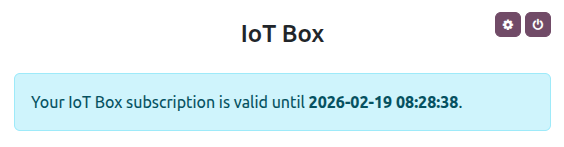
.odoo-iot.com.The HTTPS certificate banner displays the certificate’s validity period. To view this information, click the (cogs) button at the top-right of the IoT gateway’s homepage.