
Approvals
The Approvals app in Odoo allows employees to make official requests for a variety of things, allowing management the ability to review requests and then either approve or refuse them. This keeps all requests in one centralized location, providing clear organization and transparency for all requests.
Approval types
When requesting an approval, the category, or type, must be specified. There are nine preconfigured approval categories available to make requests for:
Business trip: For requesting work-related travel.
Borrow Items: For requesting physical items the company owns or sells, for a specified period of time.
General Approval: For requests that do not fit in any of the eight other default types.
Contract Approval: For requesting any type of external contract, excluding employee contracts.
Payment Application: For requesting prior approval for company-related expenses.
Important
This approval type is only used when requesting approval in advance for an expense the company directly pays for. This category should not be used for expenses employees are seeking reimbursement for. That is done through the Expenses app.
Car Rental Application: For requesting a rental car.
Job Referral Award: For requesting job referral awards that were earned but not completed through the Referrals app.
Procurement: Used for requesting work-related items such as office supplies, tools, etc.
Create RFQ’s: Used for requesting a quote for items from a vendor.
Approval requests
To create a new approval request, open the Approvals app, click the New Request button on the approval type card that best fits the request, and a blank approval form loads. Fill out the various sections and tabs, then click Submit to submit the request for approval.
General information section
The top half of the form contains all of the general information regarding the request. Fill out the following fields in the top half of the form:
Note
All the fields listed below appear on the form for the General Approval category. If a different Category is selected, some fields are hidden.
Approval Subject: This field is automatically populated with the selected approval type. Make any desired modifications to the default text to provide any additional context for the request.
Request Owner: The person responsible for the approval request. The signed-in user populates this field by default.
Category: The selected category appears in this field but can be changed using the drop-down menu.
Date: Using the calendar selector, set the date and time the request is for. This field only appears if Payment Application or General Approval is selected for the Category.
Period: Using the calendar selector, set the start and end dates for the request in the From and to fields. This field only appears if Business Trip, Borrow Items, Car Rental Application, or General Approval is selected for the Category.
Location: Enter the specific location the approval request is for. This field only appears if Business Trip or General Approval is selected for the Category.
Contact: Select the point of contact for the request using the drop-down menu. The available options are from the Contacts app. This field only appears if Contract Approval, Payment Application, Job Referral Award, or General Approval is selected for the Category.
Quantity: Enter the number of items being requested in this field. This field only appears if Procurement is selected for the Category.
Amount: Enter the amount being requested. This field only appears if Contract Approval, Payment Application, Procurement, or General Approval is selected for the Category.
Reference: Enter any relevant reference for the request in this field. This field only appears if Contract Approval or General Approval is selected for the Category.
Tip
Each approval type presents different fields on the approval form. This is because each approval type has its own required fields. If the type is not immediately known, click the New Request button at the top of the page to open a generic request for approval form. Once the Category is selected, the corresponding fields on the form appear.

Product tab
If any configured products in the database are being requested, they are listed in the Products tab. This tab only appears if Borrow Items, General Approval, or Create RFQ’s is selected in the Category field.
To add a product, click Add a line and a blank line appears. Using the drop-down menu, select the product being requested. Once selected, the product’s configured Description automatically populates that field. The Quantity is 1.00 by default, but can be updated if necessary.
Description tab
The Description tab is where any information to clarify the request is entered. Add any relevant information in this tab.
Approver(s) tab
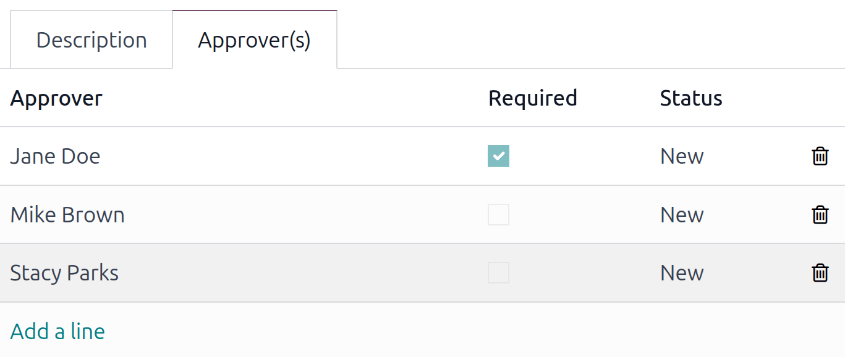
The Approvers(s) tab is where the people responsible for approving the request are configured. To add an approver, click Add a line, and a blank line appears. Using the drop-down menu, select the desired user. Repeat for all other approvers. There is no maximum number of users for this tab.
To indicate a user must approve the request, click the checkbox in the Required column.
As users are added, their Status remains New.
Attach documents
All approval requests include the option to attach relevant documents. To attach a document, click the Attach Document button at the top of the page, and a file explorer window loads. Navigate to the desired file, select it, then click Open to attach it. Multiple documents can be selected and added at the same time.
Once attached, a Documents smart button appears at the top of the page, indicating how many documents are attached. Additionally, the documents are listed in the chatter. If the screen is wide enough, the documents appear on the side of the screen.
Manage approvals
After requests are submitted, they must be approved by the required approvers listed in the Approver(s) tab. To view approvals awaiting action, navigate to , and the Approvals to Review dashboard loads. All approvals awaiting action by the user appear alphabetically in a default list view.
Note
Only submitted requests that the user is assigned as an approver for appear in the Approvals to Review dashboard. All other requests remain hidden.

Requests must be individually approved from the approvals form. To approve a request, click the individual request on the Approvals to Review dashboard and the individual request form loads.
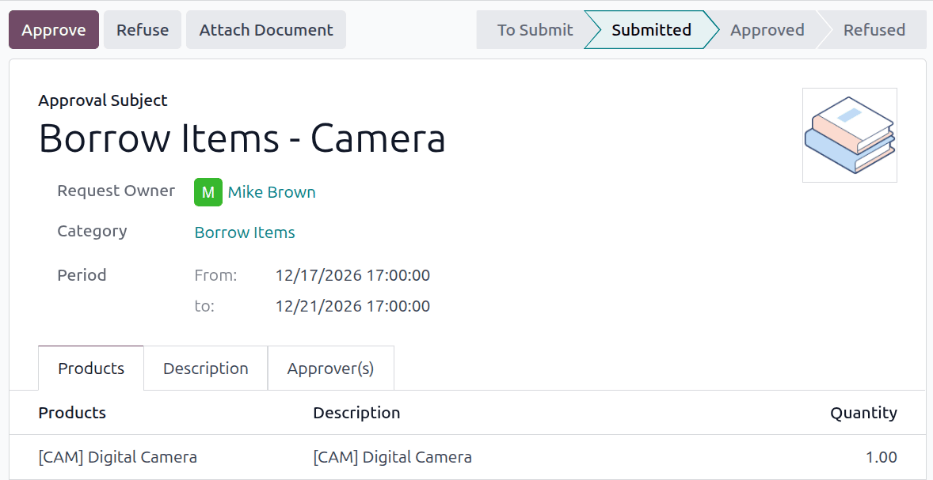
To approve the request, click the Approve button on the individual approval request form, and the status changes to Approved. As users approve the request, their Status changes to Approved and the text appears green.
To deny the request, click the Refuse button on the individual approval request form, and the status changes to Refused. When a user refuses a request, its Status changes to Refused and the text appears red.
At any point, approval requests that are either Approved or Refused can return to the Submitted stage by clicking the Withdraw button. The Status for all approvers reverts to To Approve, and the text appears orange.