
CRM activities and activity plans
Within the CRM app, activities are follow-up tasks tied to leads and opportunities that are visible in the chatter. A set of preconfigured activity types is available in the CRM app, but custom activity types may also be created to suit business needs. To view the list of available activity types in the CRM app, open the app and navigate to . This page shows both Odoo-created activities and any custom activities.
Nota
Different applications support different activity types. To see the complete list of activity types, go to the , then scroll to the Discuss section, and click the Activity Types link.
Default and custom activity types
The preconfigured activity types for the CRM app are:
Email: Adds a reminder to the chatter prompting the salesperson to send an email.
Call: Opens a calendar link where the salesperson can schedule a phone call.
Meeting: Opens a calendar link where the salesperson can schedule a meeting.
To Do: Adds a general reminder task to the chatter.
Upload Document: Adds a link on the activity where an external document can be uploaded. Note that the Documents app is not required to utilize this activity type.
Nota
If other Odoo applications are installed, such as Sales or Accounting, additional activity types may appear in the CRM app’s Activity Types page.
Create a custom activity type
To create a custom activity type, navigate to the Activity Types page and click New at the top-left of the page to open a blank form. Start by entering a Name for the new activity type.

Ajustes de actividad
Acción
The Action field specifies what action the activity prompts from the salesperson assigned to the opportunity. Some actions trigger specific behaviors after an activity is scheduled instead of when the activity is added to an opportunity.
Si selecciona Subir documento, se añadirá un enlace para subir un documento directamente a la actividad planificada en el chatter.
Si selecciona Llamada telefónica o Reunión, los usuarios tendrán la opción de abrir su calendario para programar esta actividad.
Si selecciona Solicitar firma, se añadirá un enlace en el chatter de la actividad planeaificada. Al hacer clic en este enlace se abrirá una ventana emergente para solicitar la firma.
Nota
The actions available for an activity type may vary depending on the applications currently installed in the database.
Usuario por defecto
Para asignar automáticamente esta actividad a un usuario específico cuando se programe este tipo de actividad, seleccione un nombre desde el menú desplegable Usuario por defecto. Si este campo se deja en blanco, se asignará una actividad al usuario que cree la actividad.
Resumen por defecto
The Default Summary serves as the title for activities when choosing them on opportunities and leads. These will be visible to users such as salespeople and managers, whereas the Name at the top of an Activity Type form is how the activity appears within the CRM app’s configuration.
Schedule
Set a default deadline for the custom activity in the Schedule field. To do so, configure the desired number of days, weeks, or months. Then, decide if the deadline should occur after previous activity completion date or after previous activity deadline.
Nota
The default setting of after previous activity deadline means the date the deadline is set for, regardless of whether or not the deadline was actually met. To ensure that an activity is scheduled only when the preceding activity is complete, use the after previous activity completion date option.
Default Note
To include notes whenever this activity type is created, enter them into the Default Note field. This can be used to include instructions for another user, as in the sample text in this field.
Nota
The information in all of the preceding fields is automatically included when an activity is created within an opportunity. However, the info can still be altered before the activity is scheduled or saved.
Siguiente actividad
To automatically suggest or trigger a new activity after an activity has been marked complete, the Chaining Type must be set.
Suggest the next activity
Si una actividad tiene el Tipo de encadenamiento configurado como Sugerir siguiente actividad y tiene actividades en el campo Sugerir, los usuarios obtendrán recomendaciones de actividades que pueden ser el siguiente paso.

En el campo Tipo de encadenamiento, seleccione Sugerir siguiente actividad. Al hacerlo, el campo de abajo cambiará a Sugerir. Haga clic en este campo para seleccionar cualquier actividad que desee recomendar como tarea de seguimiento de este tipo de actividad.
Trigger the next activity
Cuando el Tipo de encadenamiento de una actividad es Activar la siguiente actividad, al marcar la actividad como Hecha, la siguiente actividad que aparece en el campo Activar iniciará de inmediato.
Si configura el Tipo de encadenamiento a Activar siguiente actividad, la siguiente actividad se active de inmediato una vez que la actividad previa se termine.
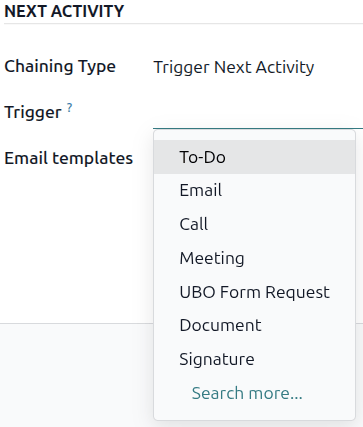
Si selecciona Activar la siguiente actividad en el campo Tipo de encadenamiento, el campo de abajo cambiará a Activador. Desde el menú desplegable del campo Activador seleccione la actividad que se debería iniciar una vez que esta actividad se complete.
Email templates
Select or create an email template to be suggested when the activity is added to an opportunity. The template will appear alongside the activity in the chatter and can be sent as-is or edited by a user.
Seguimiento de actividades
To keep the pipeline up to date with the most accurate view of the status of activities, as soon as a lead is interacted with, the associated activity should be marked as Done. This ensures the next activity can be scheduled as needed. It also prevents the pipeline from becoming cluttered with past-due activities.
El flujo es más efectivo cuandose mantiene actualizado y preciso en las interacciones que está rastreando.
Planes de actividad
Activity plans are preconfigured sequences of activities. When an activity plan is launched, every activity in the sequence and any activities set to trigger off of activities within the sequence are scheduled automatically.
To create a new plan, navigate to . Click New at the top-left of the page to open a blank Lead Activity Plans form.
Enter a name for the new plan in the Plan Name field. On the Activities To Create tab, click Add a line to add a new activity.
Seleccione un Tipo de actividad desde el menú desplegable. Haga clic en Buscar más para ver la lista completa de tipos de actividades disponibles, o para crear uno nuevo.
Next, in the Summary field, either leave this blank to use activity’s Default Summary or enter a new summary of what the activity entails. Entering a new summary does not overwrite an existing Default Summary. The contents of this field are included with the scheduled activity, and can be edited later.
Seleccione una de las siguientes opciones en el campo Asignación:
Ask at launch: Activities are assigned to a user when the plan is scheduled. By default, they will be assigned to the user creating the activity, even if they’re not the user responsible for the opportunity the activity is being created on.
Default user: Activities are always assigned to a specific user.
Si seleccionas Usuario por defecto en el campo Asignación, elige un usuario en el campo Asignado a.
Truco
Los planes de actividad pueden incluir actividades asignadas a un usuario por defecto y usuarios que se indican al lanzamiento.
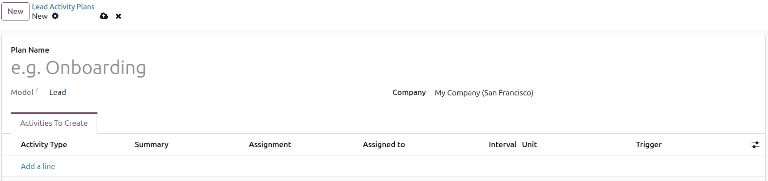
Next, configure the timeline for the activity. Activities can be scheduled to occur either before the plan date or after. Scheduling activities before the plan date can be useful for activities scheduled in the future that require some preparation beforehand. Use the Interval and Units fields to set the deadline for this activity. Lastly, in the Trigger field, select whether the activity should occur before or after the plan date.
Example
Un plan de actividad se crea sobre todo para gestionar leads de alta prioridad, específicamente, leads a los que se debería contactar rápidamente y se debe planificar una reunión dentro de los próximos días para el primer contacto. El plan se configura con las siguientes actividades:
Enviar correo electrónico dos días antes de la fecha del plan
Reunión de cero días antes de la fecha del plan
Hacer un presupuesto tres días después de la fecha del plan
Subir documento tres días después de la fecha del plan
Dar seguimiento cinco días después de la fecha del plan
Esto establece la fecha del plan como la fecha límite de una reunión, que es el objetivo del plan. Antes de esa fecha, hay un tiempo de tolerancia para contactar al cliente y preparar la reunión. Después de esa fecha, el comercial tiene tiempo para crear un presupuesto, subir el documento y hacer el seguimiento.
Repita estos pasos para cada actividad que se incluya en el plan.
Use an activity plan
To use an activity plan with a CRM opportunity, navigate to and click on the Kanban card of an opportunity to open it.
Above the opportunity’s chatter, click Activity to open the Schedule Activity pop-up window.
In the Plan field, select the desired activity plan to launch from the section above the individual activities. This generates a Plan Summary, listing out the activities included in the plan. Select a Due Date using the calendar popover. This automatically updates the Plan summary with deadlines based on the intervals configured in the activity plan.
Select a user in the Responsible field. This user is assigned to any of the activities on the plan that were configured with Ask at launch in the Assignment field.

Click Schedule. The details of the plan are added to the Planned Activities section of the chatter, in addition to each of the activities that make up the plan.

Ver también