AI agents
An AI agent is a smart virtual assistant in Odoo that can understand natural language, perform tasks, and assist users by interacting with Odoo tools. Agents are a core component of the AI structure in Odoo. Each agent has a defined purpose, prompt, and a set of topics and tools that guide its behavior.
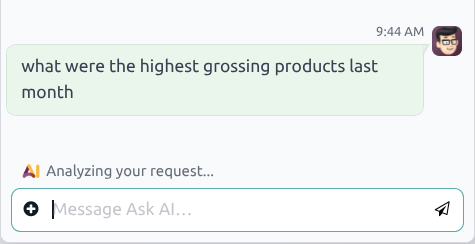
When interacting with an AI agent, the conversation interface may display intermediate status messages while a request is being processed.
These messages reflect the current step of the interaction, such as analyzing the request, consulting sources, or preparing an action, before the final response is generated.
Agents are formed of two main components, Topics and Sources.
Topics are the instructions and roles that inform the agent of what tasks they need to complete. Tools are assigned to topics, and are the actual functions the agent can utilize to perform tasks.
Sources provide the agent with the information they need to complete their tasks.
Important
While many AI features can be used in Odoo without the AI application, creating and customizing agents requires that the AI application is installed.
AI prompts in Odoo
Before working with AI agents, it is important to understand some basic concepts regarding AI prompts.
An AI prompt is a set of written instructions or context given to an AI model that tells it how to respond to a request, or what role to take. Prompts can define:
the tone, style, and persona of the AI model
the scope of what the model can do
the type of output expected from the request
In Odoo, each AI agent is assigned a System Prompt, which defines the agent’s overall role, purpose, and behavior. It acts as the core mission statement of the agent, and drives all interactions. During a conversation, the system prompts and topic instructions are continuously applied. They influence how the agent interprets messages, selects tools, uses sources, and determines whether additional actions are required before responding.
Each Topic also includes its own prompt-like component, called Instructions. Instructions are topic-specific guidelines that refine how the agent behaves within a certain context or workflow, and how it interacts within the Odoo framework.
Instructions often include:
A purpose, or what the topic covers.
Rules or constraints for the agent to follow when assigned this topic.
Step-by-step workflows for how to complete a specific action.
Technical details needed to complete any actions.
Agent structure
Topics
Topics are a collection of instructions and tools that define how an agent behaves within a specific context. Essentially, the topics define what an agent can do within the database. Topics guide conversations, telling the agent what it can do, how it can do it, and when it should do it.
Important
If an agent is not assigned any Topics, it is only able to provide information. It cannot complete tasks or make changes to the database.
Within each topic is a detailed prompt, which provides the agent with more in-depth instructions on how to perform the tasks associated with that topic, define the boundaries of its behavior, and determine how it should interpret user intent. These prompts ensure that the agent follows a consistent reasoning pattern and uses the appropriate tools to generate accurate, context-aware responses.
The following topics are preconfigured in the AI app:
Natural Language Search: Supports the interpretation of a user query to open the appropriate Odoo view with a set of tools necessary to perform the search. Natural language queries can also include time-based grouping instructions. This allows agents to group results by time intervals such as day, month, or year when querying records.
Information retrieval: A collection of tools to retrieve information about the models.
Create Leads: A collection of tools to support automated lead creation. This topic is only available if the CRM app is installed.
Within each topic is a set of Instructions, which act as a prompt and provide guidance for the structure of the interaction, and one or more AI Tools, which indicate the functions the agent can perform.
Tools
Tools are the functions the agent can perform in Odoo. These include actions like creating a lead or opening a view. Tools extend the purpose of the agent beyond conversations, they enable real actions. The available tools in a database vary based on the applications installed. Multiple AI Tools can be assigned to a single topic.
Sources
Sources are the data the agent can refer to when generating responses or completing tasks. Sources are indexed so the agent can retrieve relevant information when a user asks a question.
Example
An agent designed to answer customer support questions has Knowledge articles included as sources, which include frequently asked questions.
Sources can be in the following formats:
PDFs
Weblinks
Documents (uploaded in the Documents application)
Knowledge app articles
Important
If the Restrict to Sources option is enabled on an agent, the agent can only utilize information from the uploaded and active sources.
Uploaded files
During a conversation with an AI agent, additional context can be provided by uploading files. Files are temporarily treated as sources for the ongoing discussion. The agent can use their content to answer questions, summarize information, or extract relevant details.
The provided files only influence the current conversation, unless they are explicitly added as sources on the agent.
To attach a file in a conversation, click the (plus circle) icon in the message window, then click Attach Files. In the file explorer window, select one or more files to attach, then click Open.
Example
A manager finds a receipt for supplies and is unsure whether it has already been submitted to the Expenses app for reimbursement. They open a conversation with the Ask AI agent and enter the following prompt:
Can you open the expense that matches this receipt?
They attach the receipt to the message. After the agent analyzes the attachment, it opens the view to the correct expense.

Gain insights from previewed files
When a document is open in preview mode, AI agents can use the content of the previewed file as context for the conversation.
First, navigate to the app and click a document to preview it. Click the AI icon at the top of the page to open the Ask AI chat window. From here, click one of the default prompts to use them, or enter a custom one in the message window.
In this case, the agent’s responses are grounded in the file currently being previewed, in combination with any other sources assigned to the agent.
Create a new agent
To create a new AI agent, navigate to the app and click New. Enter an Agent Name, then add a short description, if desired.
Tip
Before creating a new agent, it is recommended to have a clear use case in mind. This helps when writing out the System Prompt, and assigning the Topics and AI Tools.
Select an LLM Model from the drop-down menu.
Important
Odoo supports multiple versions of both ChatGPT and Gemini.
Next, select a Response Style. This manages the overall tone the agent uses when responding to an inquiry. Choose from one of the following options:
Analytical: more mathematical, this option is more likely to give the same answer to the same question. This option is recommended for situations where accuracy is more important than diplomacy.
Balanced: a mix of both Analytical and Creative. This is an excellent option for situations with outside customers who would benefit from both accuracy and diplomacy.
Creative: approaches questions in a more human way, changes answers every time to react to the conversation. This option works best for times when the solutions often vary based on the situation.
Click the Restrict to Sources checkbox to limit the agent to only respond based on the provided resources.
Next, select one or more Topics for the agent. As explained above, Topics include both instructions and tools that guide the agent in helping users complete a task.
Enter a System Prompt with detailed instructions for the agent as to their role and responsibilities.

Tip
The specificity and length of the System Prompt can vary, depending on the use case for the agent. Use the preconfigured agents as an example of the possible information.
If Sources are needed for the agent, scroll to the Sources tab, then click Add a source.
Select a format:
PDFs: Select the appropriate file from the explorer window, and click Open
Weblinks: Paste the URL. Multiple links can be added at once, paste one link per line. Click Save.
Documents (uploaded in the Documents application): Click the checkbox next to one or more documents, then click Select.
Knowledge app articles: Click the checkbox next to one or more articles, then click Select.
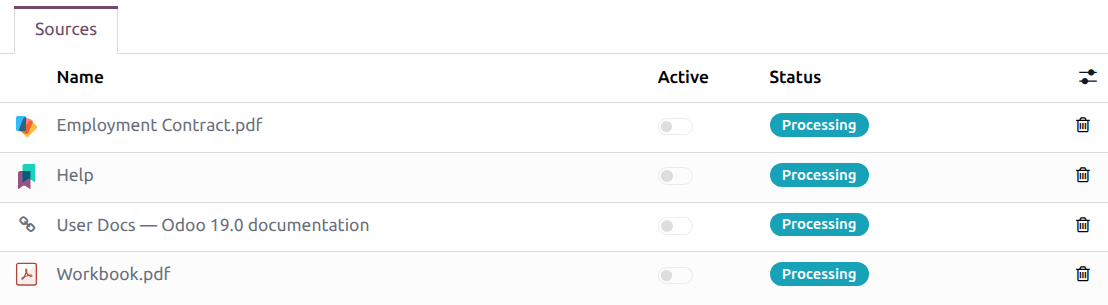
Once a source is added, the Status field updates to reflect its current status. The source is ready when the status changes from Processing to Indexed. Slide the Active toggle to activate the source.
Important
If a source fails to upload, it could be the result of a conflict with the selected LLM model.
Click the Test button to open a conversation window and test the new agent.
Manually reprocessing sources
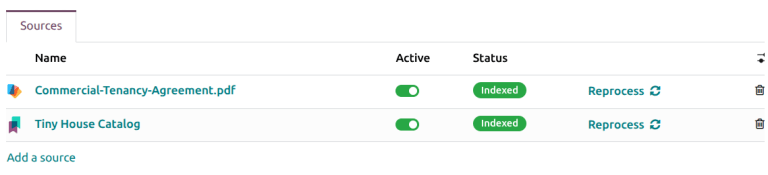
If the content of a source changes after it has been indexed, it may be necessary to reprocess the source so that agents use the most recent information. Reprocessing can be triggered manually and ensures that updated documents, links, or knowledge articles are reflected in future agent responses.
To reprocess a source, navigate to the app. Select an AI agent, and on the kanban card, click the (vertical ellipsis) icon, then click Configuration.
On the Sources tab, click Reprocess next to any source that should be updated.