
Two-factor authentication
Two-factor authentication (2FA) is a security measure that helps prevent unauthorized access to user accounts.
Practically, 2FA means storing a secret in an authenticator, usually on a mobile phone, and exchanging a code from the authenticator when logging in.
This means an unauthorized user would need to guess the account password and have access to the authenticator, which is a more difficult proposition.
Note
Some governments, such as the Australian government, require 2FA. For these fiscal localizations, it is not possible to deactivate 2FA.
Requirements
Important
These lists are just examples. They are not endorsements of any specific software.
Phone-based authenticators are the easiest and most commonly used. Examples include:
Password managers are another option. Common examples include:
Note
The remainder of this document uses Google Authenticator as an example, as it is one of the most commonly used. This is not an endorsement of the product.
Two-factor authentication setup
After selecting an authenticator, log in to Odoo, then click the profile avatar in the upper-right corner, and select My Preferences from the resulting drop-down menu.
Click the Security tab, then click Enable 2FA.

This generates an Access Control pop-up window that requires password confirmation to continue. Enter the Odoo account password, then click Confirm Password. Next, a Two-Factor Authentication Activation pop-up window appears, with a QR code.
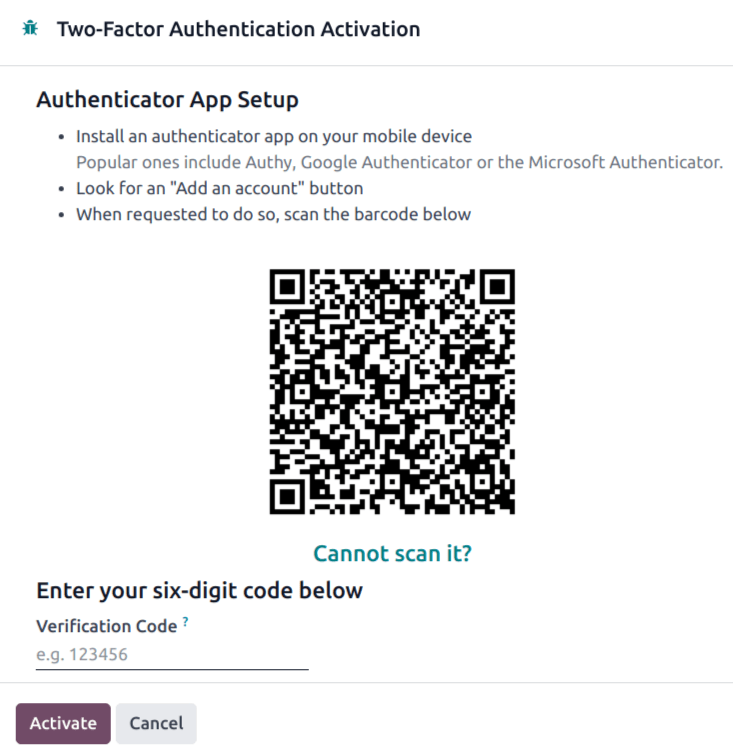
Using the desired authenticator application, scan the QR code code.
Tip
If scanning the screen is not possible (e.g., the setup is being completed on the same device as the authenticator application), click the provided Cannot scan it? link, or copying the code to set up the authenticator manually, is an alternative.

Afterwards, the authenticator should display a verification code.
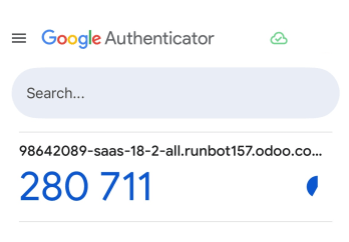
Enter the code into the Verification code field, then click Enable Two-Factor Authentication.
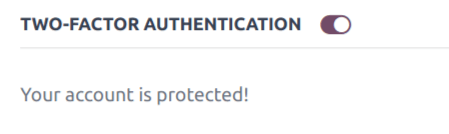
Logging in
To confirm 2FA setup is complete, log out of Odoo.
On the login page, input the username and password, then click Log in. On the Two-factor Authentication page, input the code provided by the chosen authenticator in the Authentication Code field, then click Log in.

Danger
If a user loses access to their authenticator, an administrator must deactivate 2FA on the account before the user can log in.
Enforce two-factor authentication
To enforce 2FA for every user in the database, navigate to the app. In the Permissions section, tick the checkbox labeled Enforce two-factor authentication. Then, use the radio buttons to choose whether to apply this setting to Employees only or All users.
Note
Selecting All users applies the setting to portal users in addition to employees.
Click Save to commit any unsaved changes.

Note
If users are frequently required to log in again and complete two-factor authentication, it may be due to session or inactivity timeout policies configured for one or more of their user groups.
Administrators can configure these policies using the Timeouts settings available on user groups when the auth_timeout module is installed. See Session and inactivity timeouts for more information.