
BioTime integration
BioTime is a third-party attendance application that, when integrated with Odoo, retrieves attendance punches, or records, from a BioTime server. These are converted into attendance records, eliminating the need to record employee check-ins and check-outs manually in the Attendances app.
Important
The integration is built for BioTime 8.5 and 9.0 APIs. This integration connects to the BioTime software, not to ZKTeco terminals. Device compatibility depends on BioTime itself. Check the official BioTime supported device list for the installed version before adding a new terminal.
Installation
To configure the database, a module must be installed first. Open the Apps application, remove
the default filter in the search bar, and search for ZKTeco. Install the Attendances
ZKTeco BioTime module.
Configuration
To configure the BioTime integration, navigate to . Scroll to the ZKTeco BioTime section and configure the following fields:
Company Name: Enter the company name that is registered on the BioTime server. This is used to identify which company’s data to retrieve if the server hosts more than one.
Server URL: Enter the full URL of the ZKTeco BioTime server.
Email: Enter the email address used to authenticate the BioTime server.
Password: Enter the password used to authenticate the BioTime server.
Transaction Fetch Window: Enter the number of days of punch data fetched from the BioTime server on each sync. Set the window of time wide enough to cover the sync interval, so no punches are missed if a sync runs late.
Check-out Lookback: Enter the number of days to search backward for an open check-in when matching a check-out. If none is found within that window, the check-out is left unmatched.
Once the fields are filled in, click Save, then click the Test Connection button in the ZKTeco BioTime section. After a successful connection, data can be fetched.
Fetch transactions
The devices connected to the BioTime server are referred to as terminals. Each attendance record identifies which terminal generated the transaction.
BioTime stores each punch as a single check-in or check-out record, while an Attendances app record in Odoo combines both check-in and check-out information in a single record. For this reason, punches retrieved from BioTime are first stored separately in the database before being converted into Attendances app records.
To view the fetched BioTime records, navigate to . Each ZKTeco Transaction record displays the following information:
Employee: The employee linked to the transaction. This is matched using the ZKTeco employee ID field in the Settings tab of the employee form. If no match is found, a warning appears in the Processing Note field.
Punch Time: The punch time recorded on the BioTime server, converted to the user’s time zone.
Type: Either
Check-In(mapped to a value of 0) orCheck-Out(mapped to a value of 1) on the BioTime server. Any other value is not supported, and a warning notes that a valid type must be selected before processing.Terminal: The terminal, or device, that generated the transaction.
Attendance: The attendance record generated once the transaction is processed. This field is empty until processing succeeds.
Is Processed: Indicates whether the transaction has been converted into an attendance record.
Processing Note: Displays a warning when the transaction cannot be matched or processed, for example when no matching employee or no valid type is found.
Zkteco Transaction: The ID of the transaction on the BioTime server.
Tip
Transactions automatically sync every 12 hours. To fetch them manually at any time, click Fetch from the ZKTeco Transactions dashboard.
Process transactions
Processing the ZKTeco transactions converts them into Attendances app attendance records. How a transaction is handled depends on its type.
Check-in transactions create a new attendance record, unless the employee already has an open attendance record (a check-in with no matching check-out).
Check-out transactions are linked to the earliest open attendance record found within the Check-out Lookback period as configured in the settings menu, using that record’s check-out time.
Note
An employee cannot have two open attendance records at the same time.
To process a transaction, select it and click Process. If processing fails, check the Processing Note field for the reason. Once the record is corrected, click Process again. If the punch data itself looks wrong or incomplete, click Re-Fetch to pull it again from the BioTime server before reprocessing. Both actions are available for a single transaction, or in bulk from the list view.
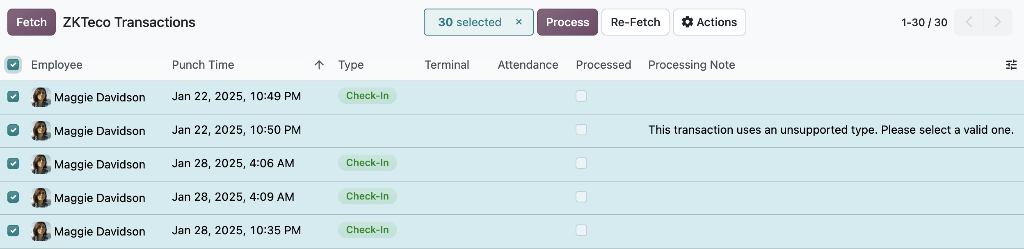
Example
In this example, a check-in transaction cannot be processed because an earlier attendance record is still open. The transaction on January 28 is not processed because an attendance record with a check-in on January 28 is already open. That record must be checked out before the employee can check in again.
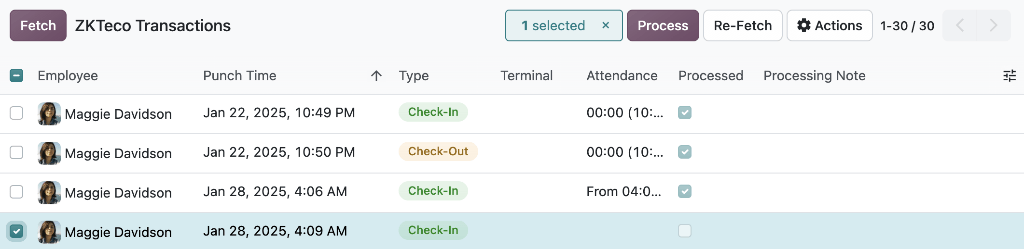
Once a ZKTeco Transaction is processed successfully, its associated attendance record appears in the transaction’s Attendance field, and the attendance record’s mode is set to BioTime, distinguishing it from attendance entered manually or through other check-in methods.
Important
A processed ZKTeco Transaction cannot be deleted while it remains linked to an attendance record. Delete the attendance record first.