Source analysis
Reporting is a critical tool used by recruiting departments to gain insights into the entire recruitment process.
Determining where applicants come from can provide information about which sources have the best results. This information is determined by the Source Analysis report. With this data, recruitment teams can better pivot their recruiting strategies to gain better applicants, in both quantity and quality.
Open report
To access the Source Analysis report, navigate to .
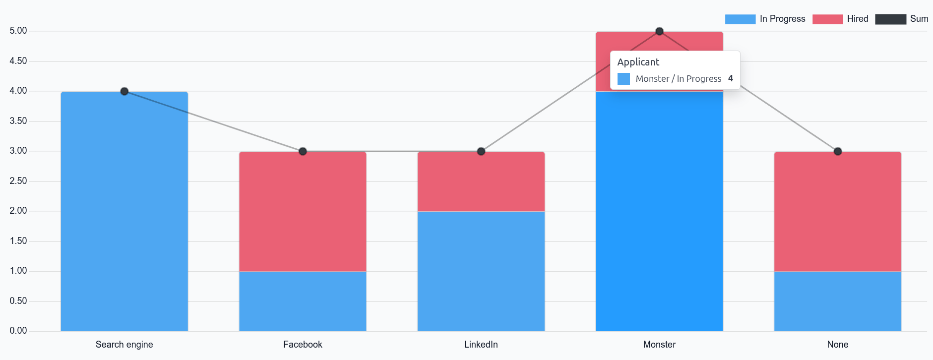
This presents the data for the last 365 days in a default (Stacked) (Bar Chart) view. It shows the amount of applicants by source and separated by status (In Progress, Hired, and Refused),
Hover the cursor over any color-coded section of a column to view the specific numbers for that status column.
Source effectiveness report
To identify which sources (e.g., job boards, social media, employee referrals, company website) produce the most hires, the pivot table view of the Source Analysis report can be configured to display further details.
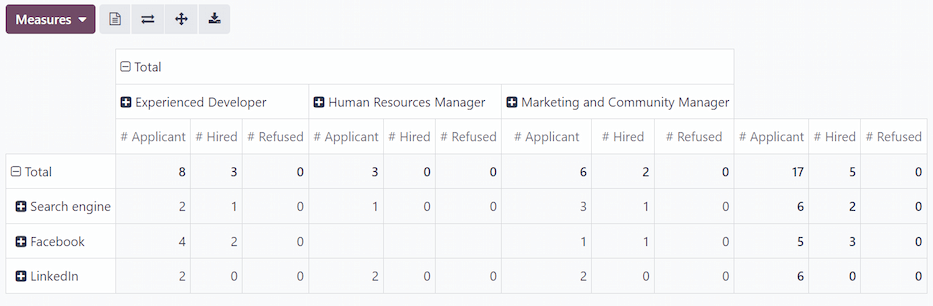
To view the Source Analysis report in a pivot table, click the (Pivot) icon in the corner. The data is presented in a pivot table, with rows populated by sources, and columns populated by stages.
To expand this chart to show what specific job positions the applicants applied to from each source, click the Total box above the columns to reveal a drop-down menu, and click Job Position.
Each column is then grouped by the job position, such as Accountant or Carpenter. Each job position displays a separate count for applications In Progress, Refused, or Hired, and an Applications column which displays the total count of all statuses.
Medium
Viewing the medium for the applicants can be beneficial to see which specific medium is more successful.
Mediums are the specific methods the applicant used to discover and then apply for job positions, such as a search engine, social media ad, email, banner, etc.
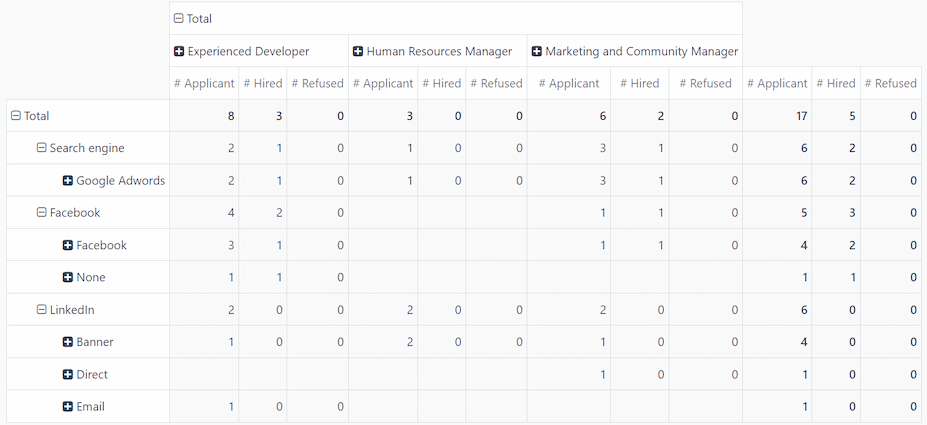
To further group the results by medium, click into one of the (Source) rows then click Medium in the resulting drop-down menu. The row presents the individual mediums relevant to that specific source.
Once Medium is selected for one source, clicking into another row automatically reveals the specific metrics for the mediums for that source.
Notitie
The only mediums that appear for a source are mediums that have been set on an applicant’s form. If a medium has not been set for any applicants, the medium does not appear in the drop-down rows beneath the source.
For example, if no applicants applied with the medium Google Adwords, that medium does not appear beneath the Search engine source row.